

By Team Cocoriko on Feb 11, 2026 3:10:58 PM
You can add an image to your question or answer choices to illustrate your question.
Add an image on the question
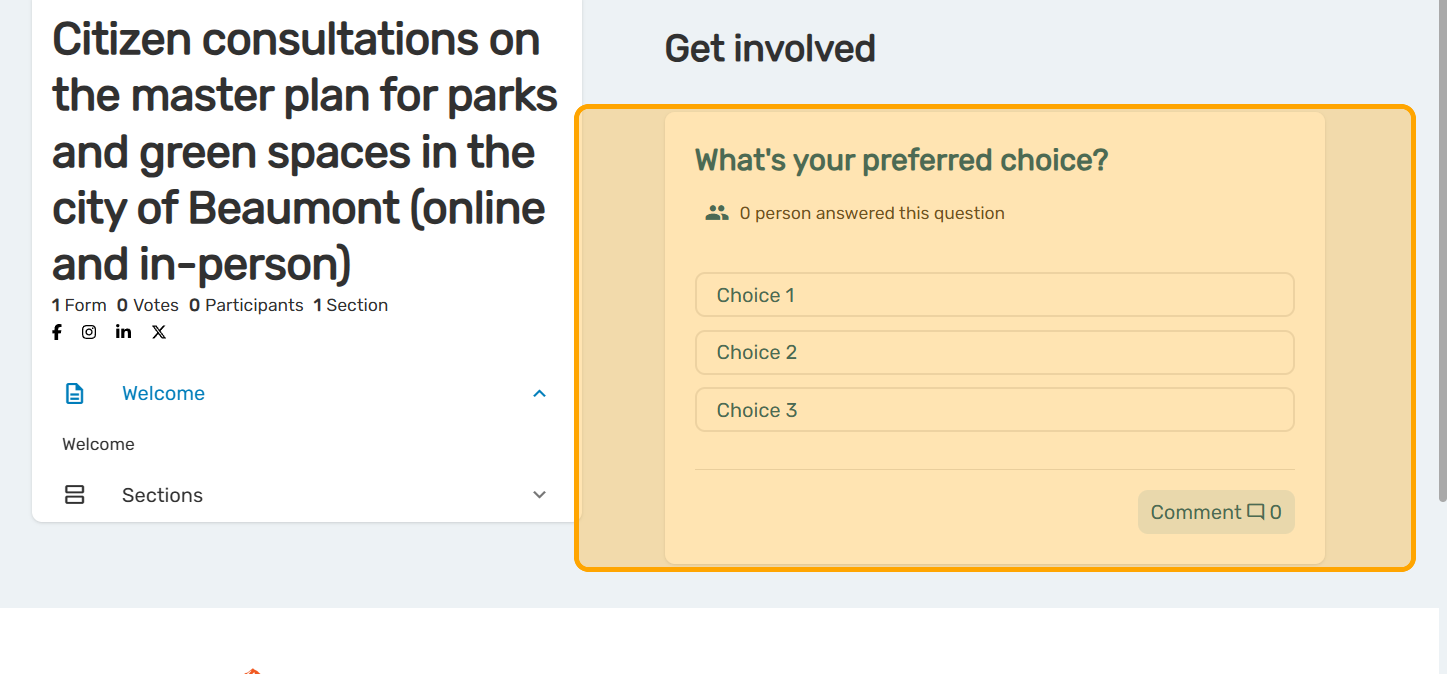
Before the update, the question has no image
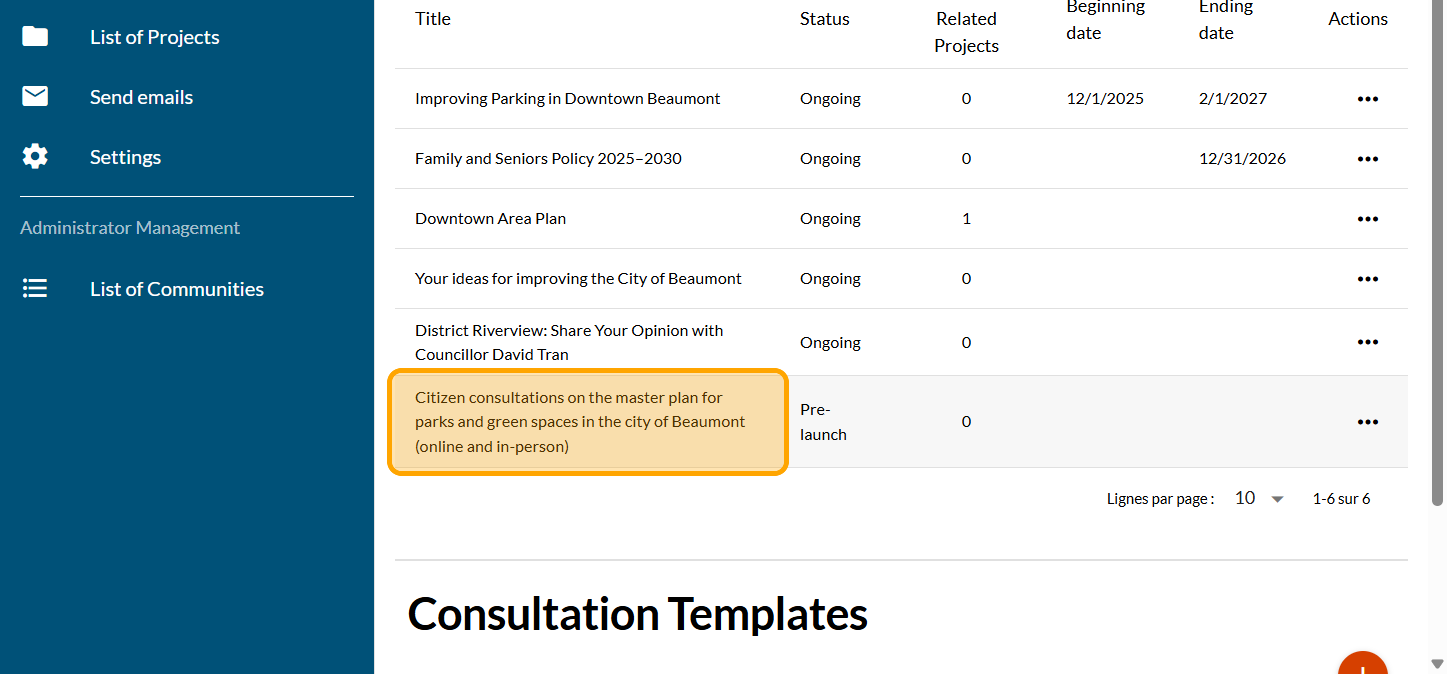
Click on your consultation
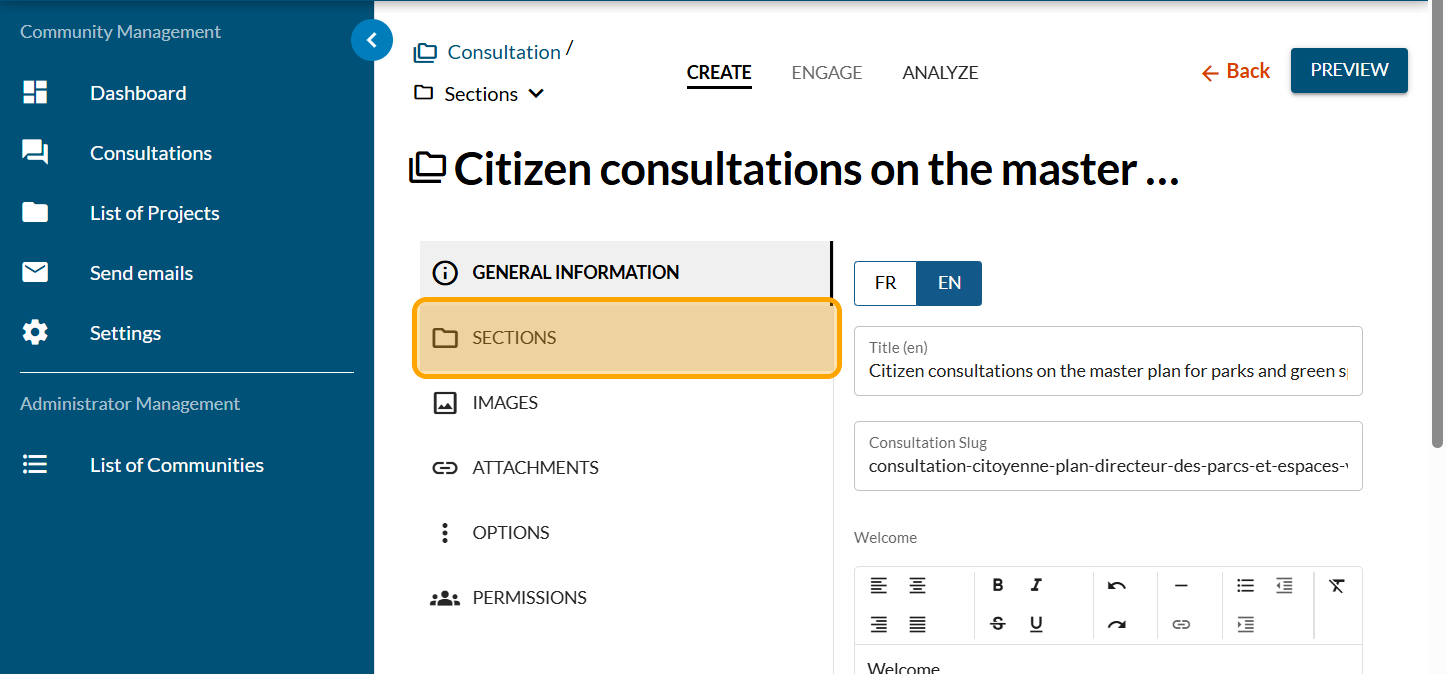
Click on "SECTIONS"
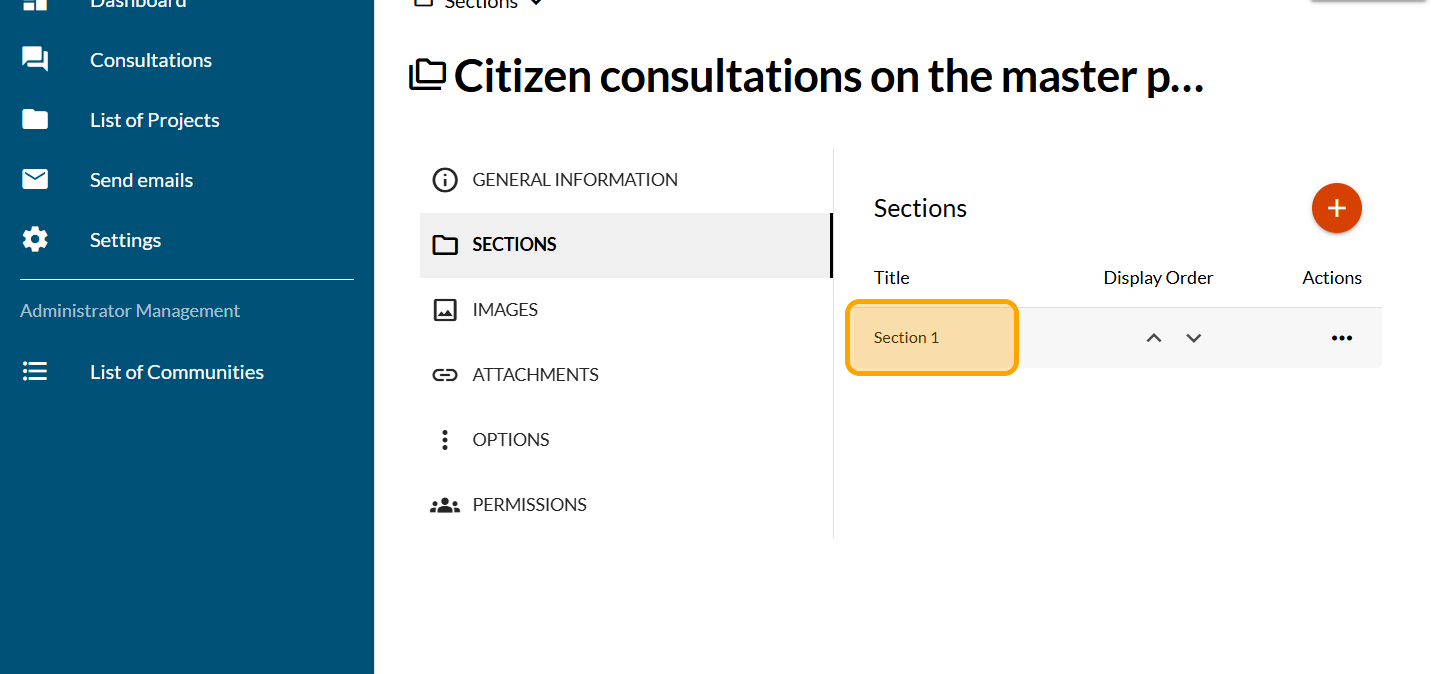
Click on the section you want to update
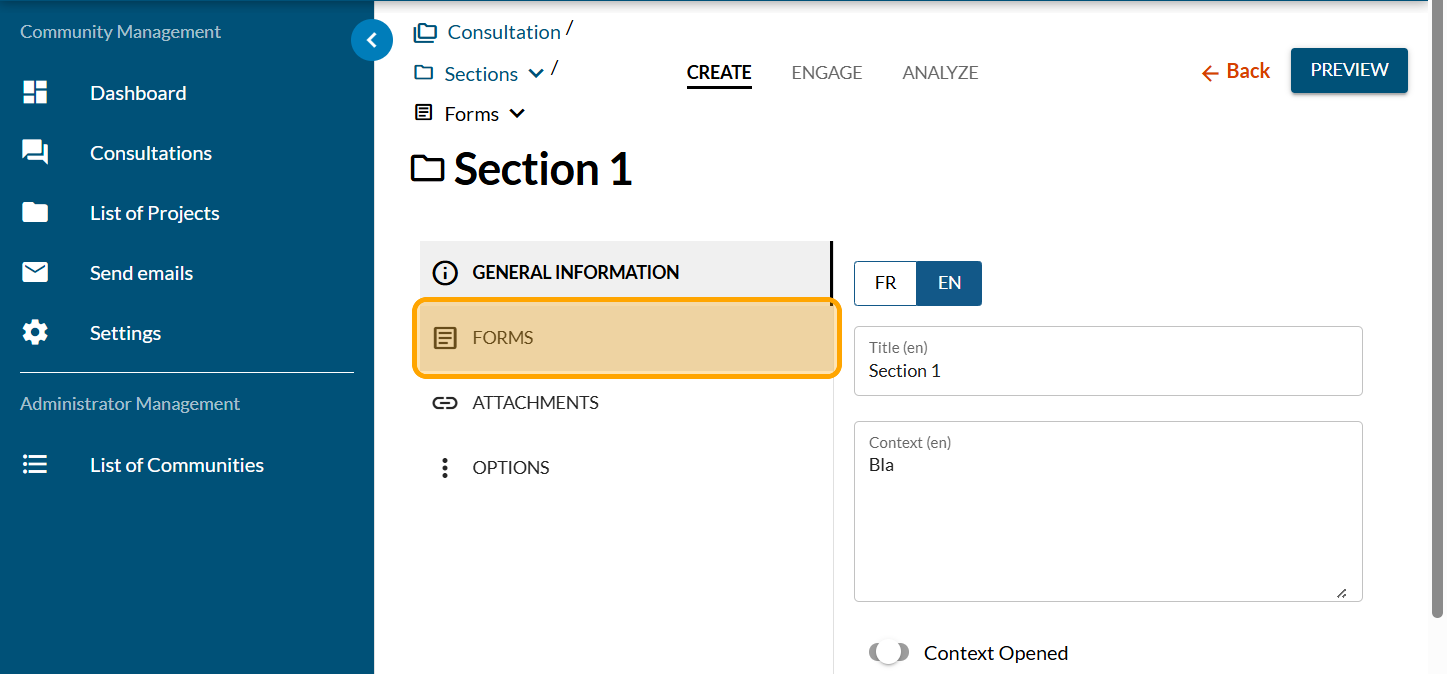
Click on "FORMS"
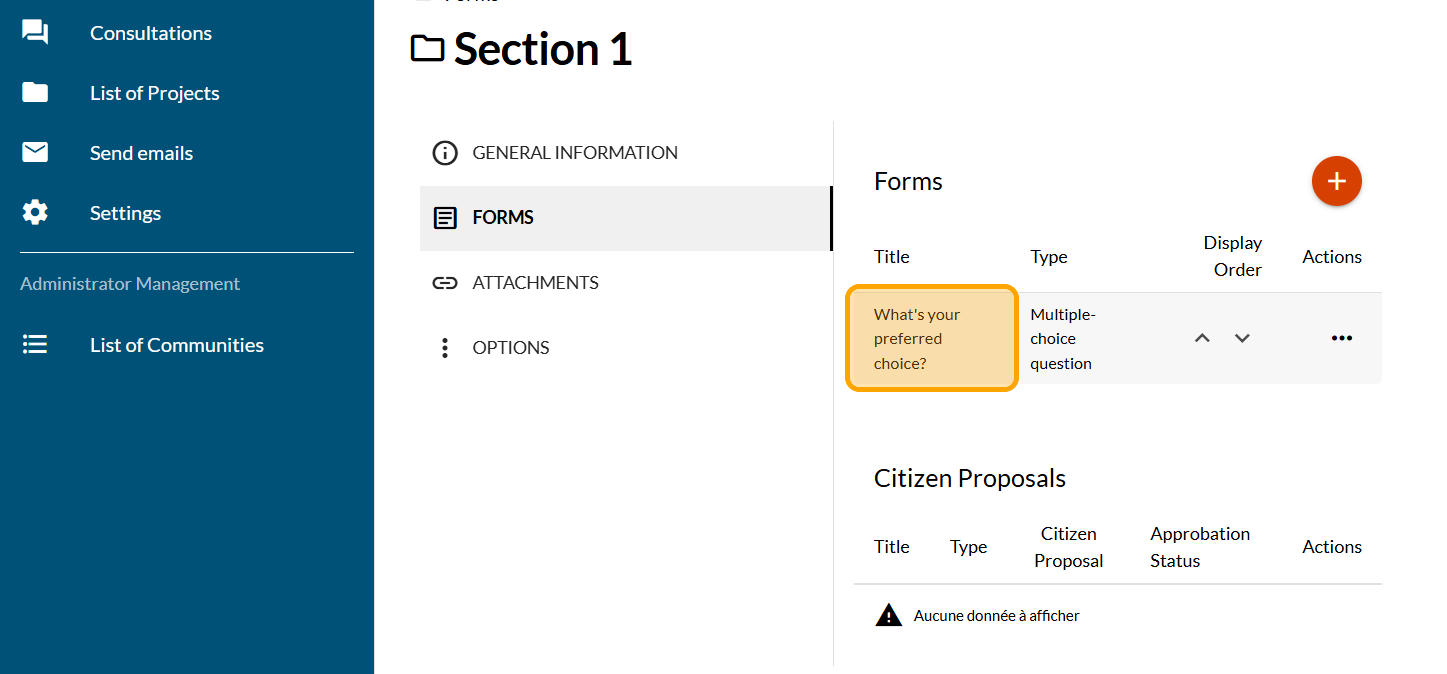
Click on the form/question you want to add pictures
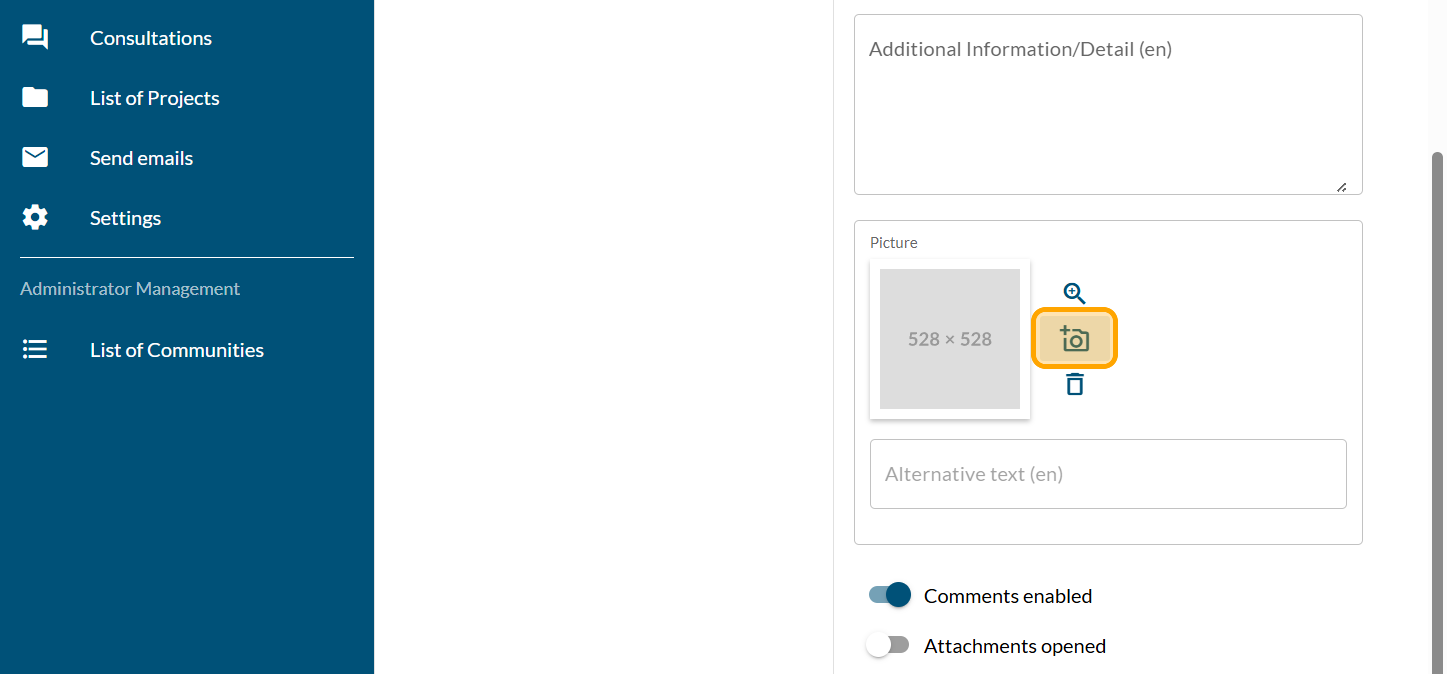
Click on the camera icon
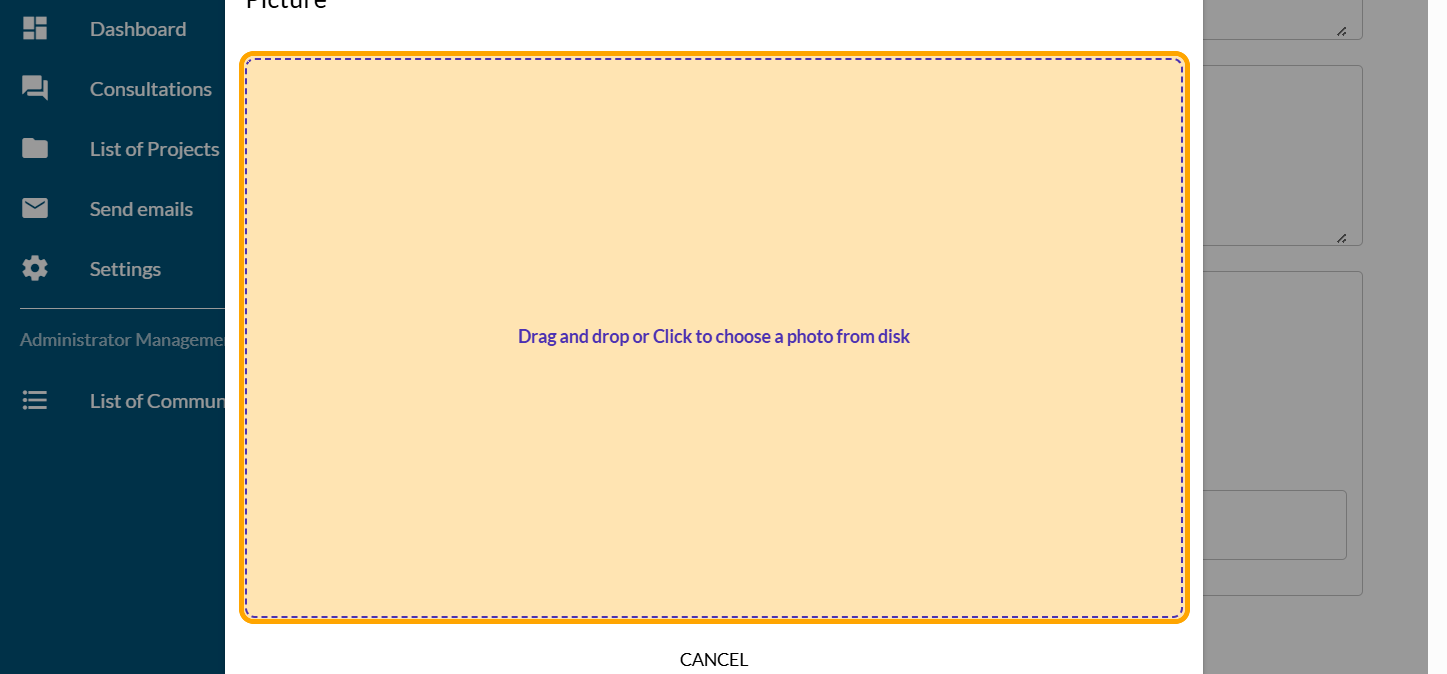
Click on "Drag and drop or Click to choose a photo from disk"
Reframe the picture in the zone available
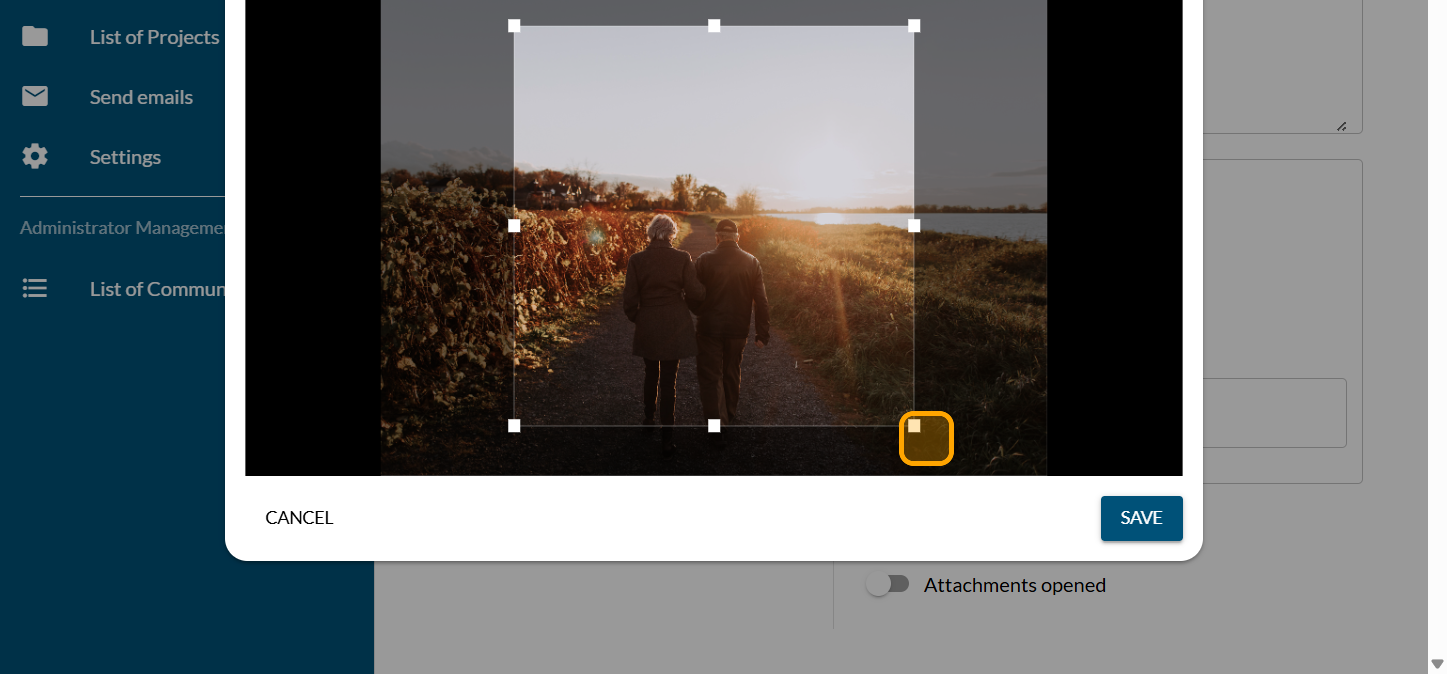
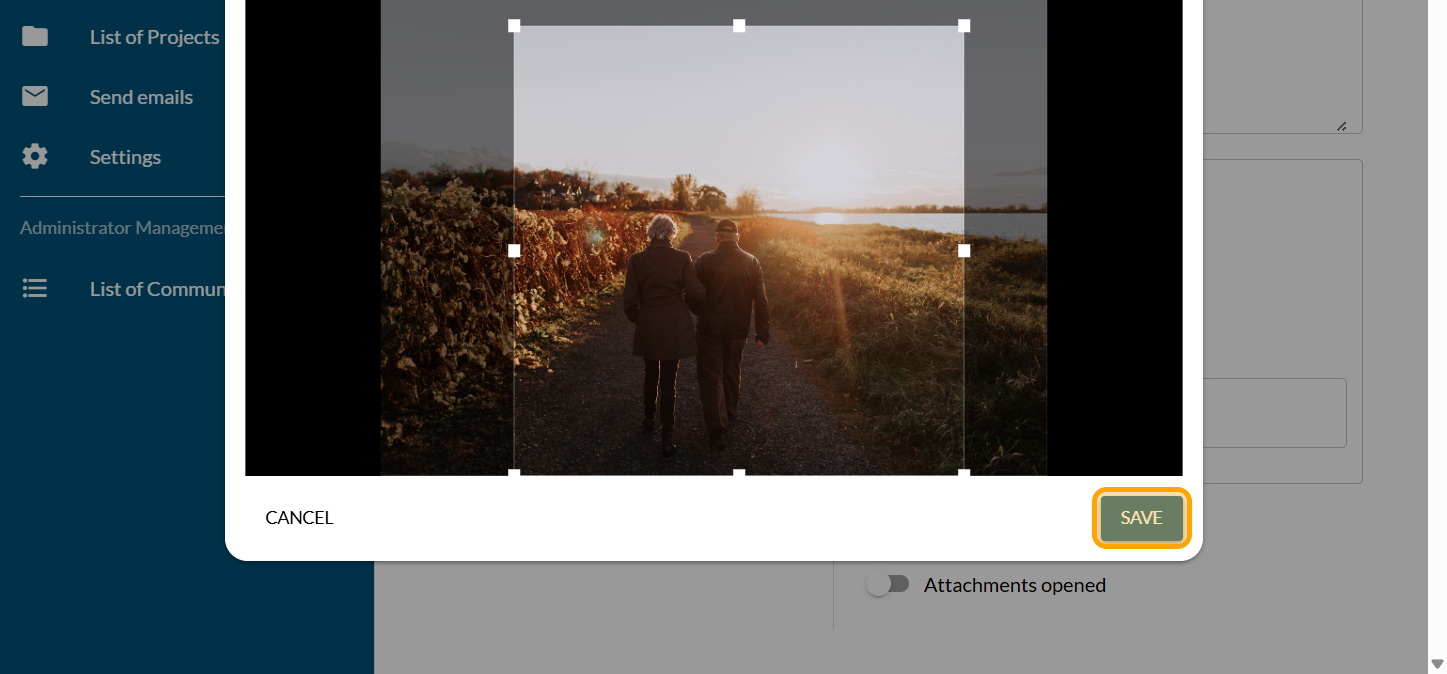
Click on "SAVE"
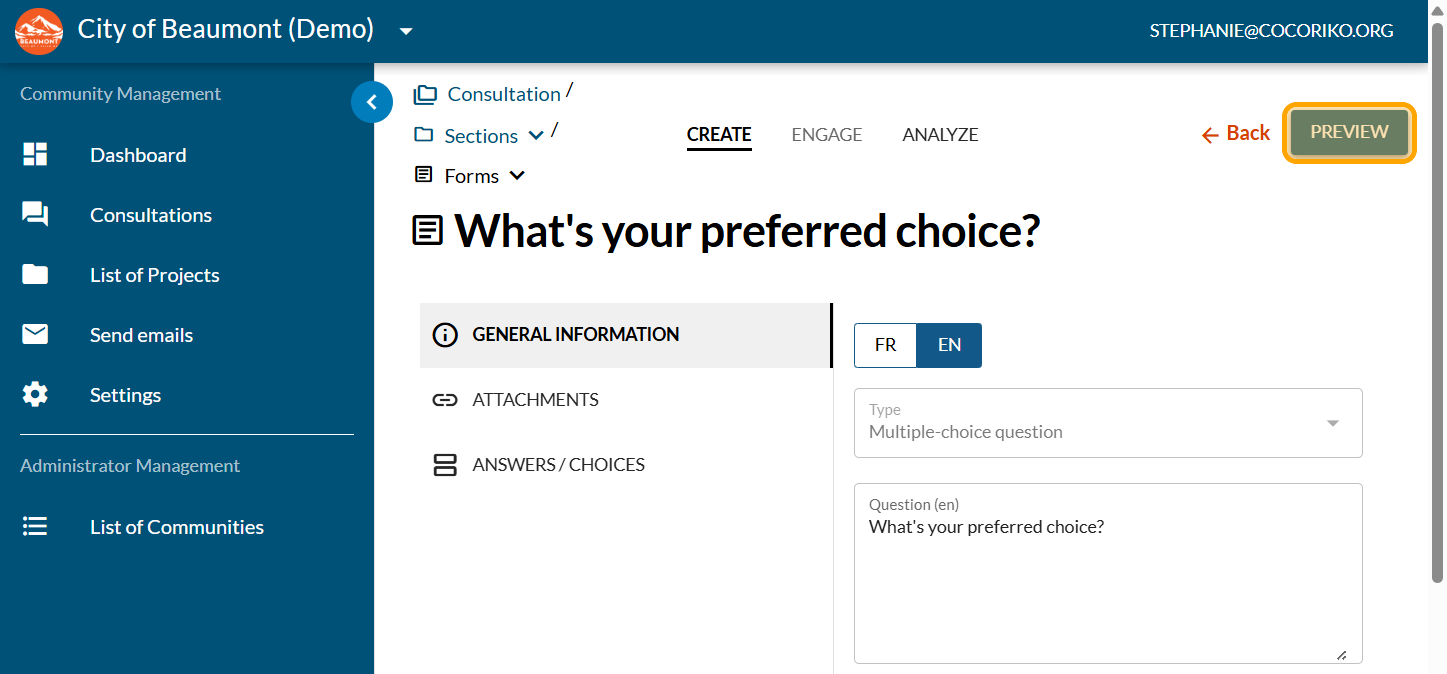
Click on "PREVIEW"
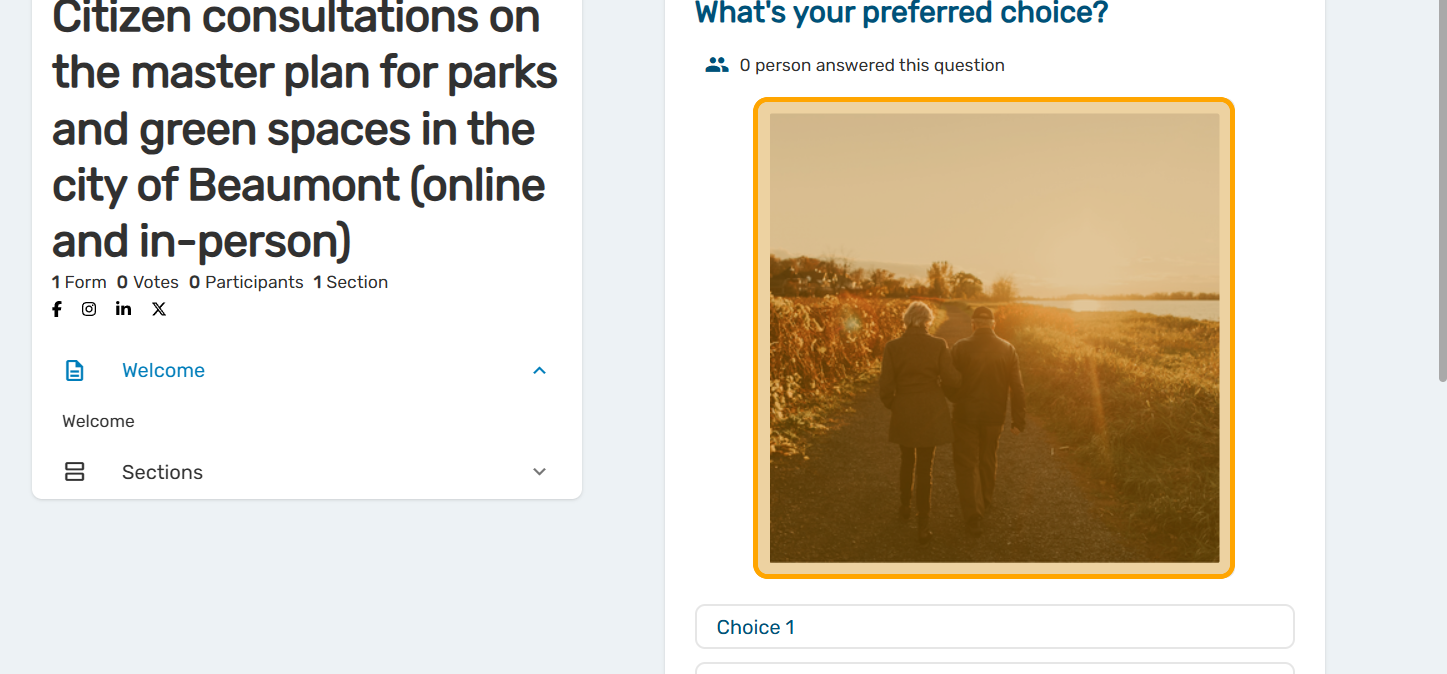
The photo is added to the question.
Add an image to the answer choices
In the administration interface, return to the question you want to edit. Click on "ANSWERS / CHOICES"
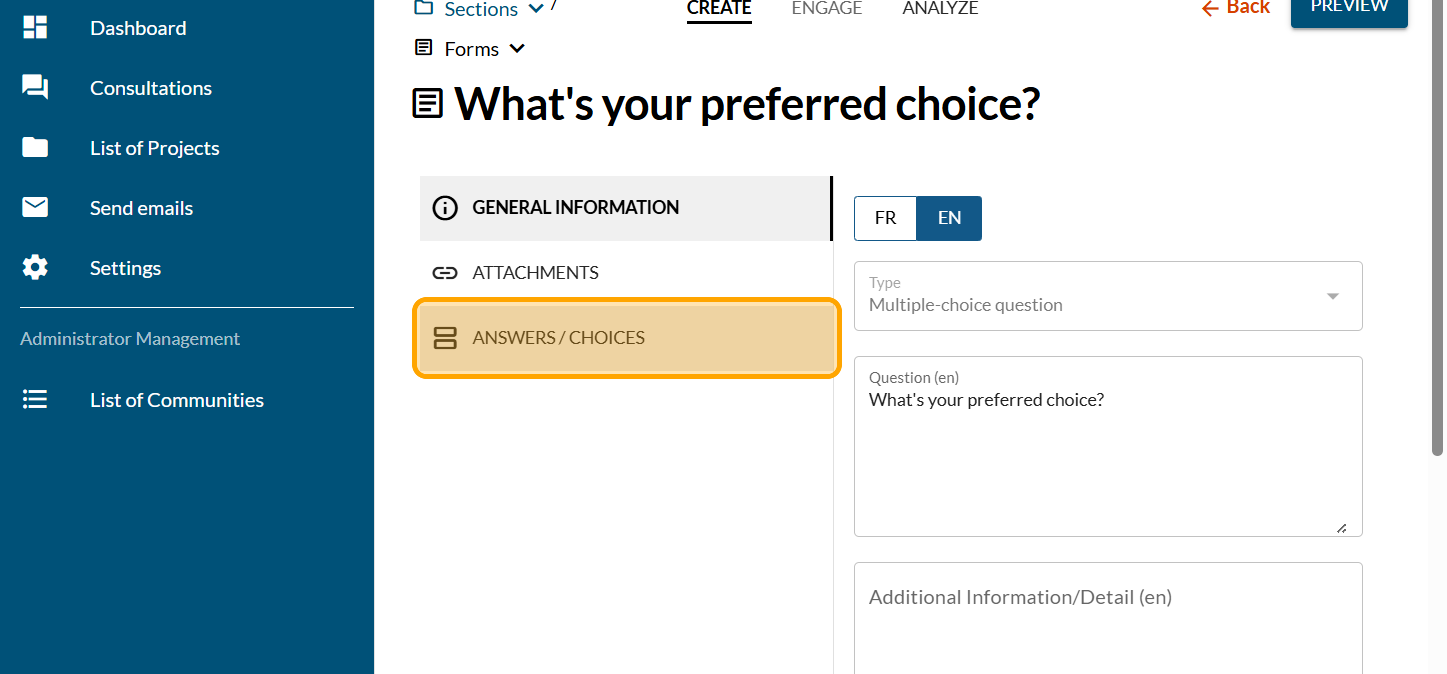
Click on "Choice 1"
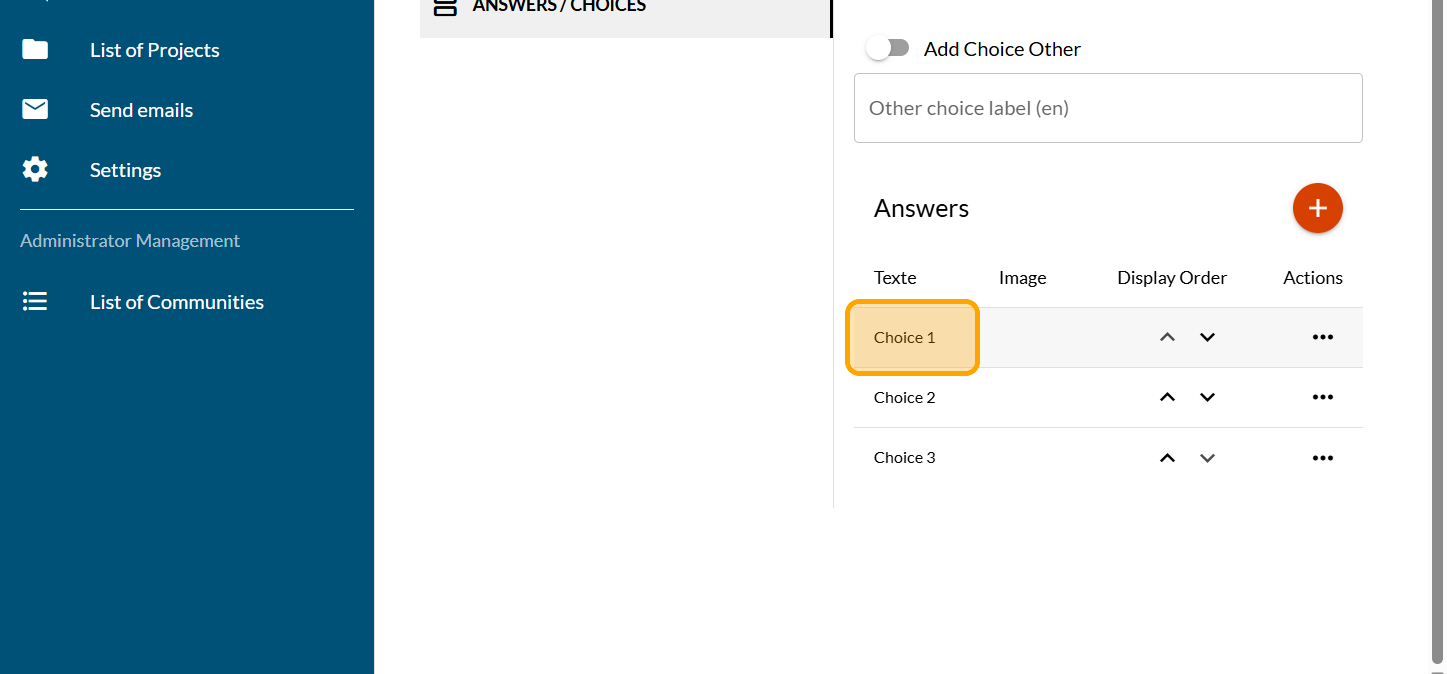
Click on the camera icon
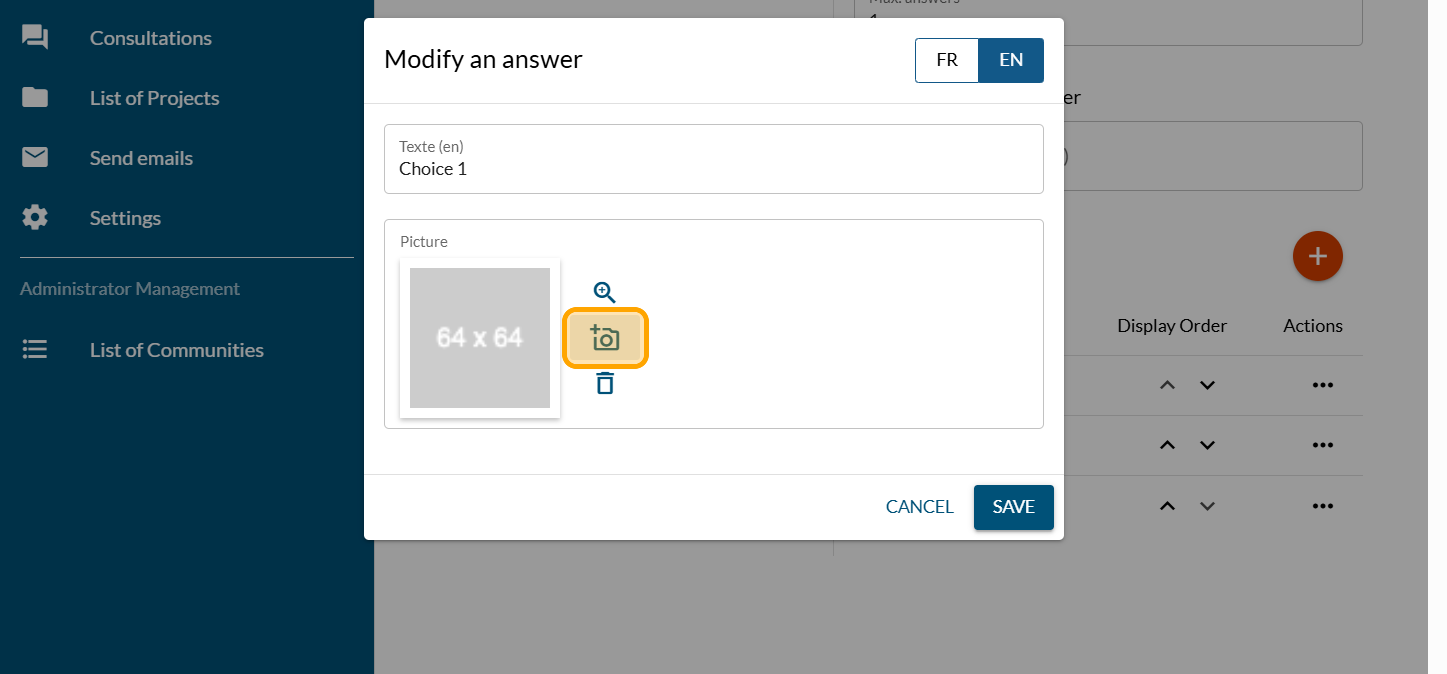
Click on "Drag and drop or Click to choose a photo from disk"
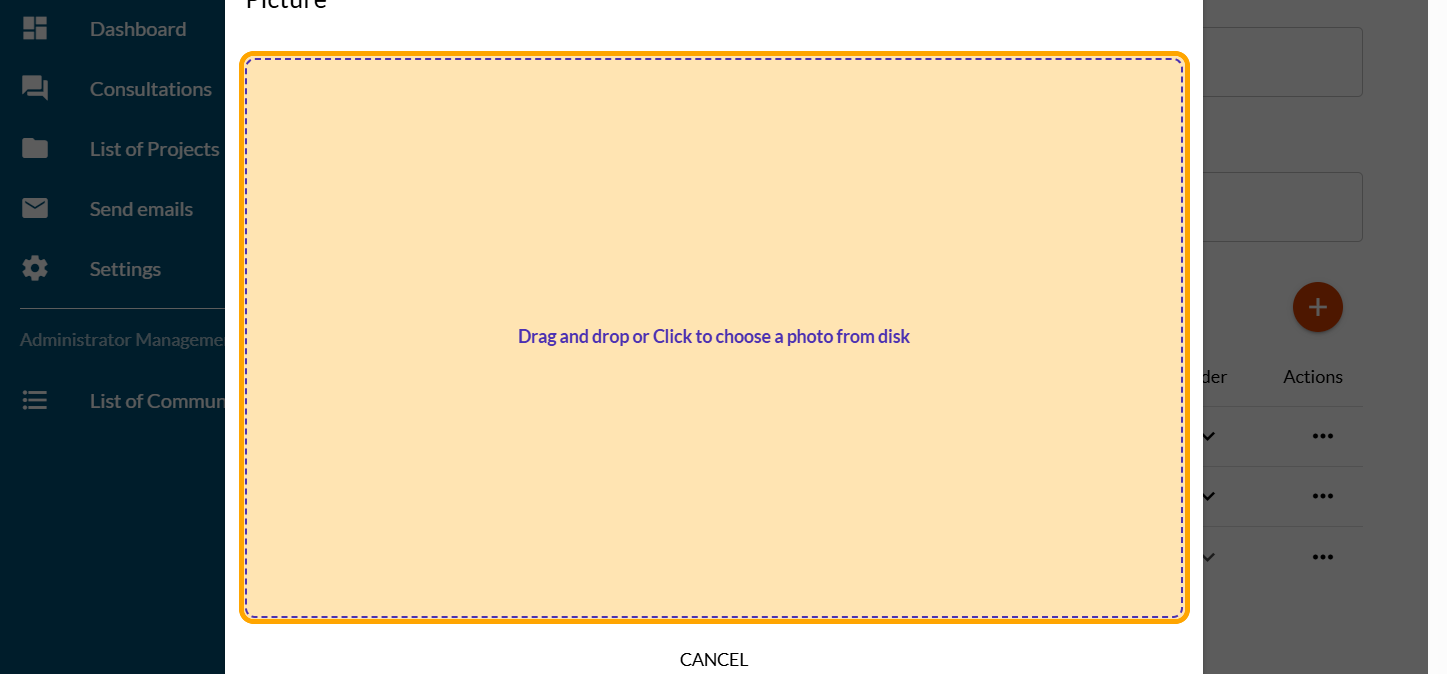
Reframe or reposition the picture in the zone
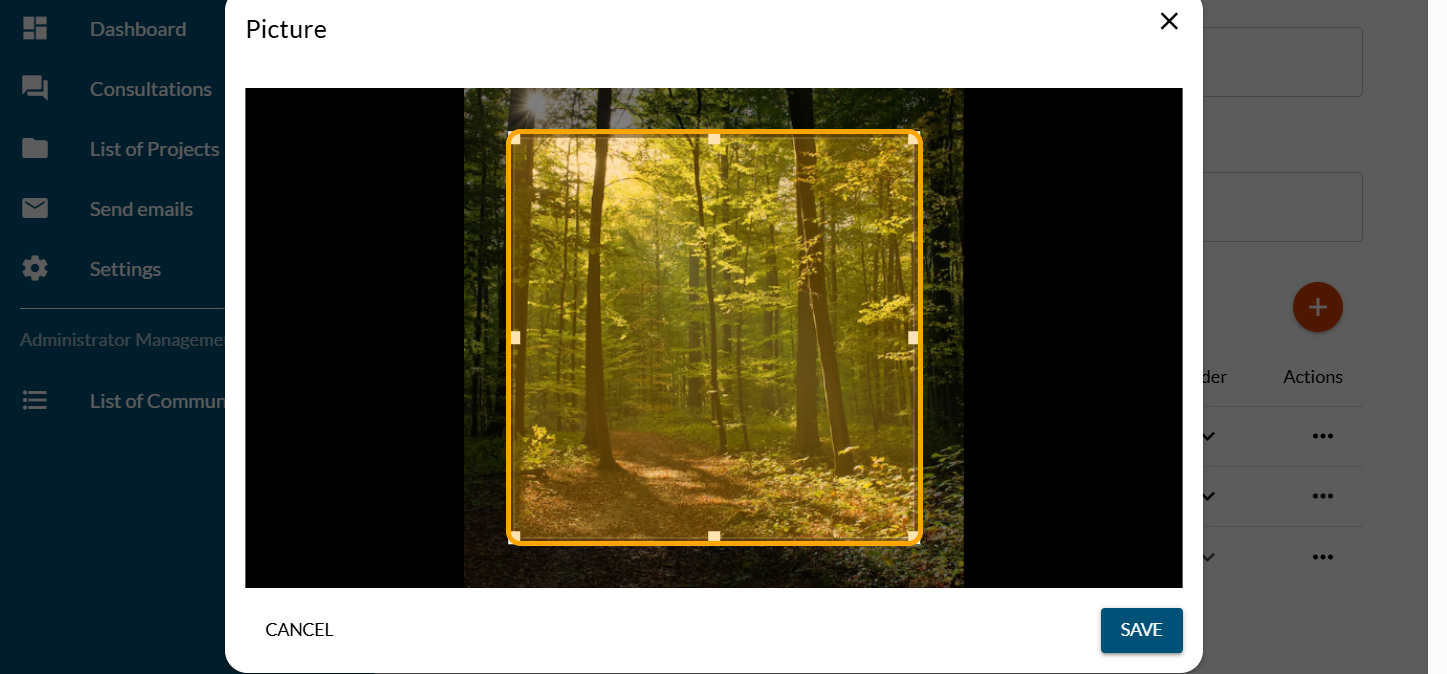
Click on "SAVE"
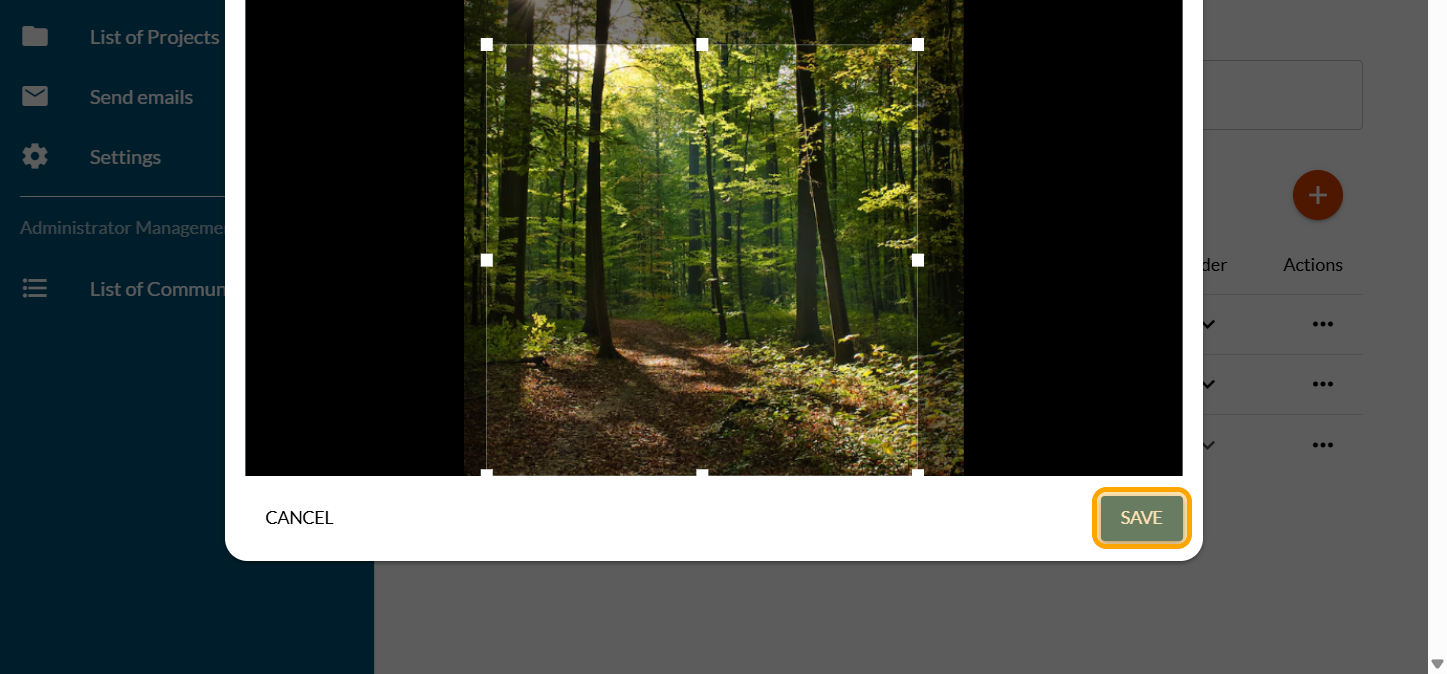
Click on "SAVE"
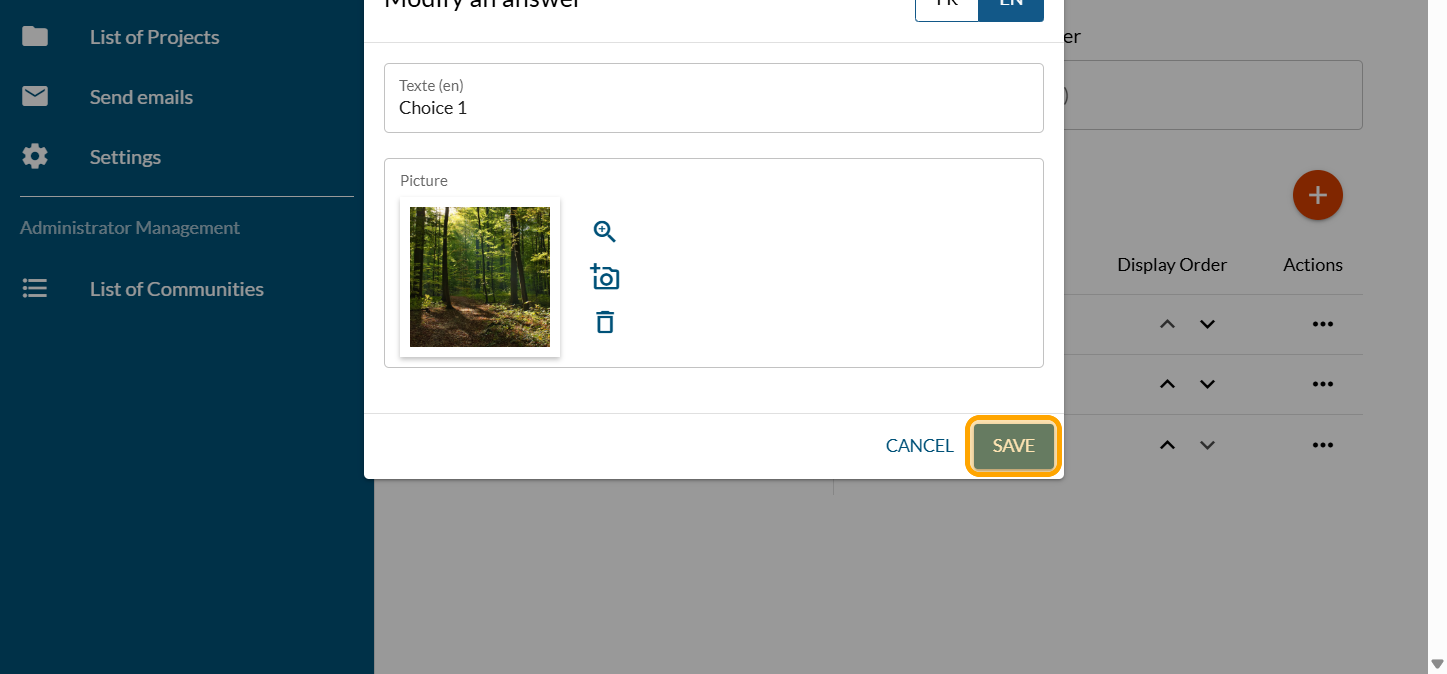
Repeat the process for the other choices
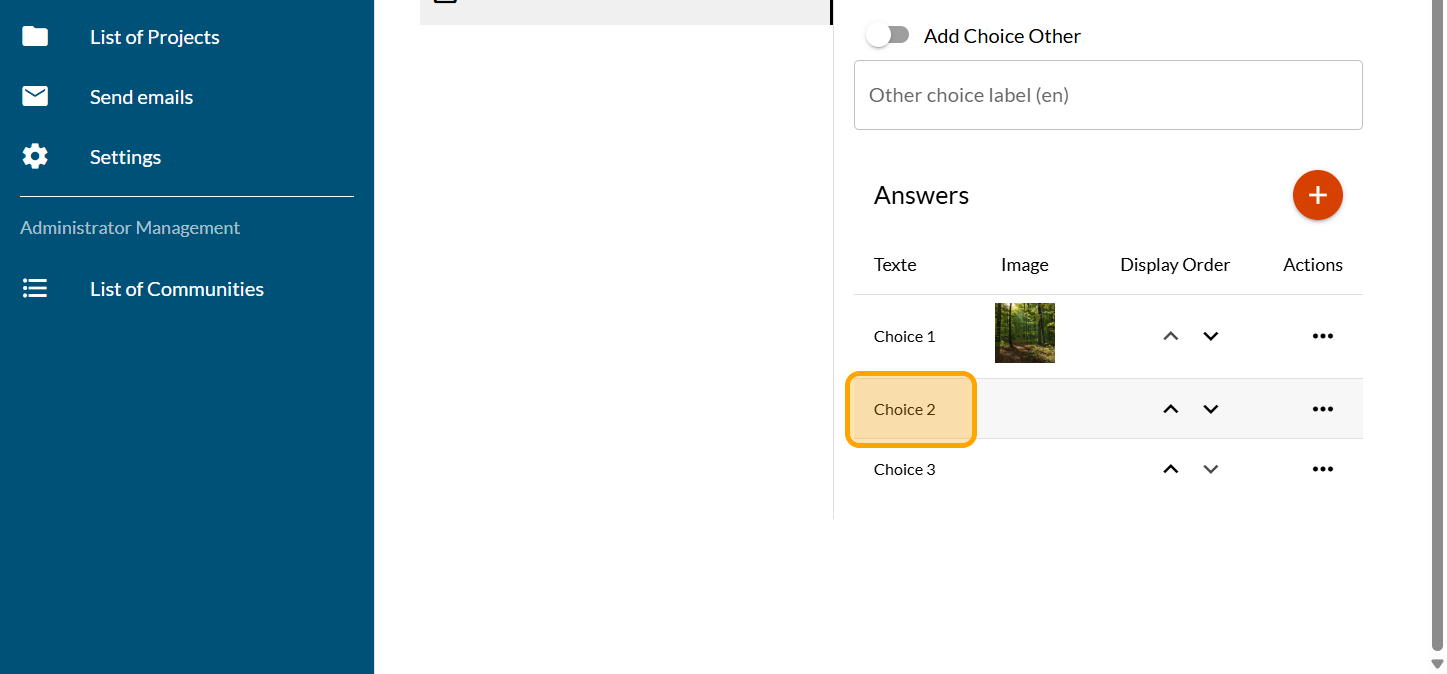
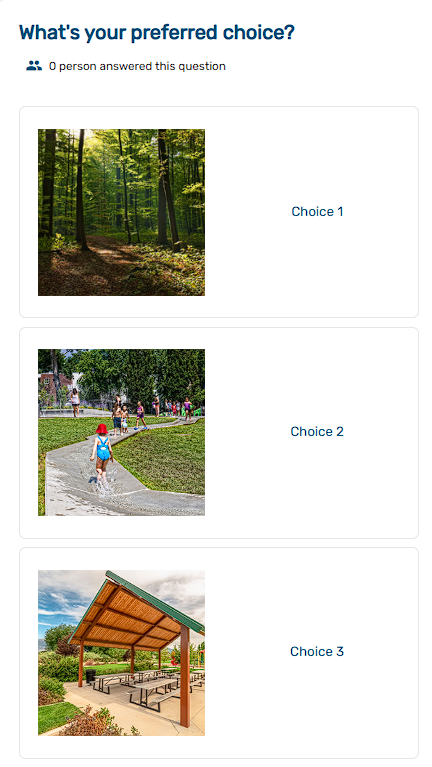
All choices now have a picture
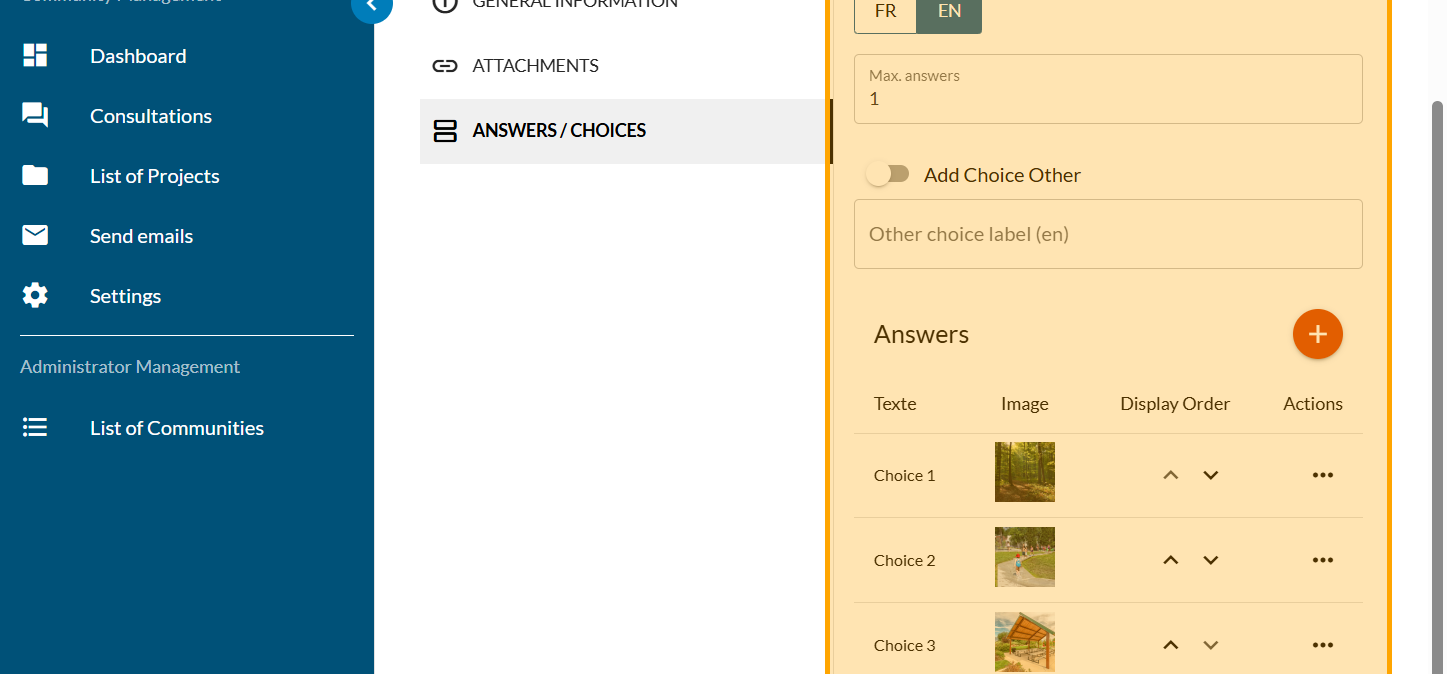
Click on "PREVIEW"
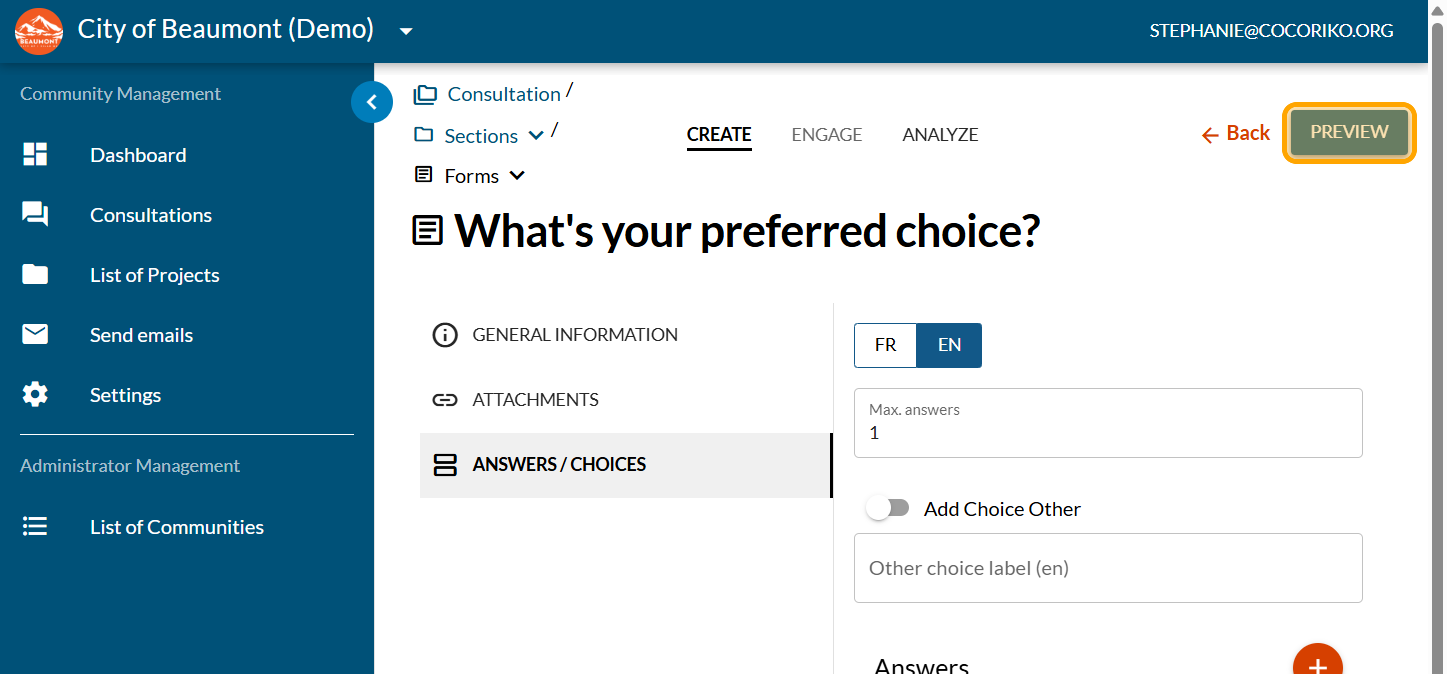
Preview and make changes if needed

Add a YouTube video (ID of the video)
You must use your YouTube video ID for it to display correct …

Manage citizen proposals on the Wall of Ideas
Click on "Consultations"
Add a Dot Voting question - Fixed
The Dot Voting question can be programmed with fixed or vari …