

By Team Cocoriko on Feb 4, 2026 3:44:04 PM
The Dot Voting question can be programmed with fixed or variable choice values. This guide provides the steps for fixed values. Take a look at this article for more information.
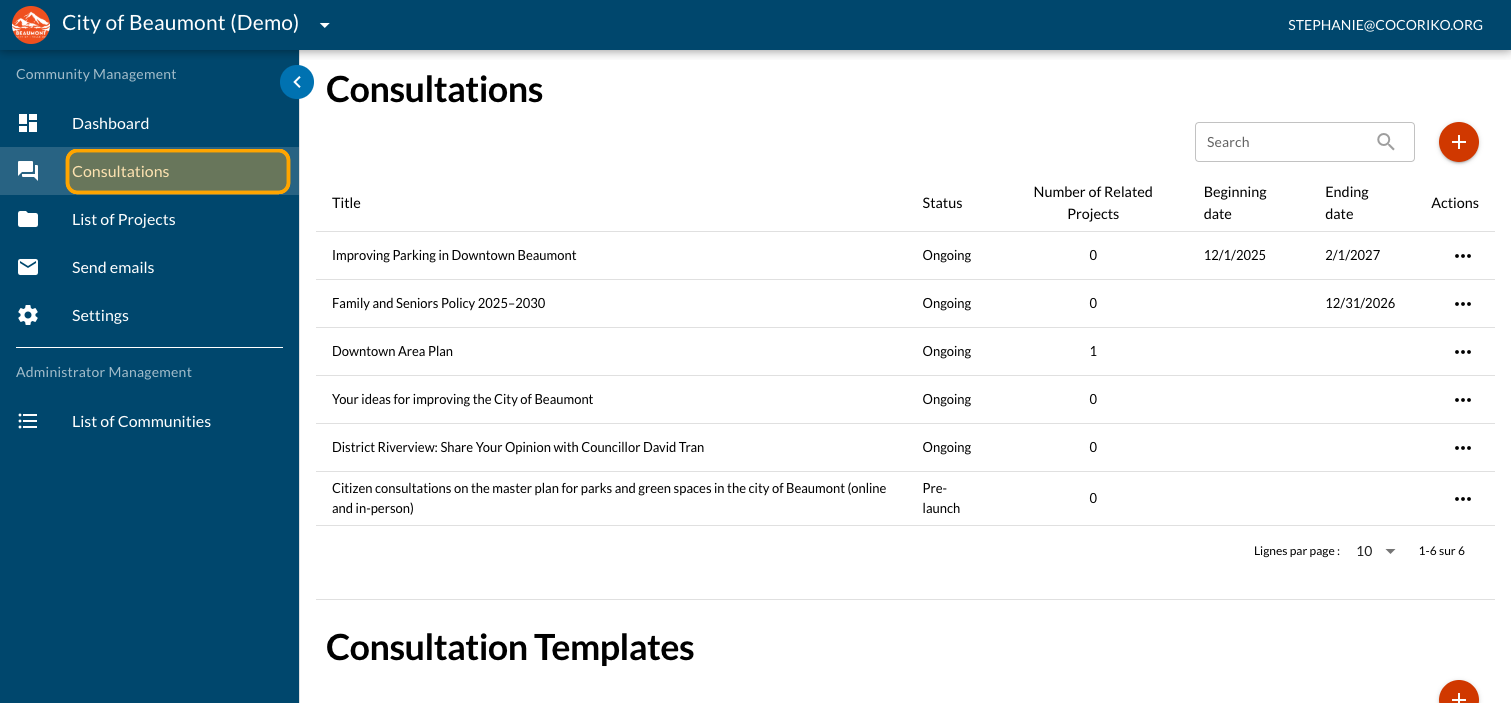
Click on "Consultations"
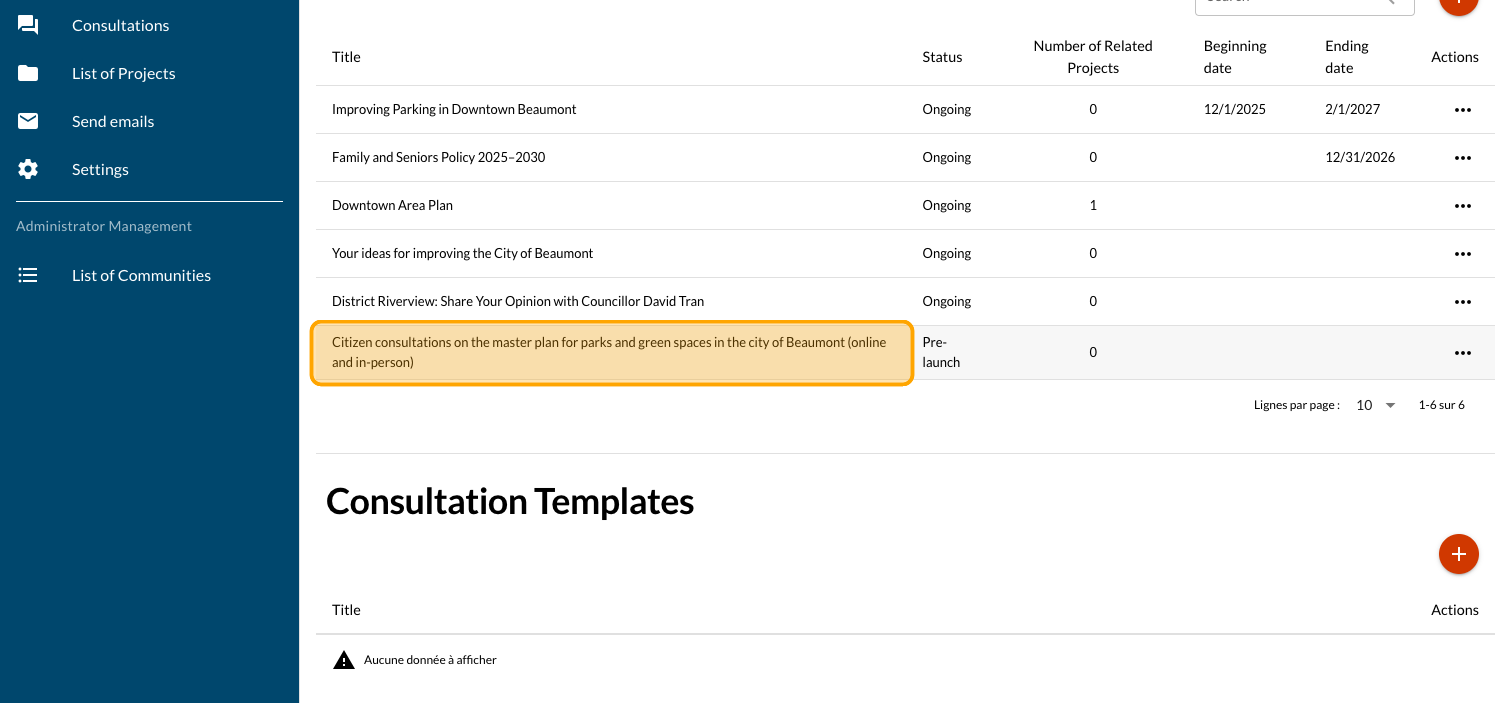
Click on your consultation
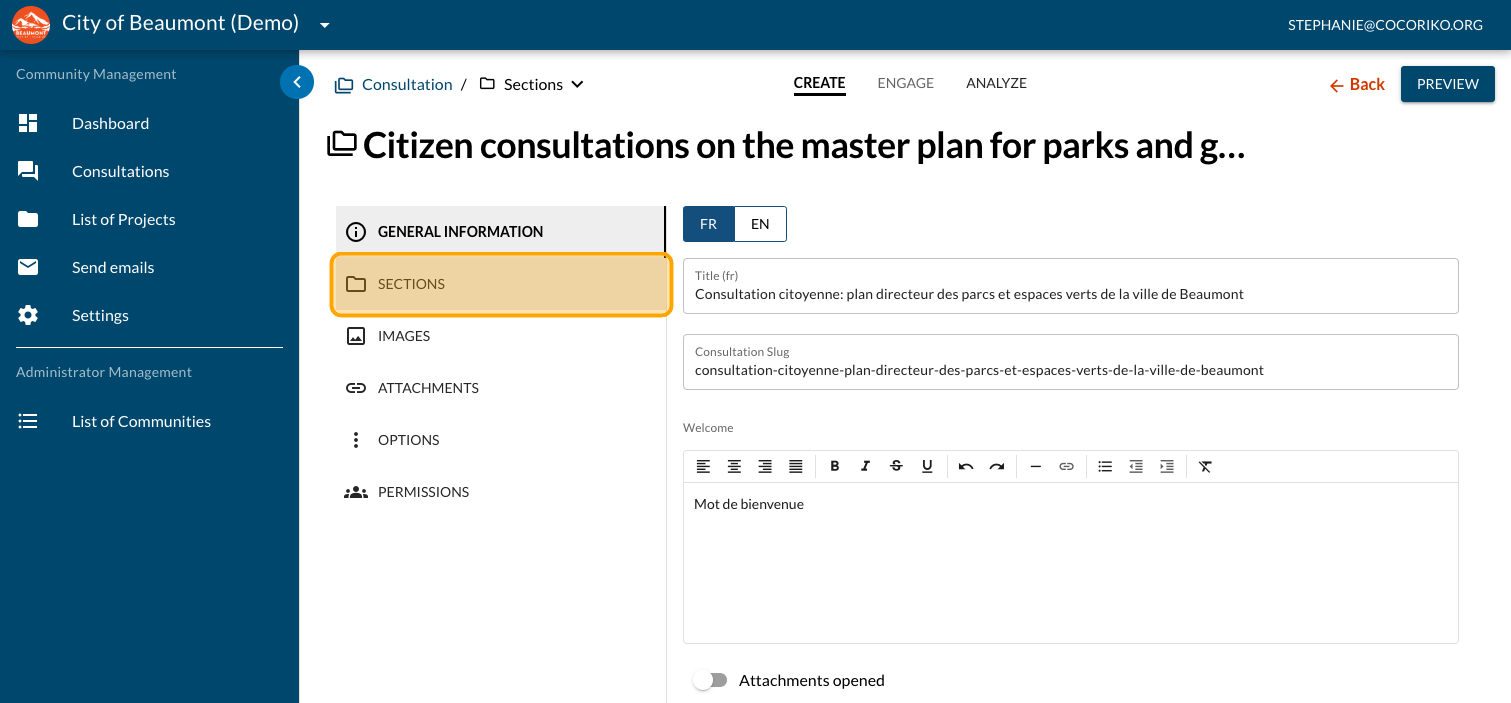
Click on "SECTIONS"
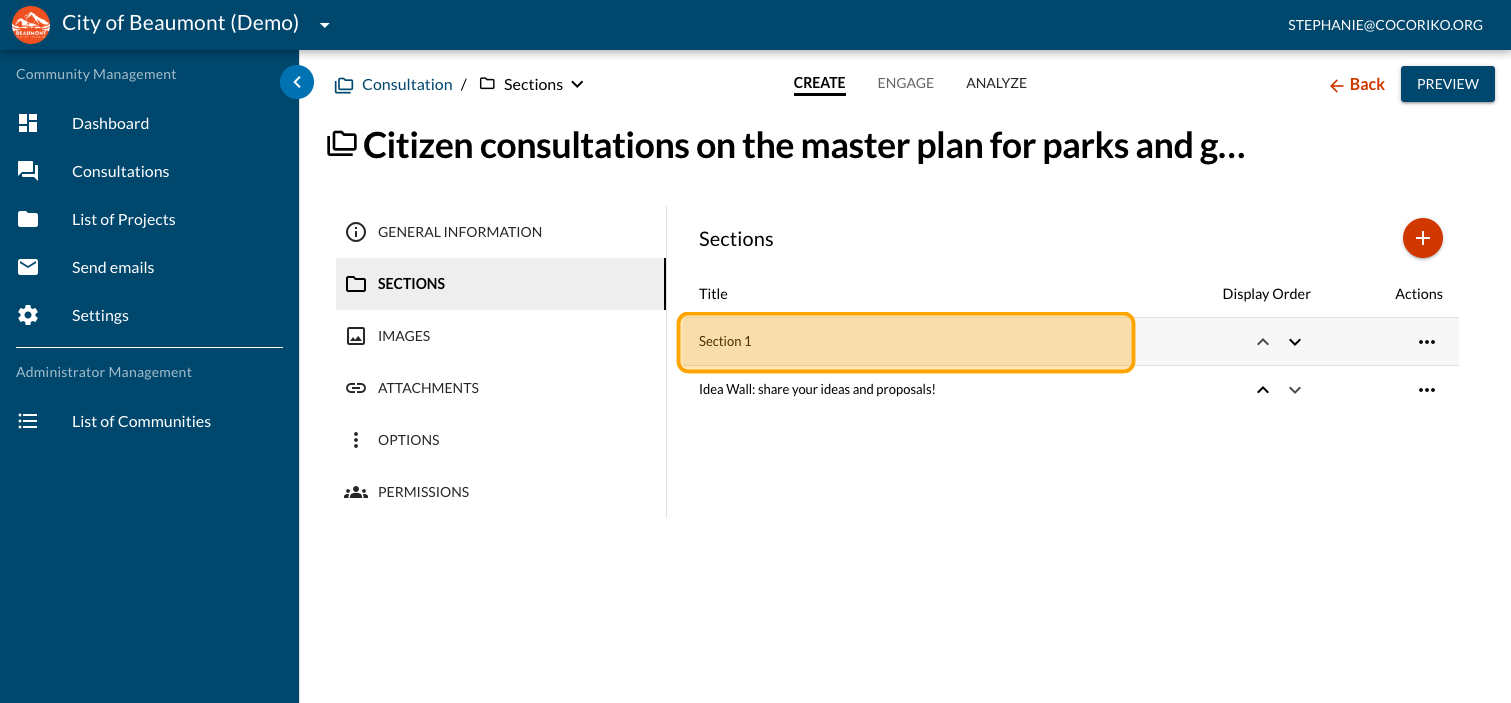
Click on the section where you want to add a new question
Click on "FORMS"
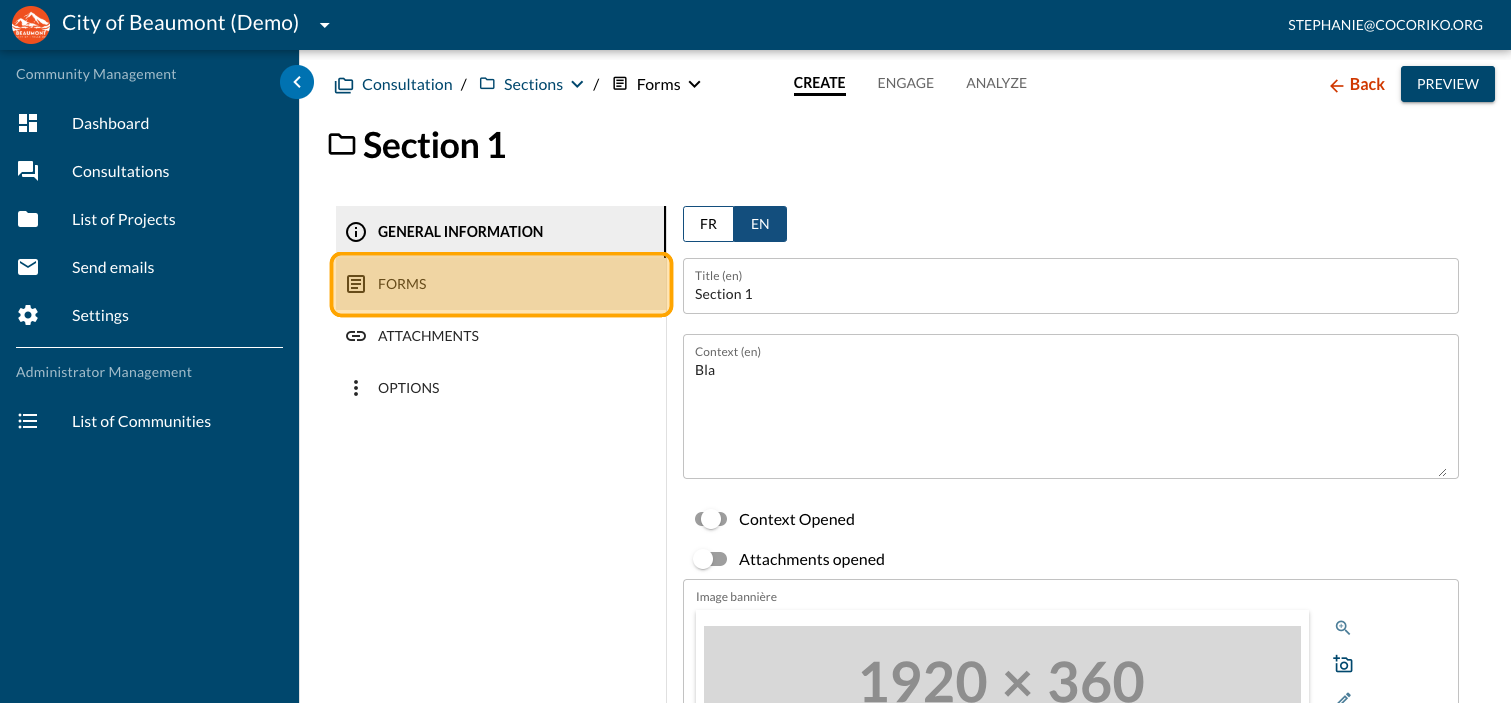
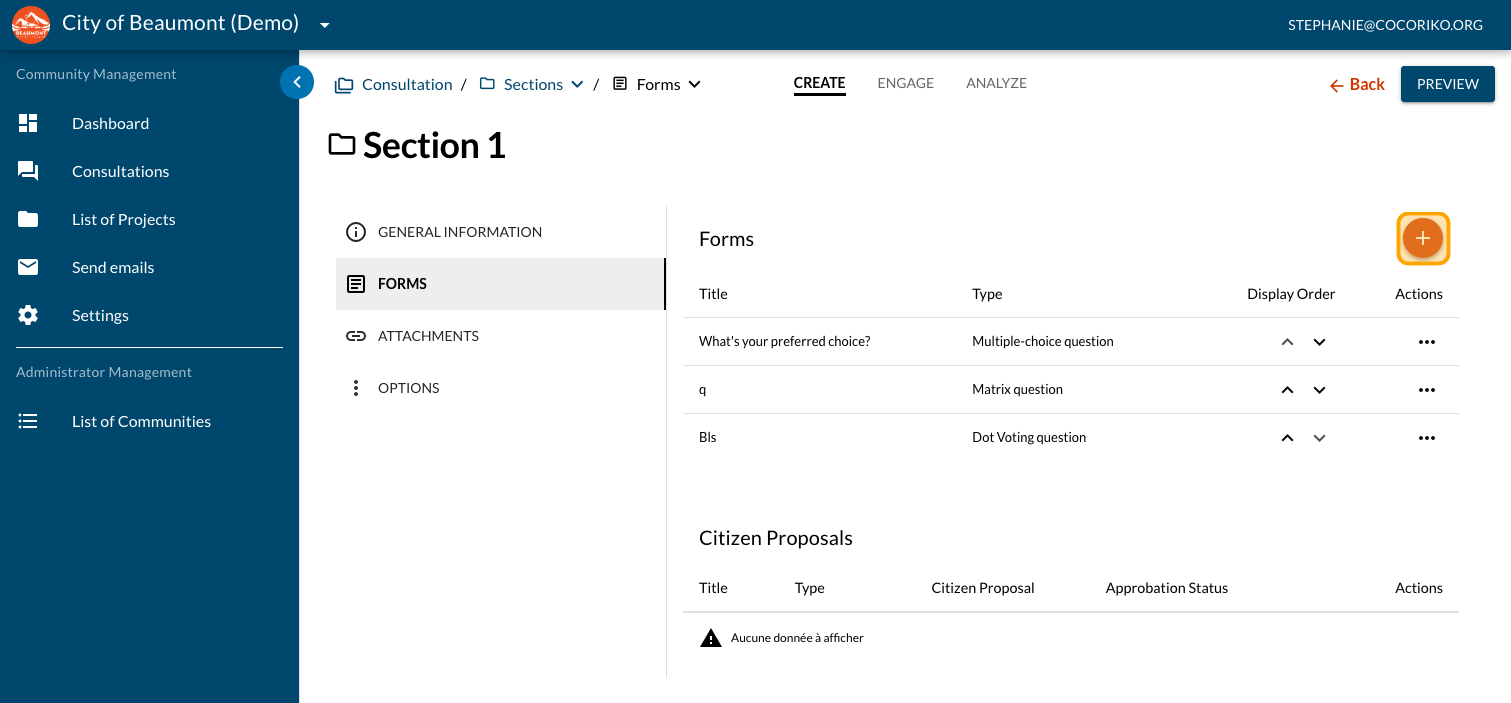
Click on the PLUS sign to add a new question
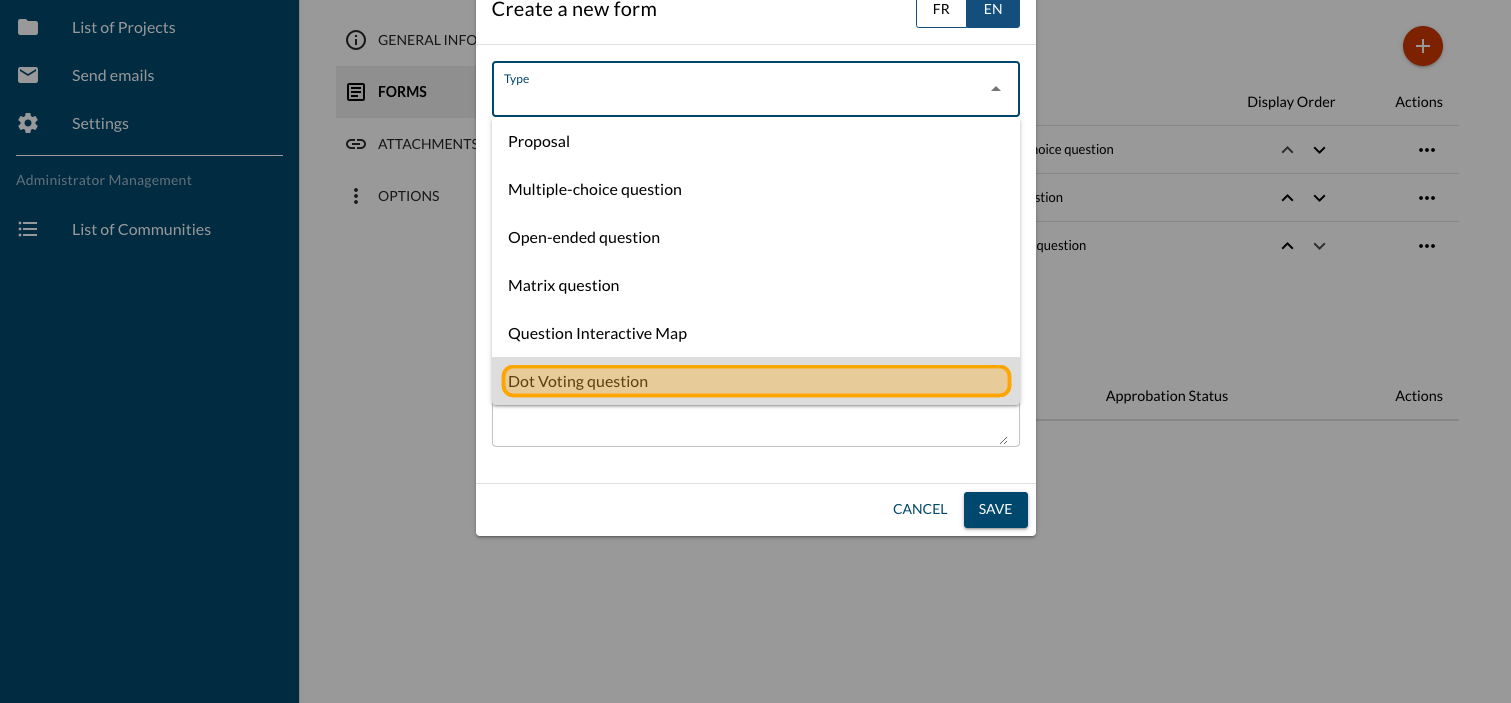
Click on "Dot Voting question"
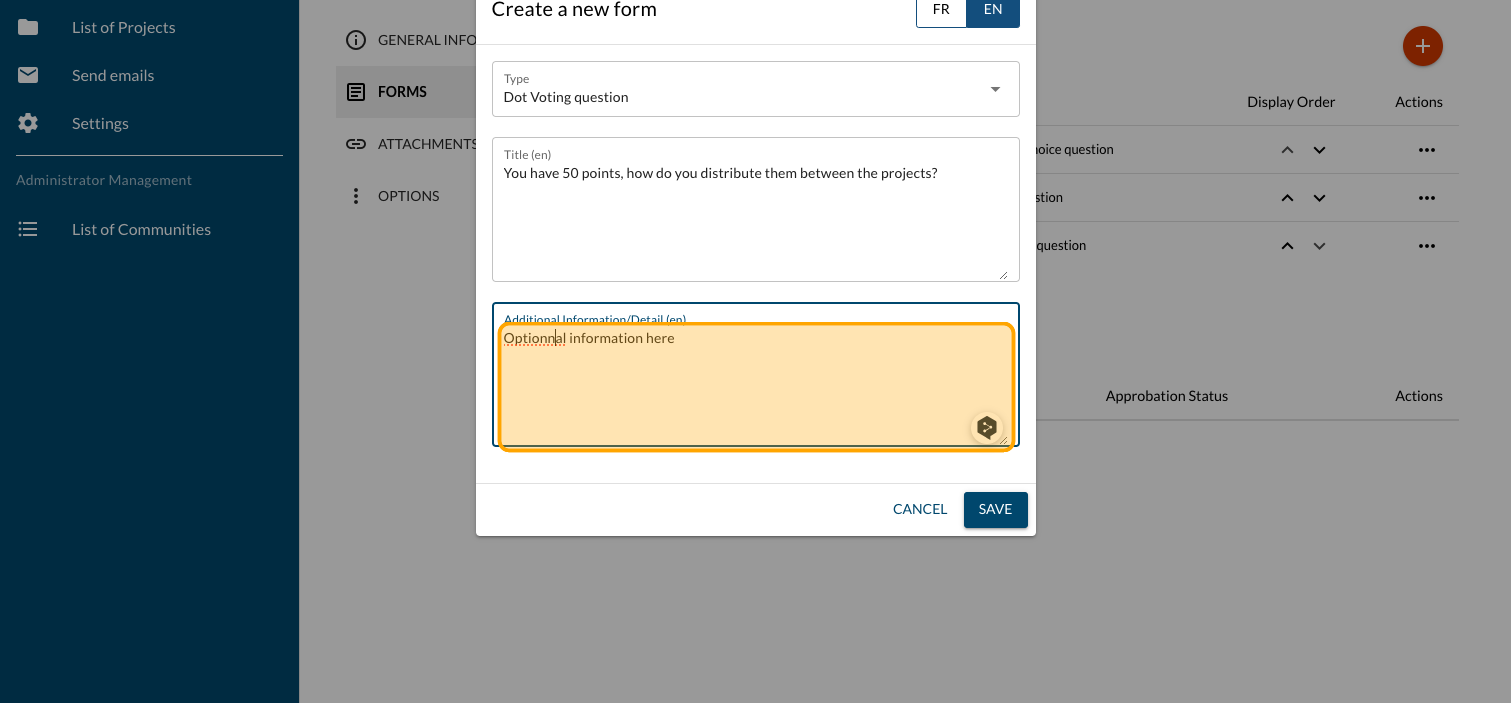
Enter your question
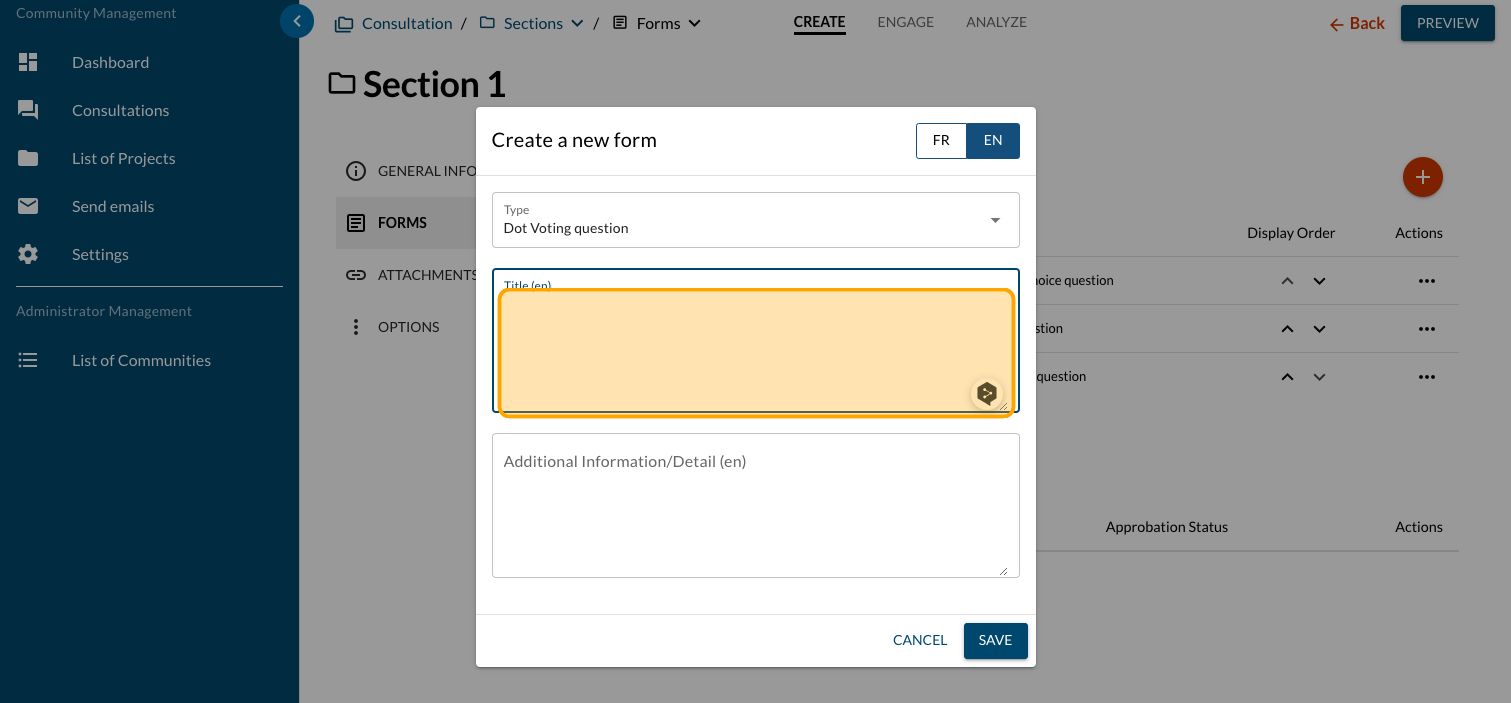
Add additional information if needed
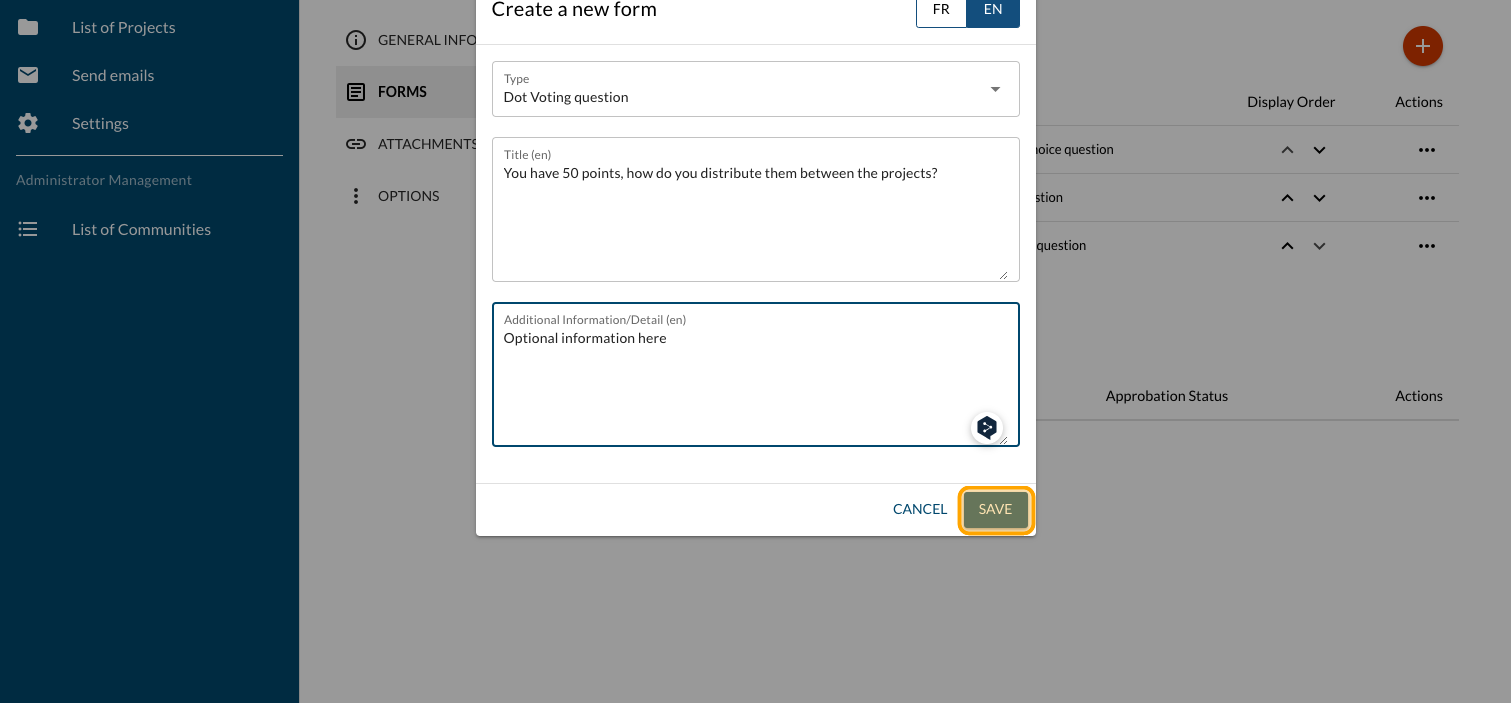
Click on "SAVE"
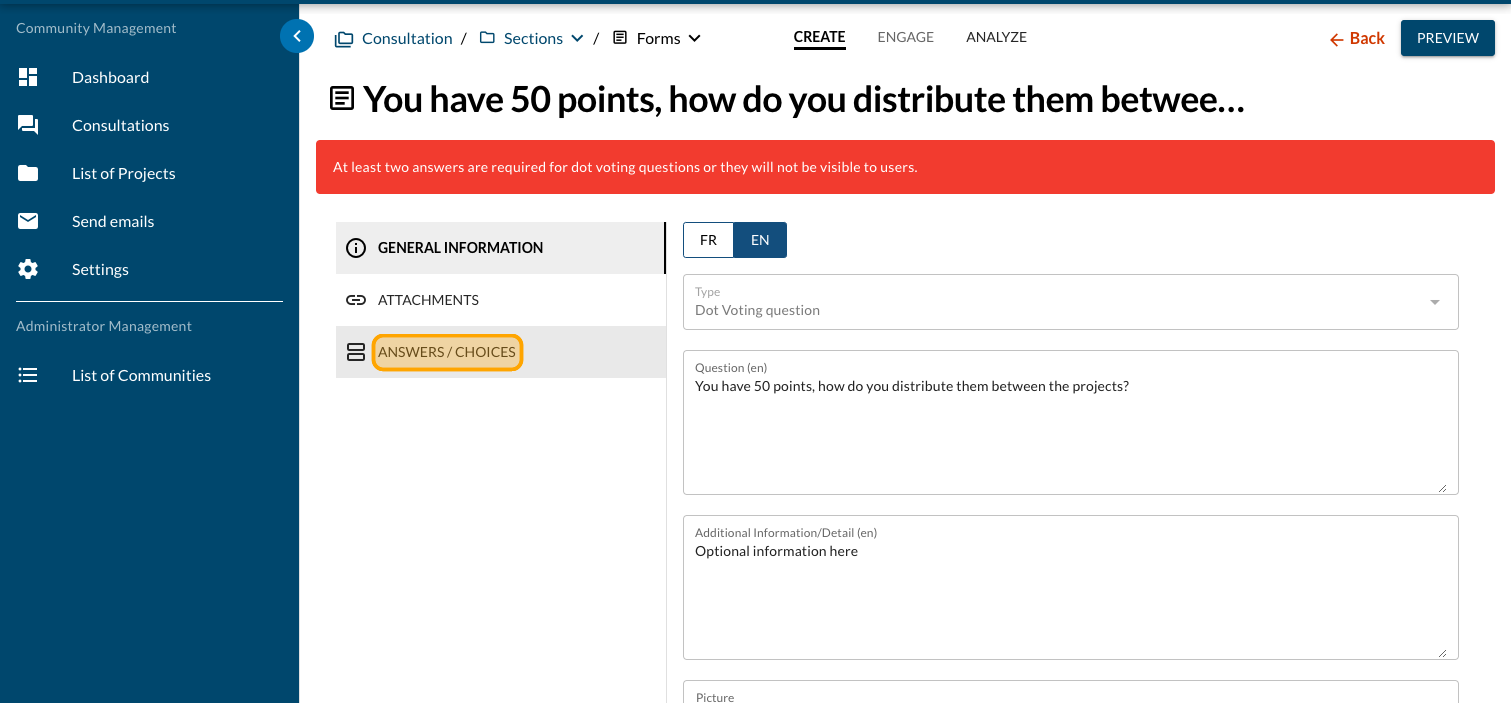
Click on "ANSWERS / CHOICES"
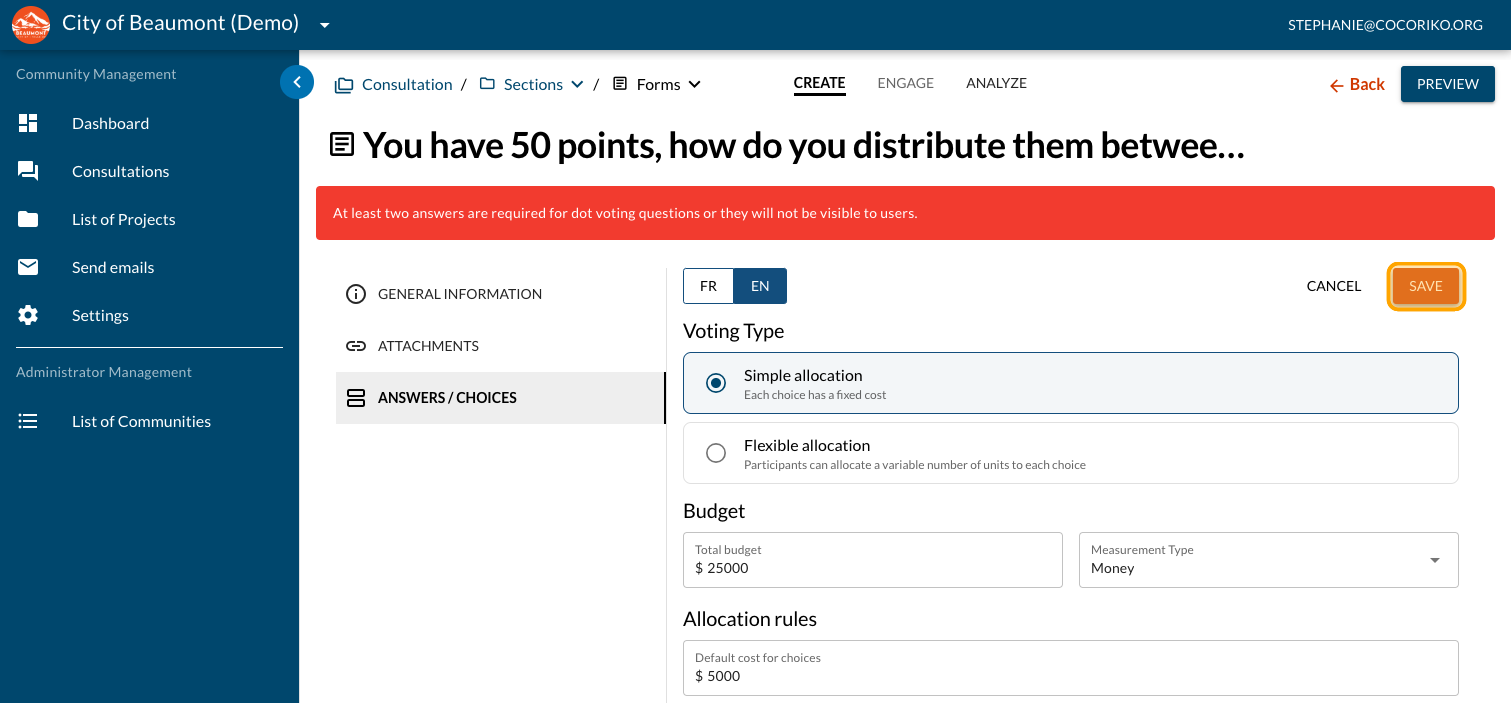
Click on "Simple allocation" and click on "SAVE"
Click on "Points"
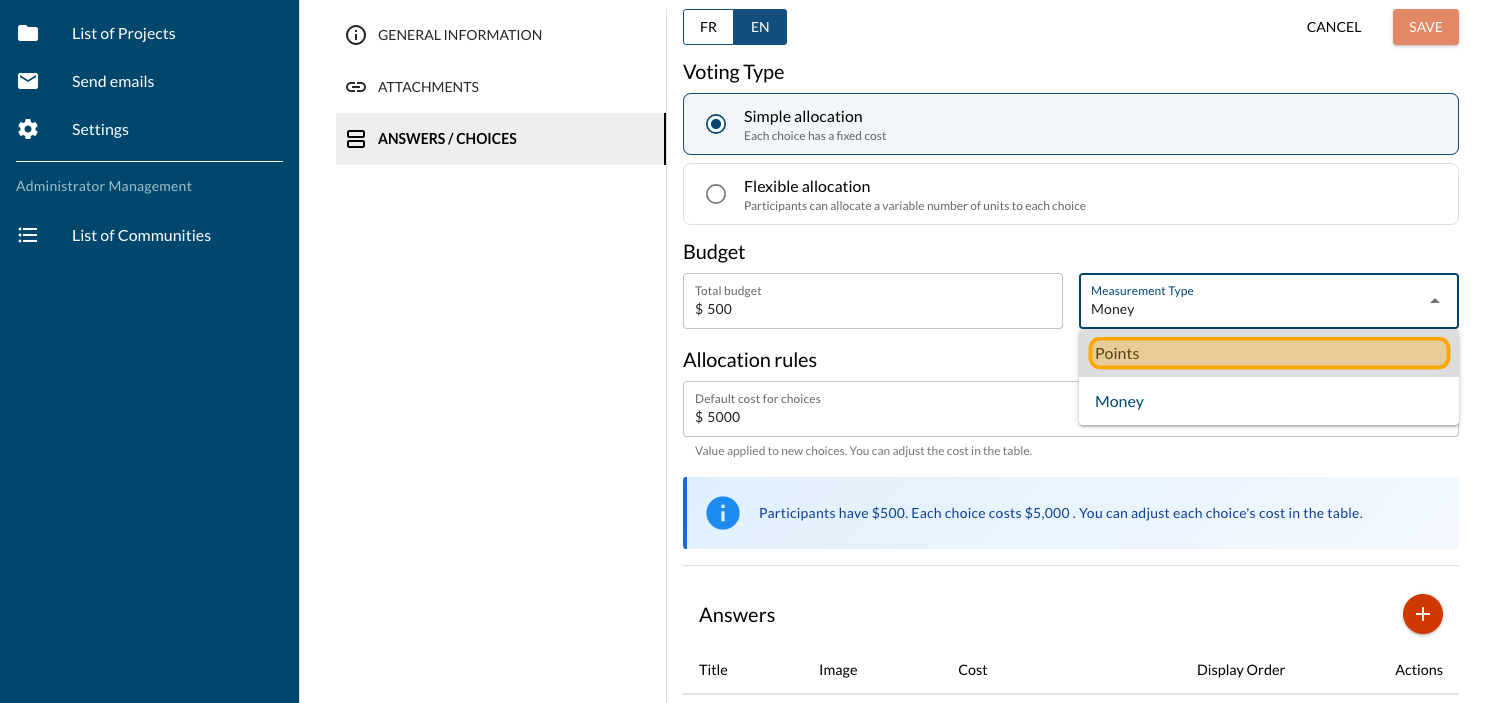
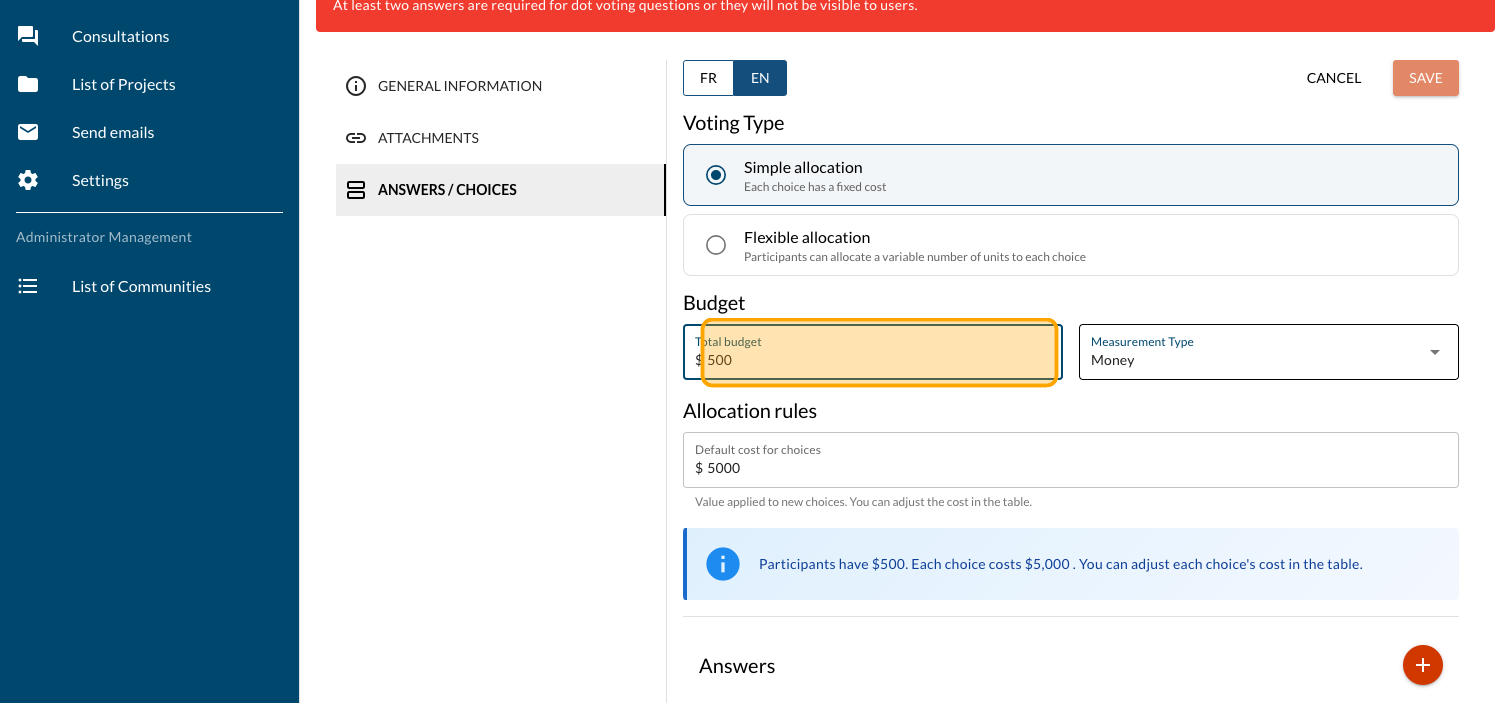
Enter the total number of points
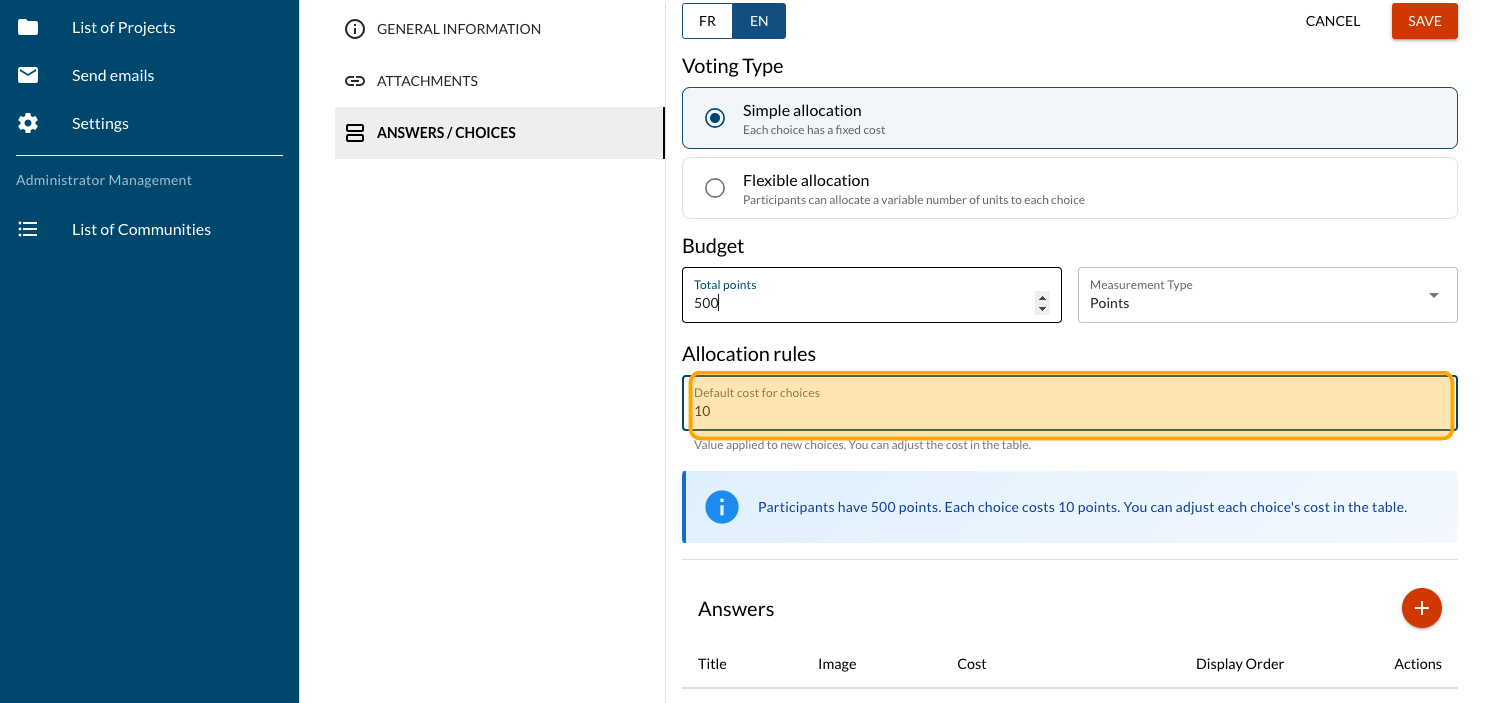
Enter the default cost for projects
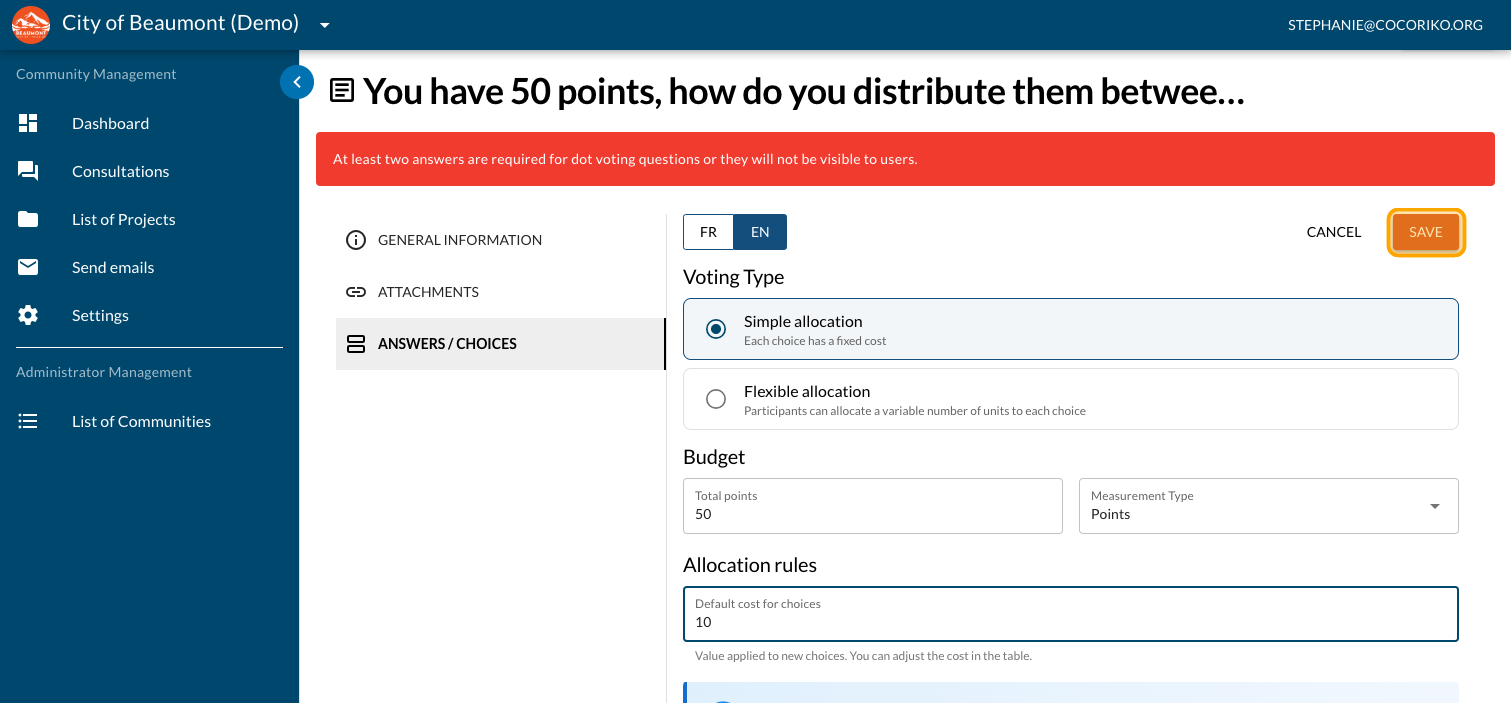
Click on "SAVE"
Click on the PLUS sign to add projects
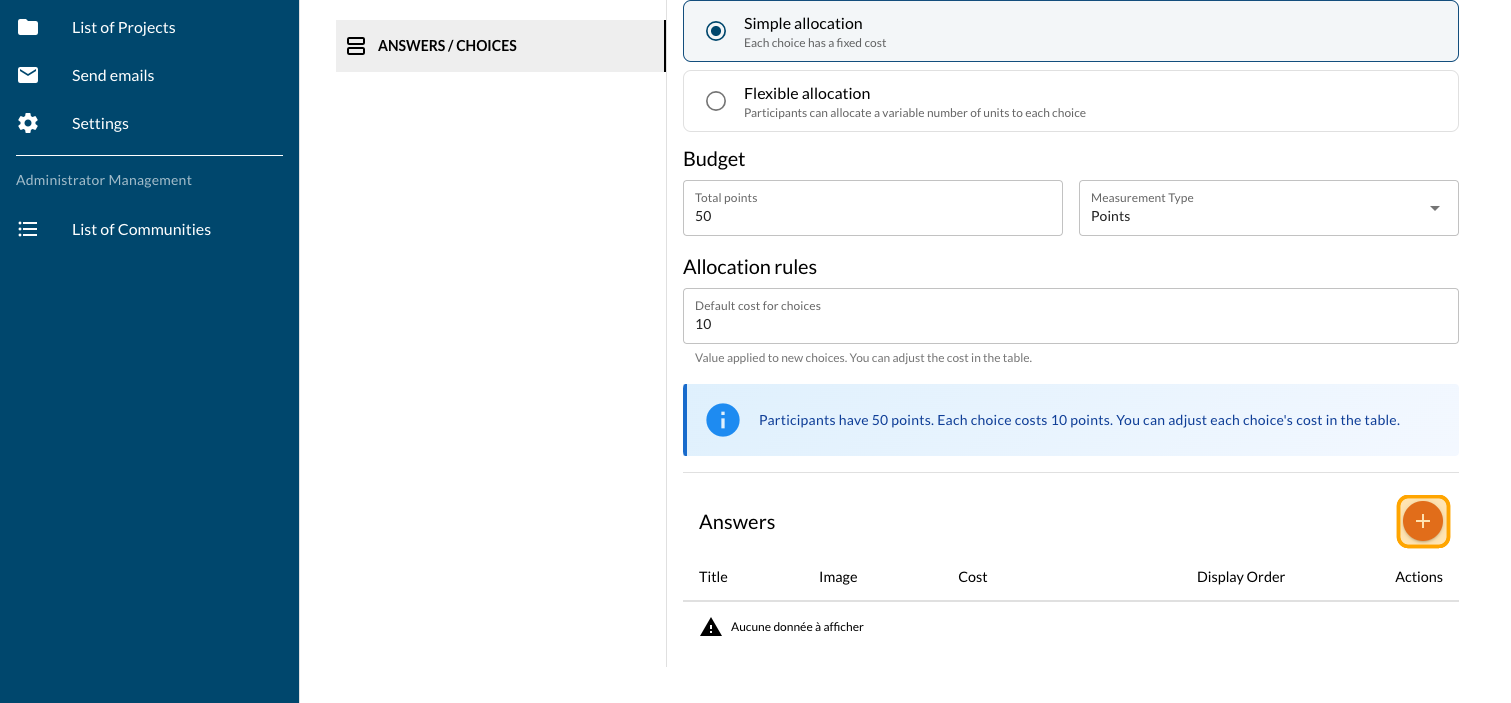
Enter the title of the project
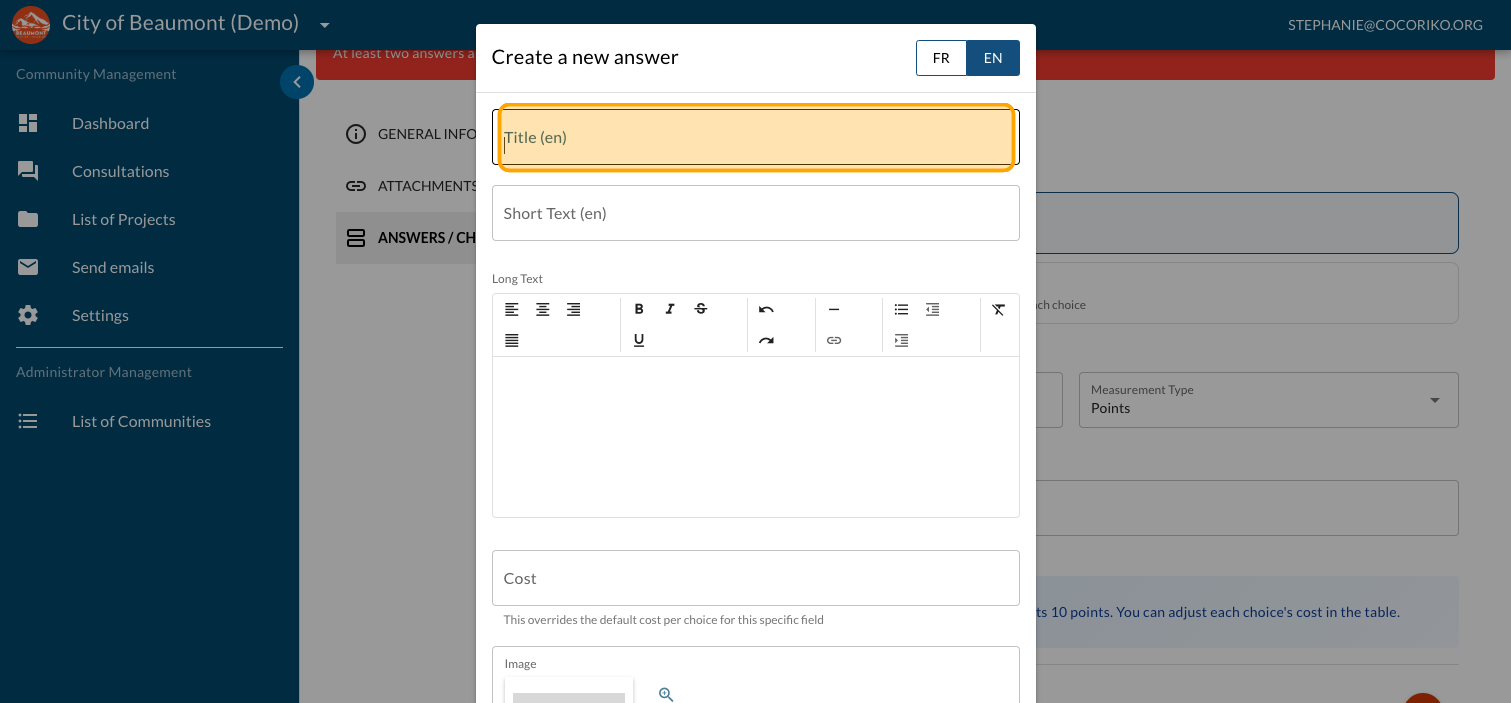
Enter a "Short text"—a brief description that is required
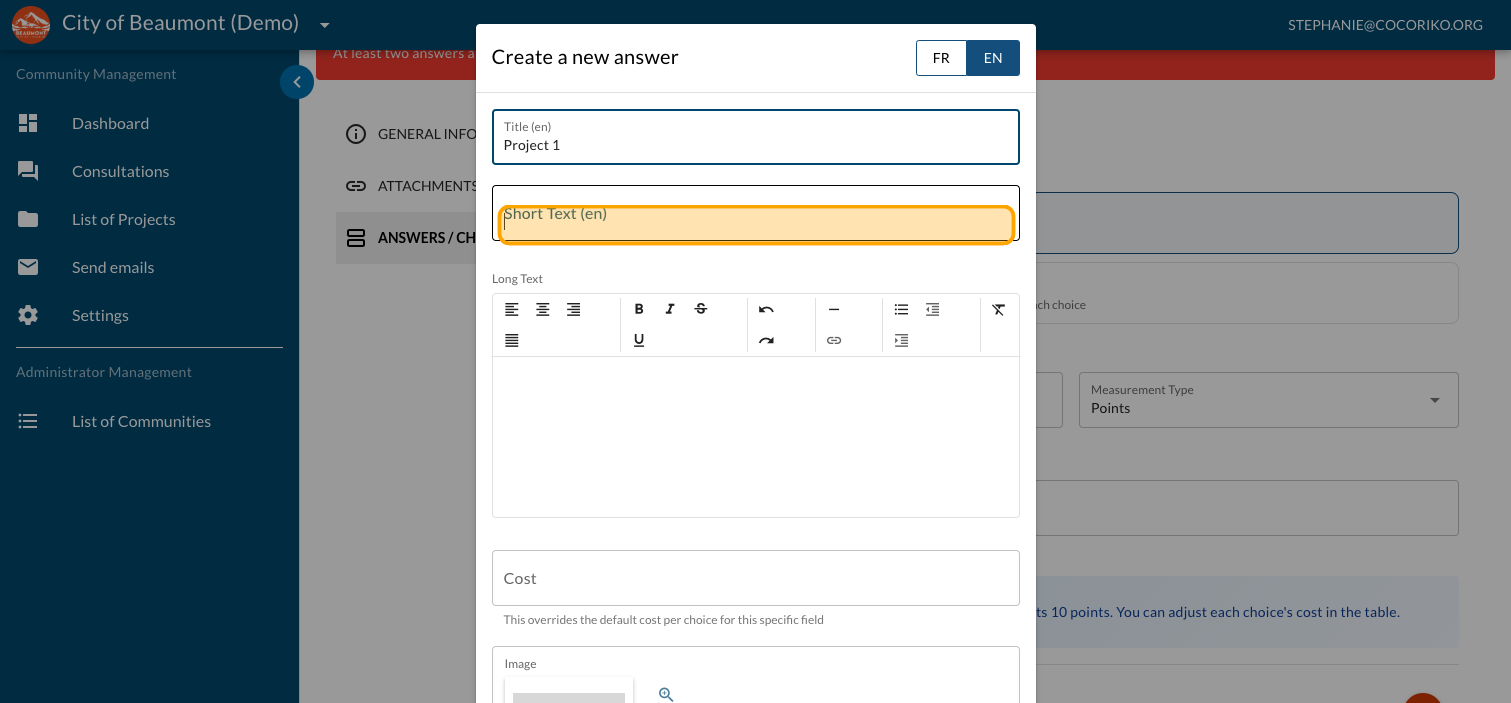
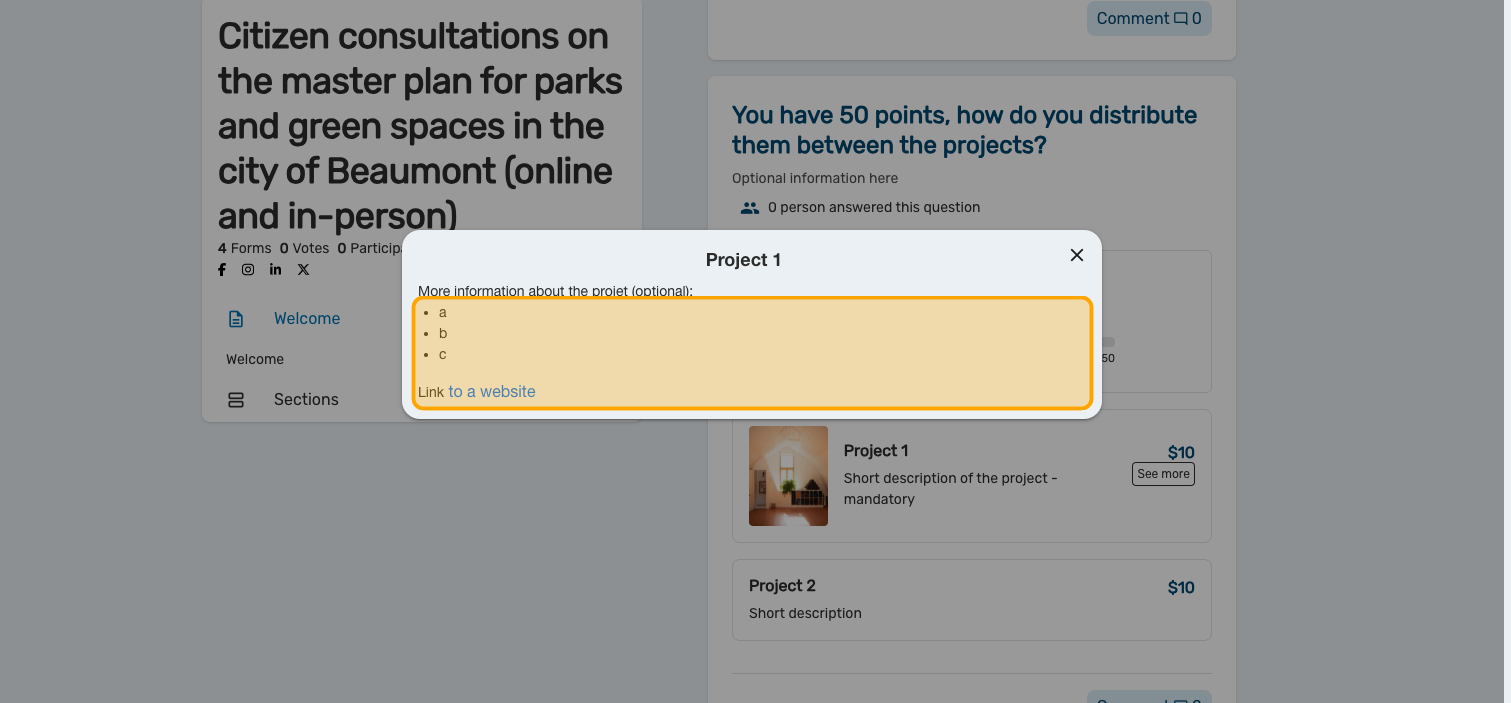
Enter a "Long Text" —a longer optional text including link to a website or a PDF document
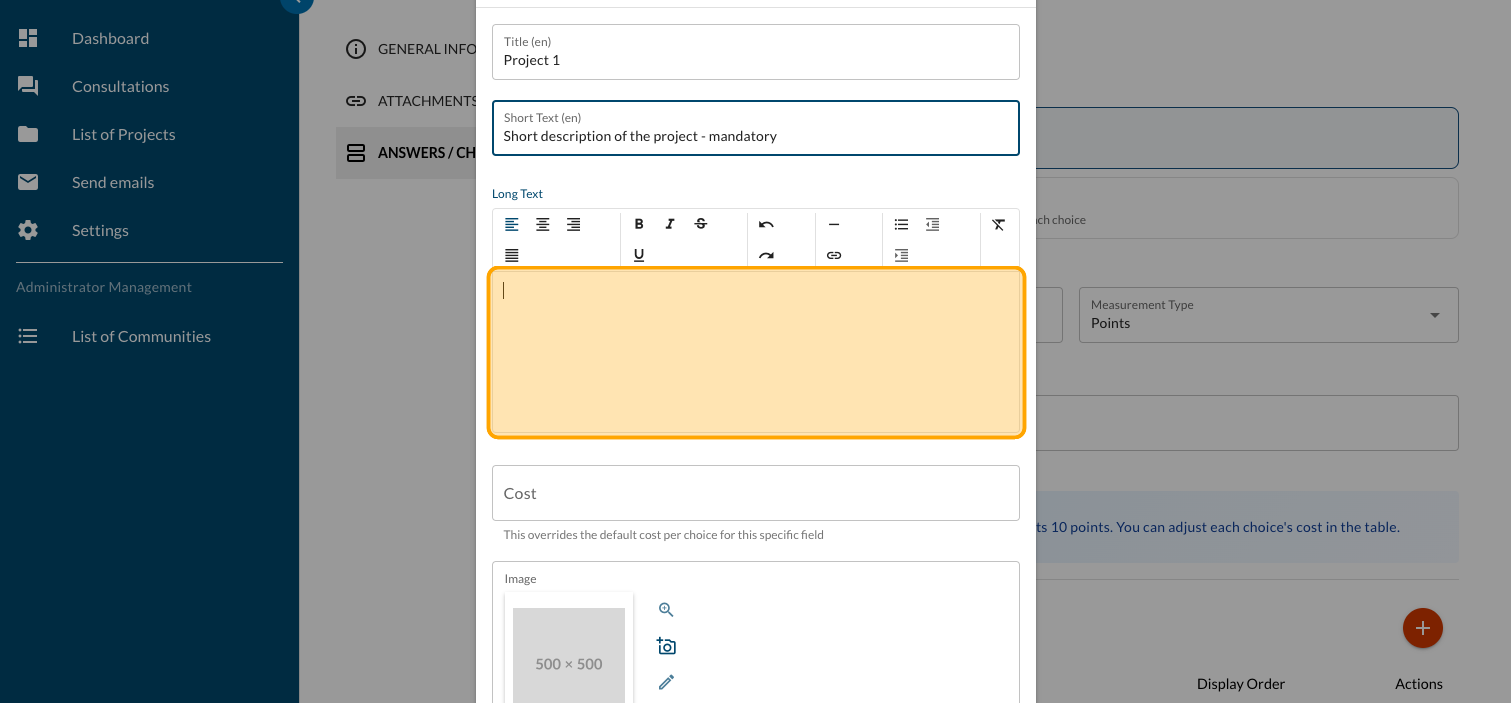
Click here to add a link to a website or an explanatory PDF document
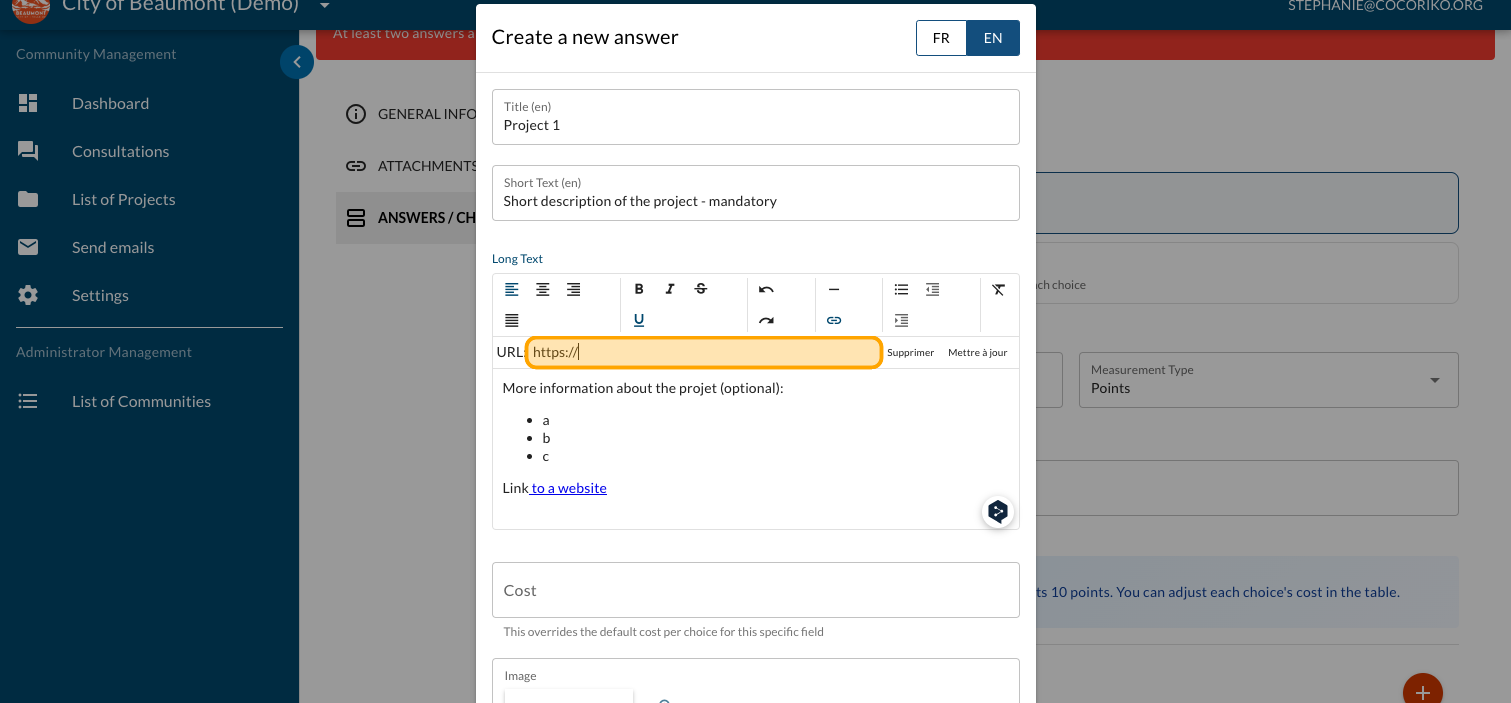
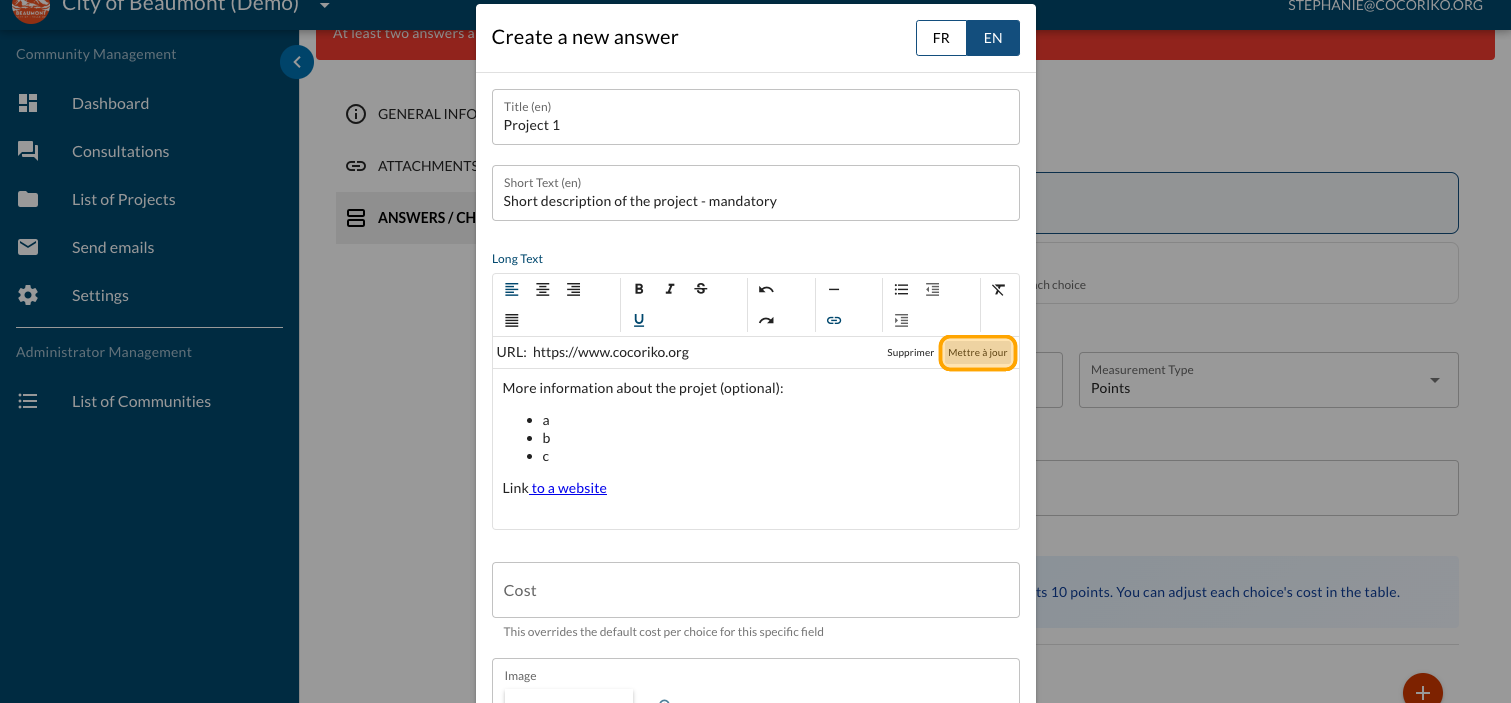
Click on "Update"
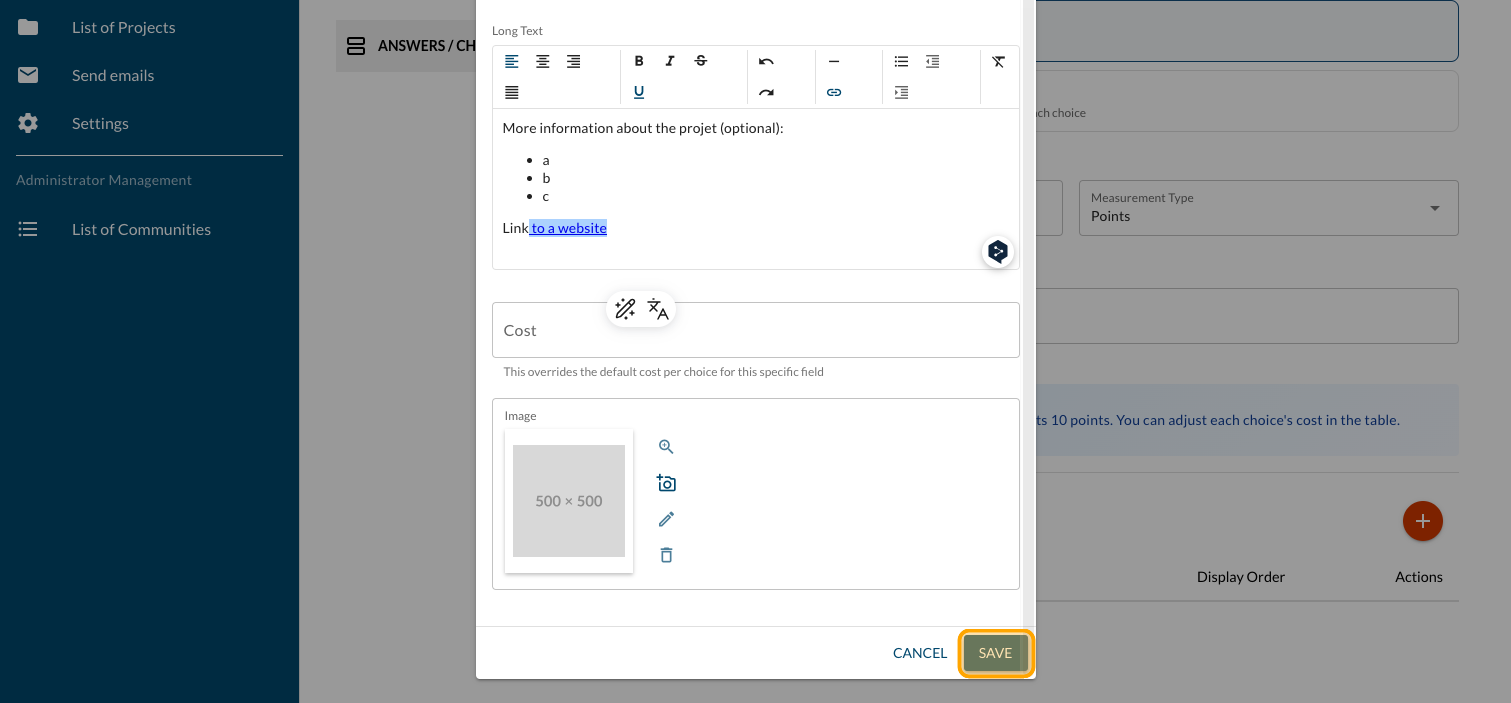
Click on "SAVE"
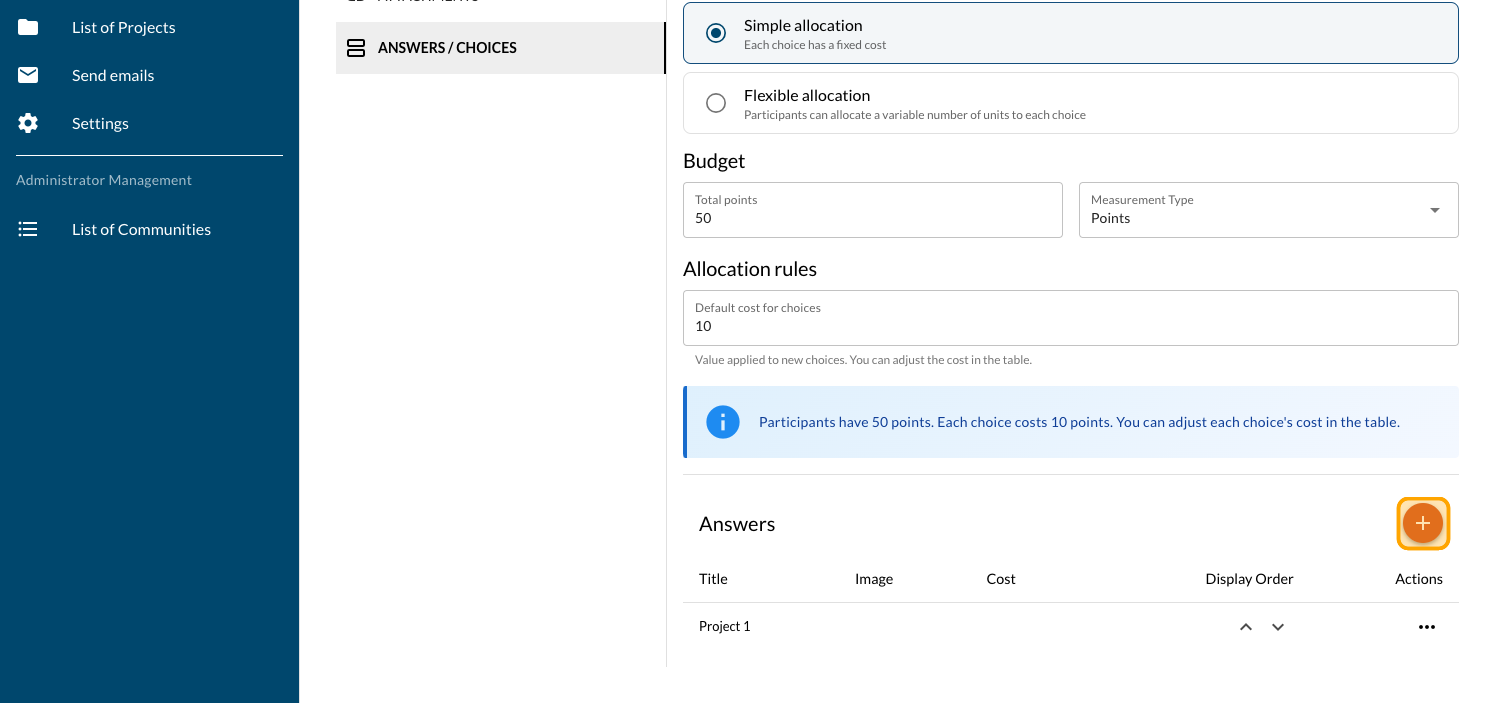
Click on the PLUS sign to add more projects
Click on "PREVIEW"
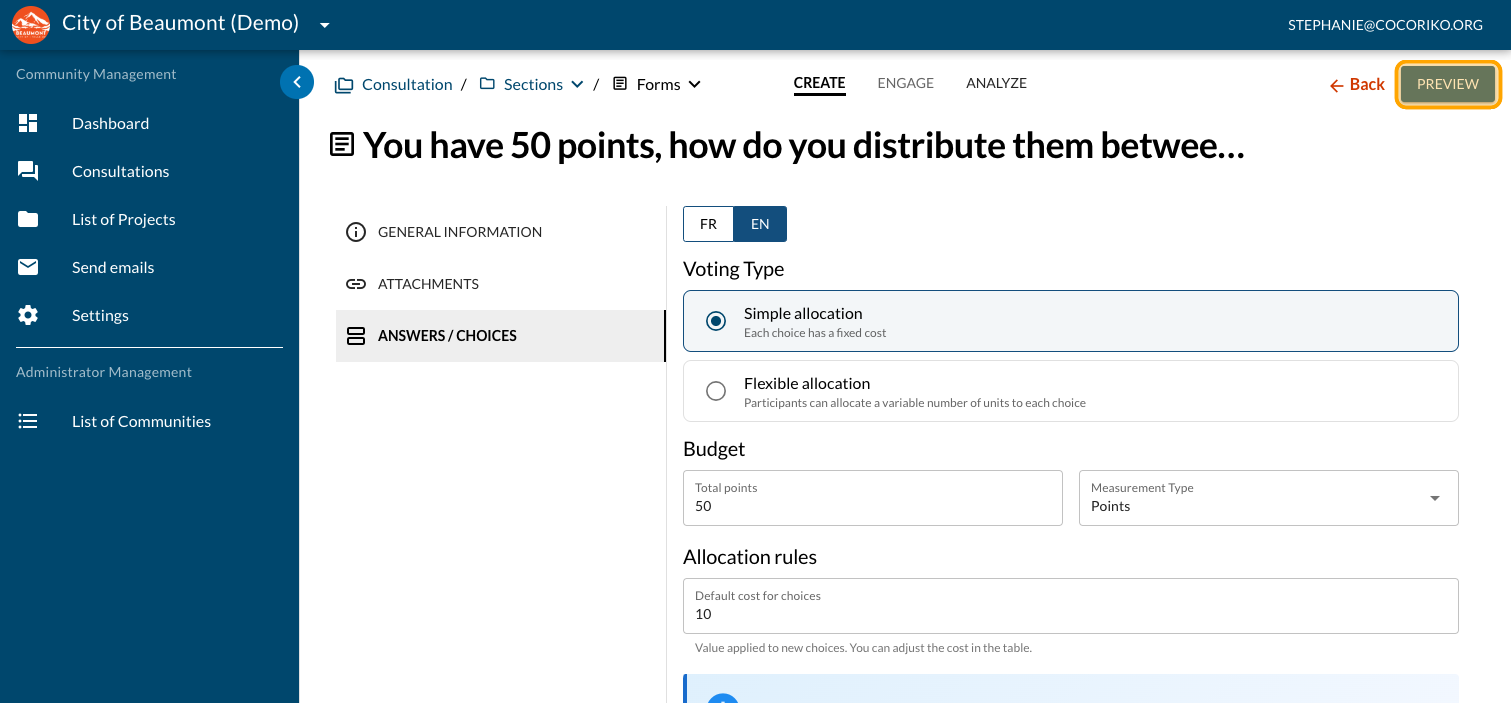
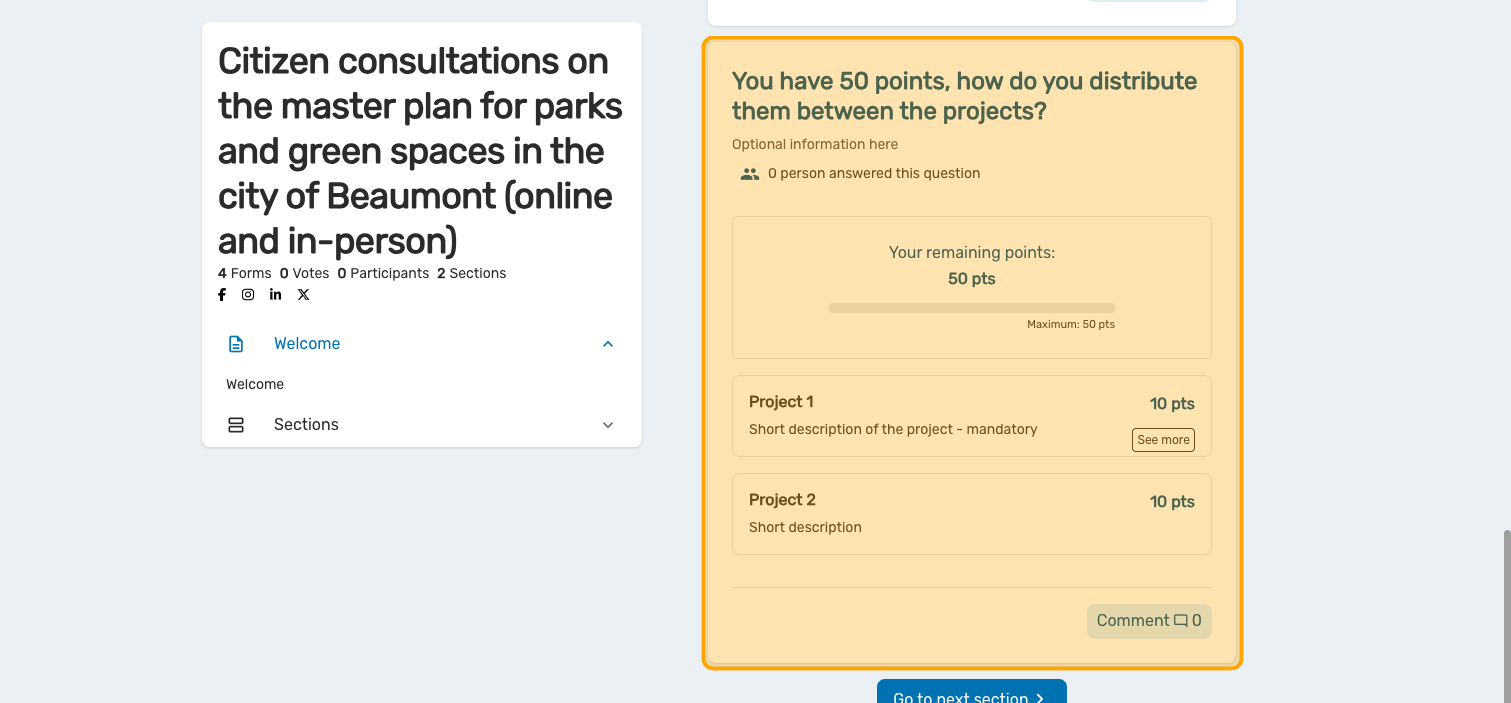
Preview your dot voting question
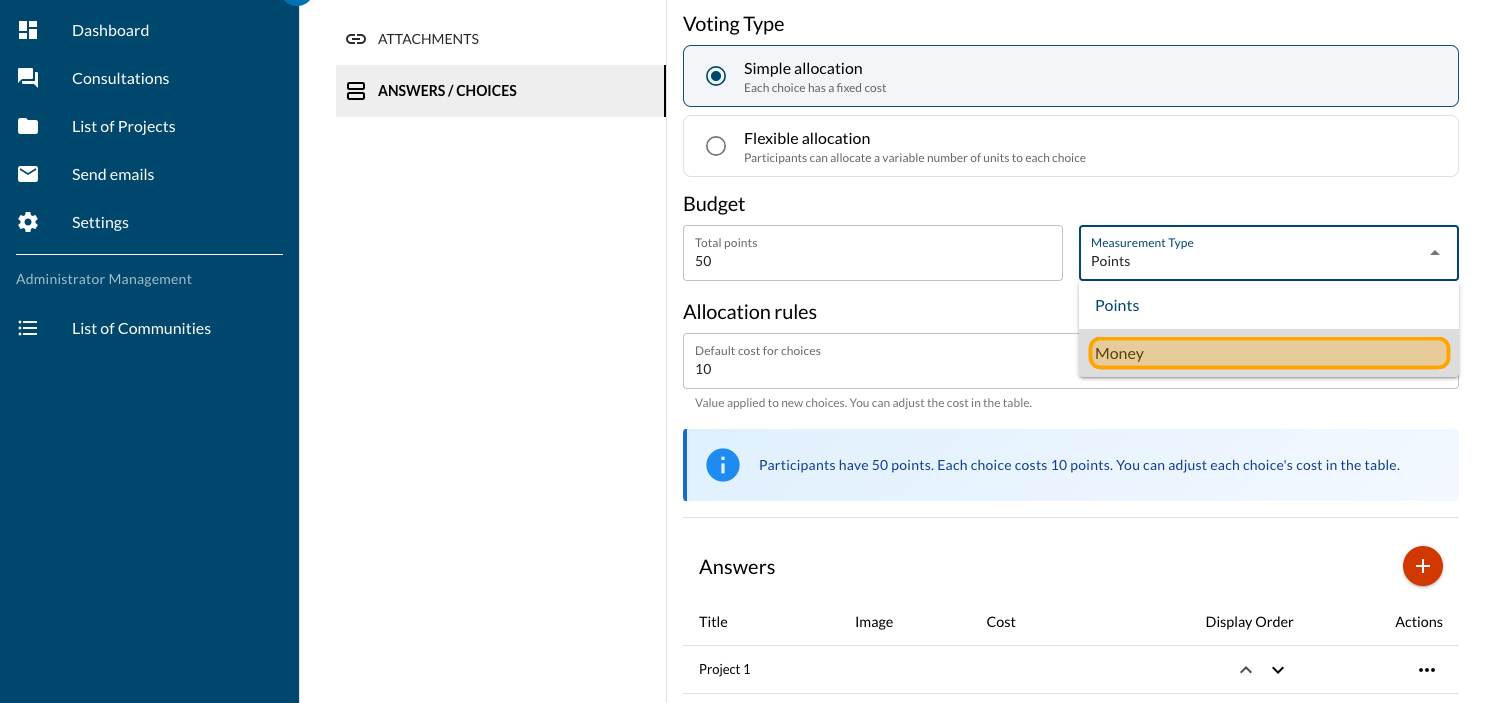
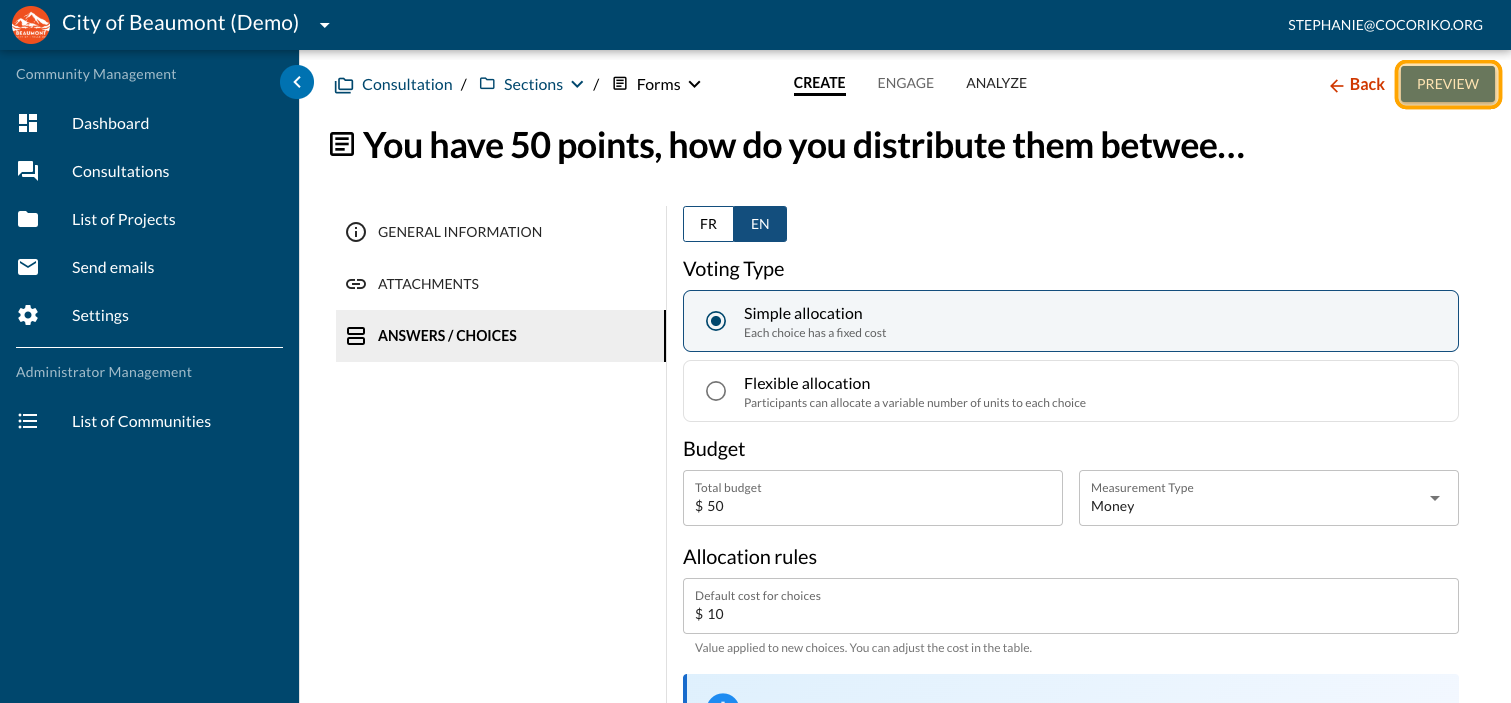
Points can also be money. Click on "Money"
Click on "SAVE"
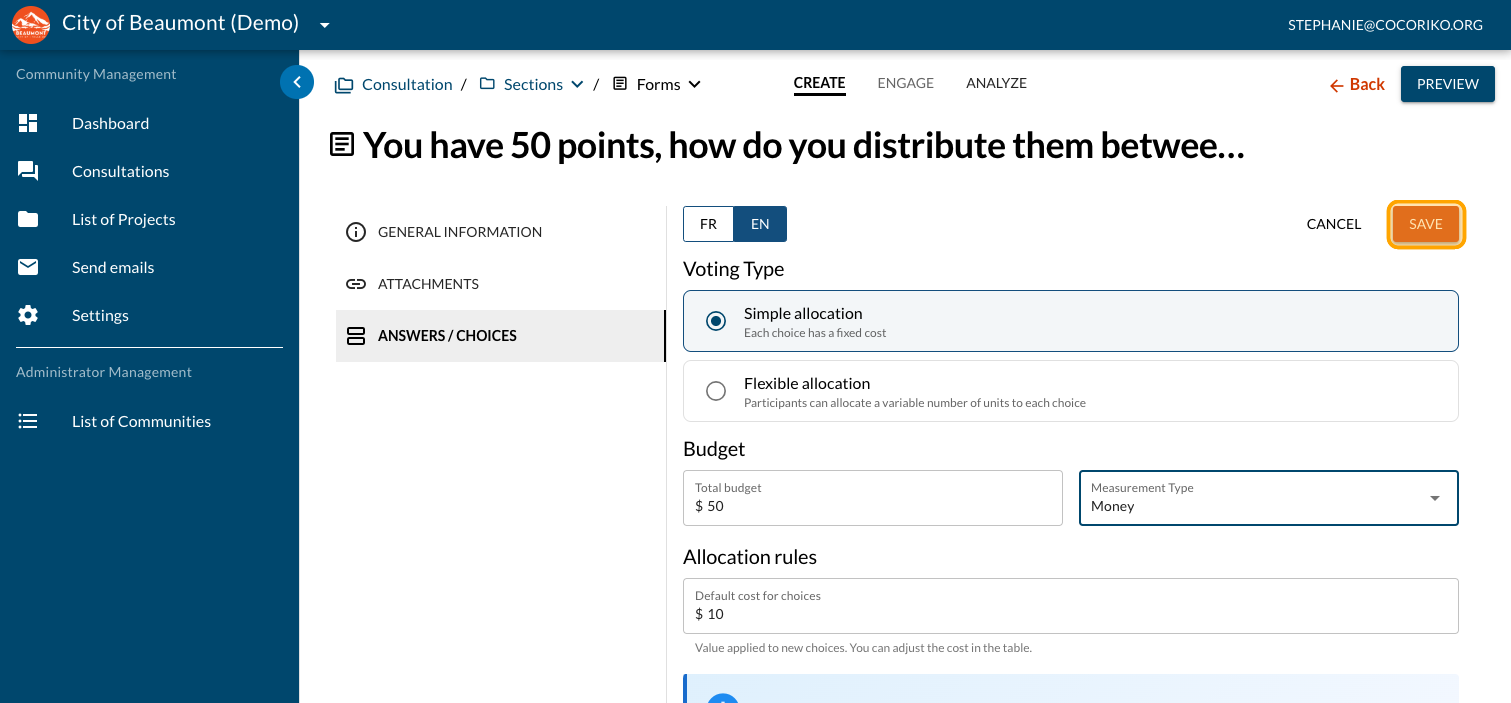
Click on "PREVIEW"
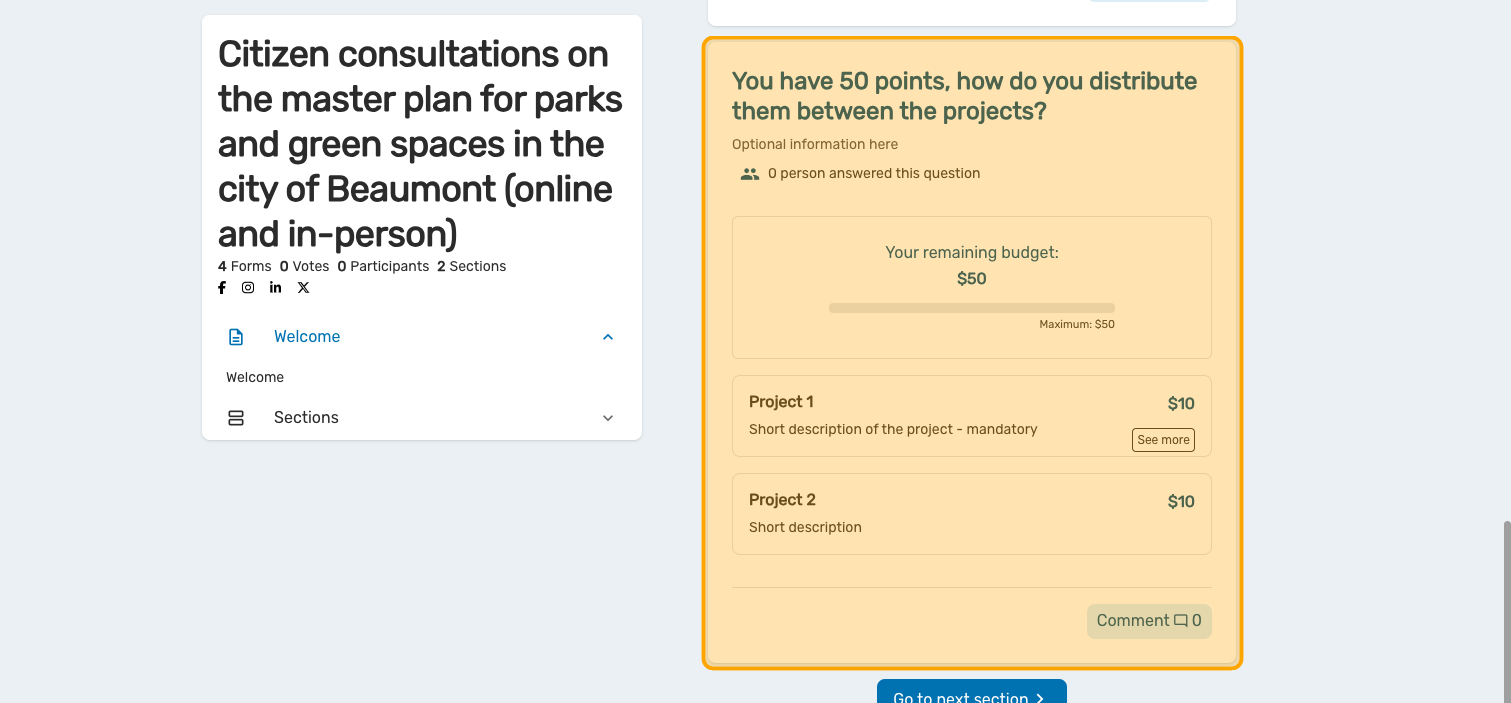
Preview your dot voting question with money options instead of points
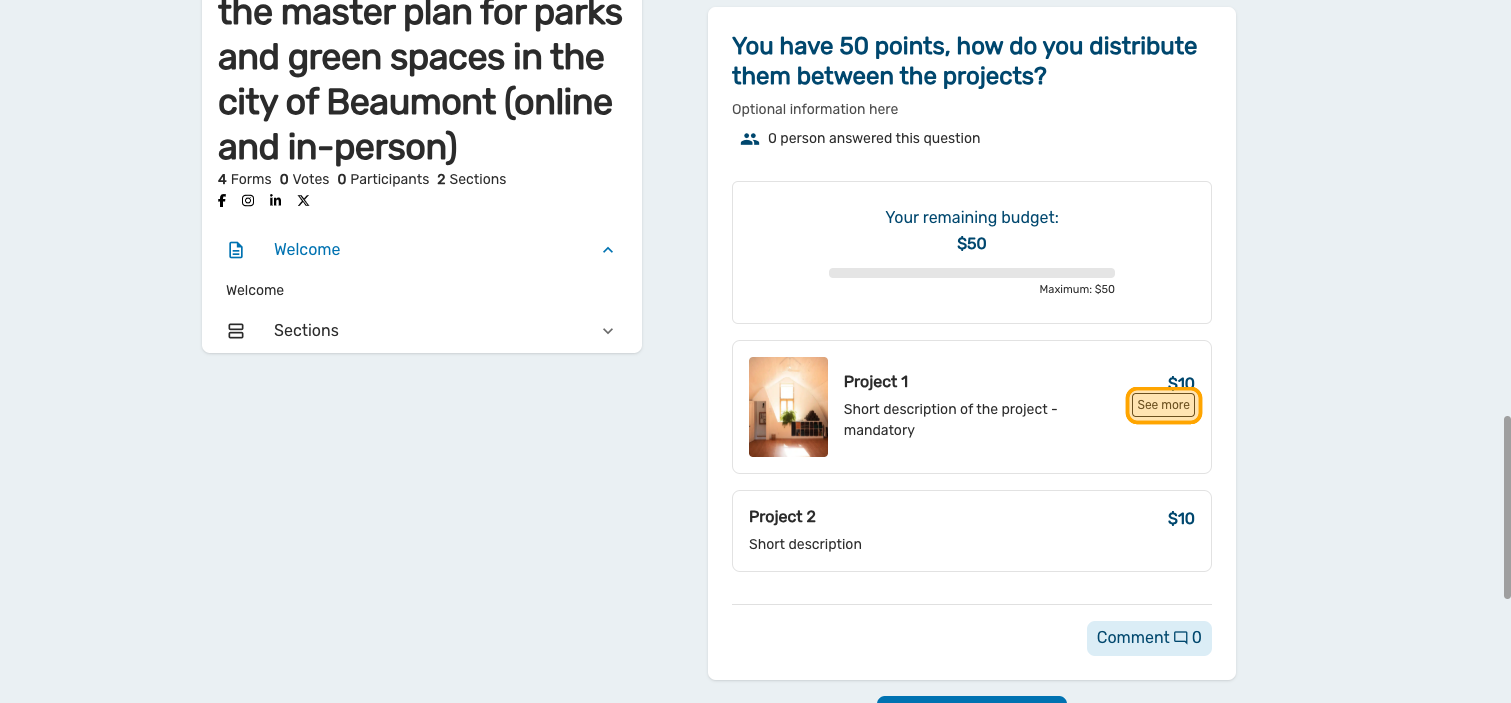
Click on "See more"
Preview your "Long text"
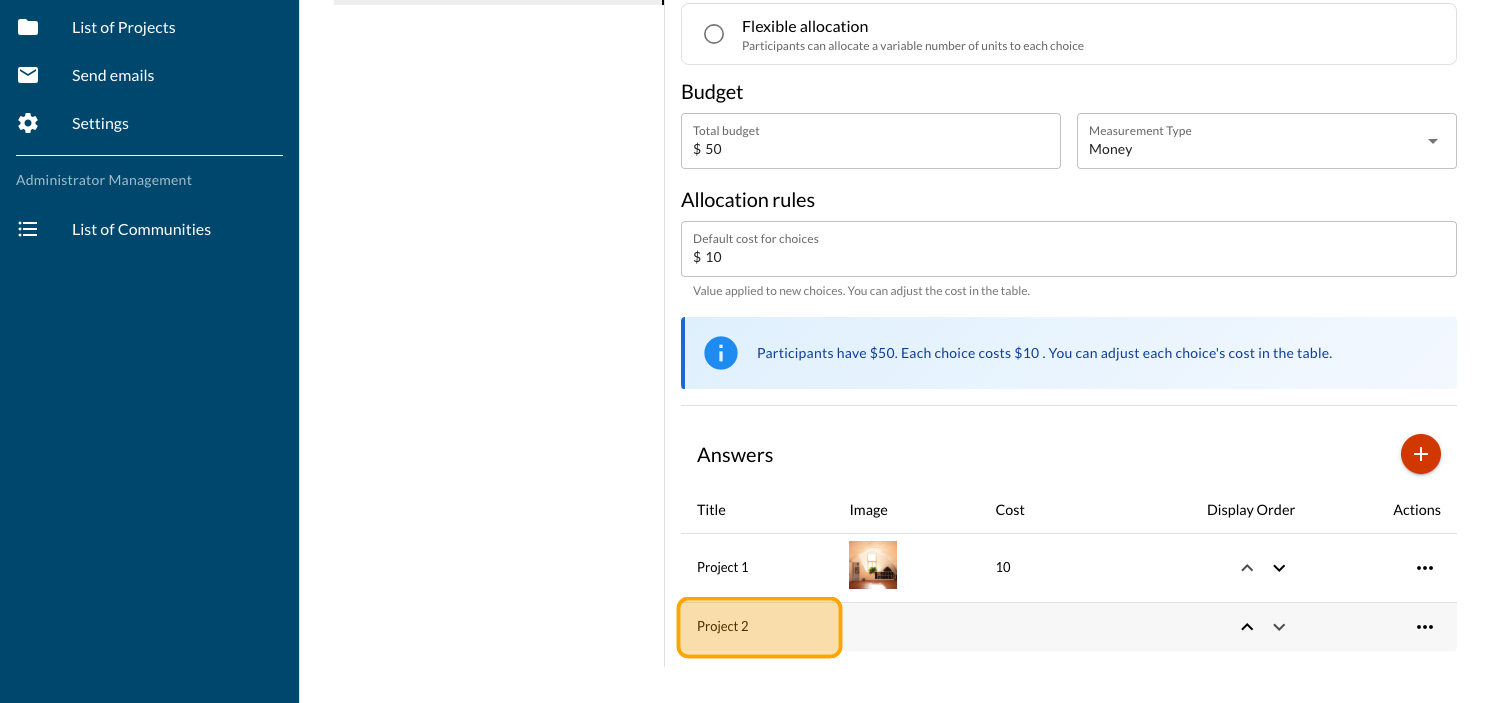
You can also select different values for your answer choices. Click on "Project 1"
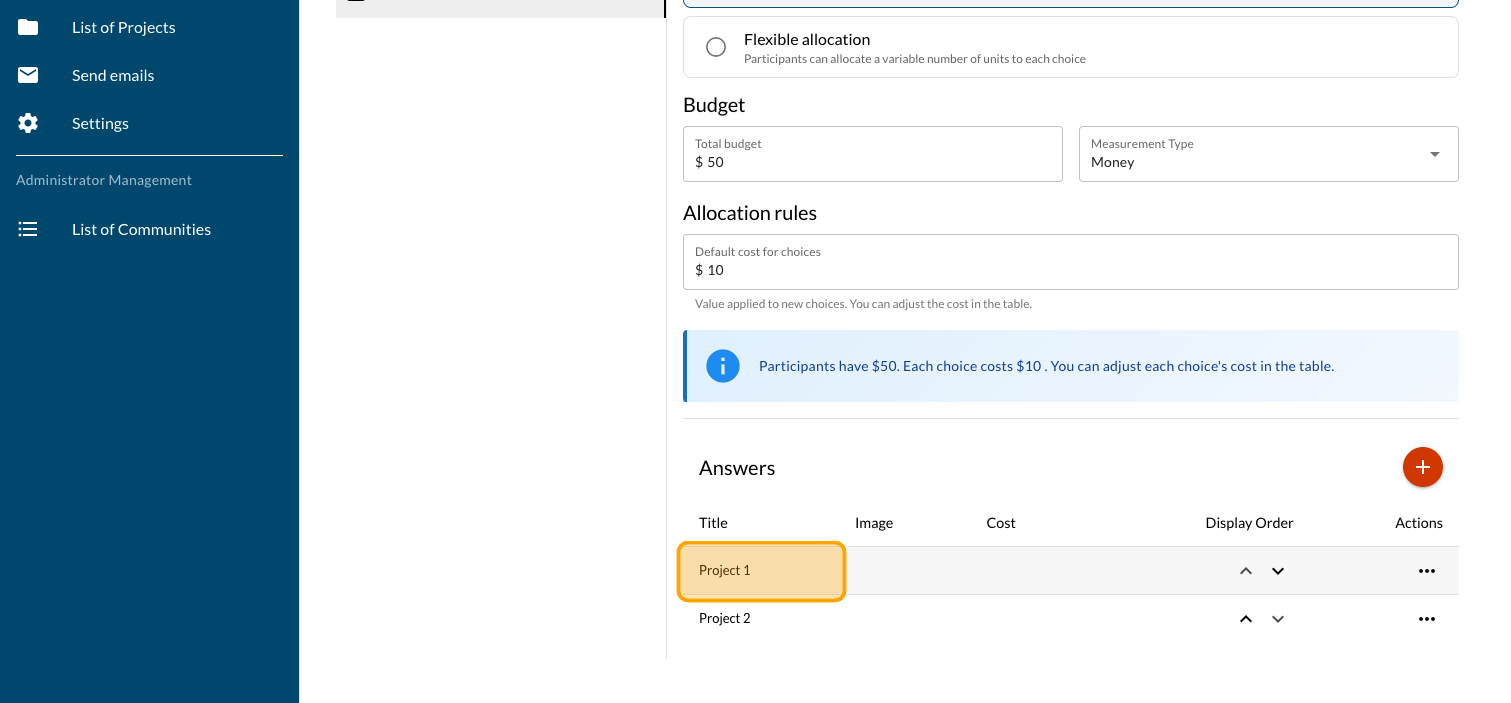
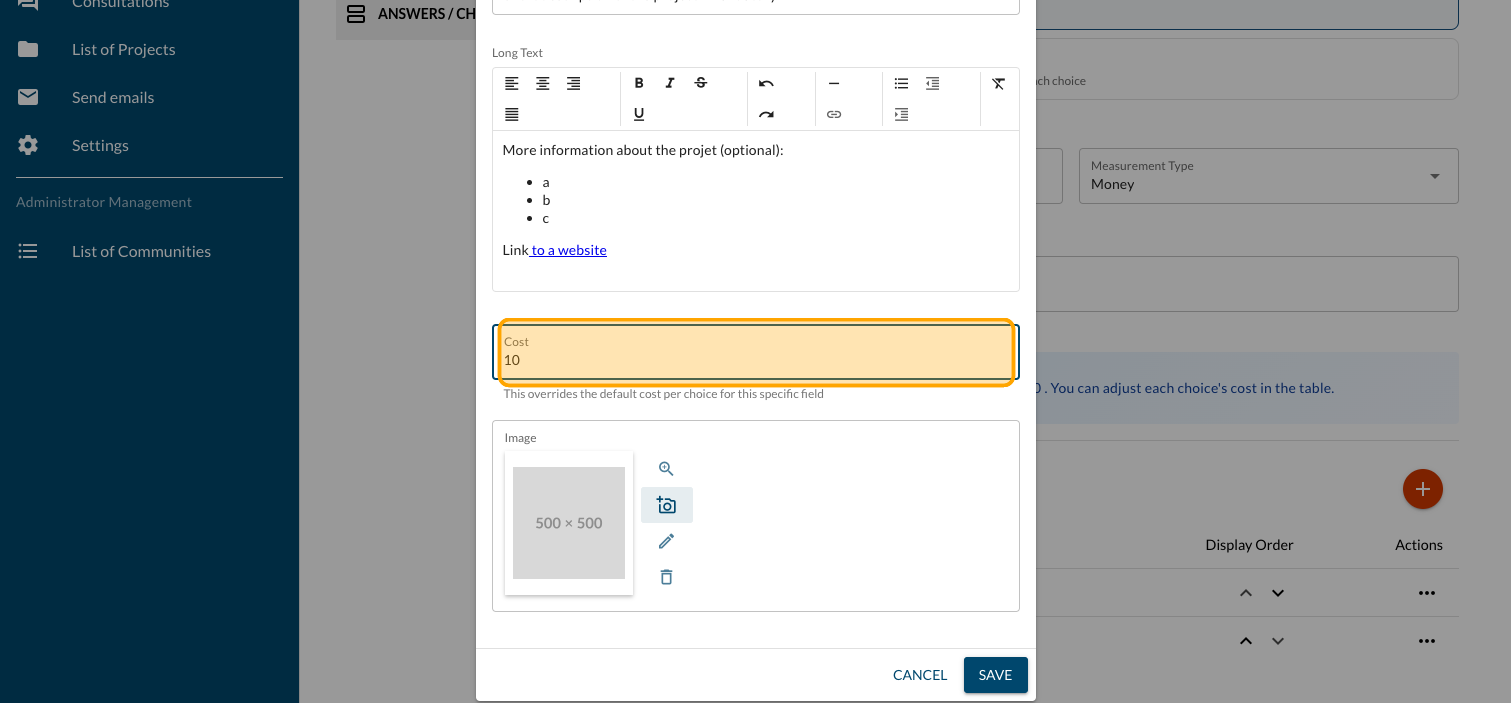
Enter a specific value in the "Cost" field. This amount will replace the default cost.
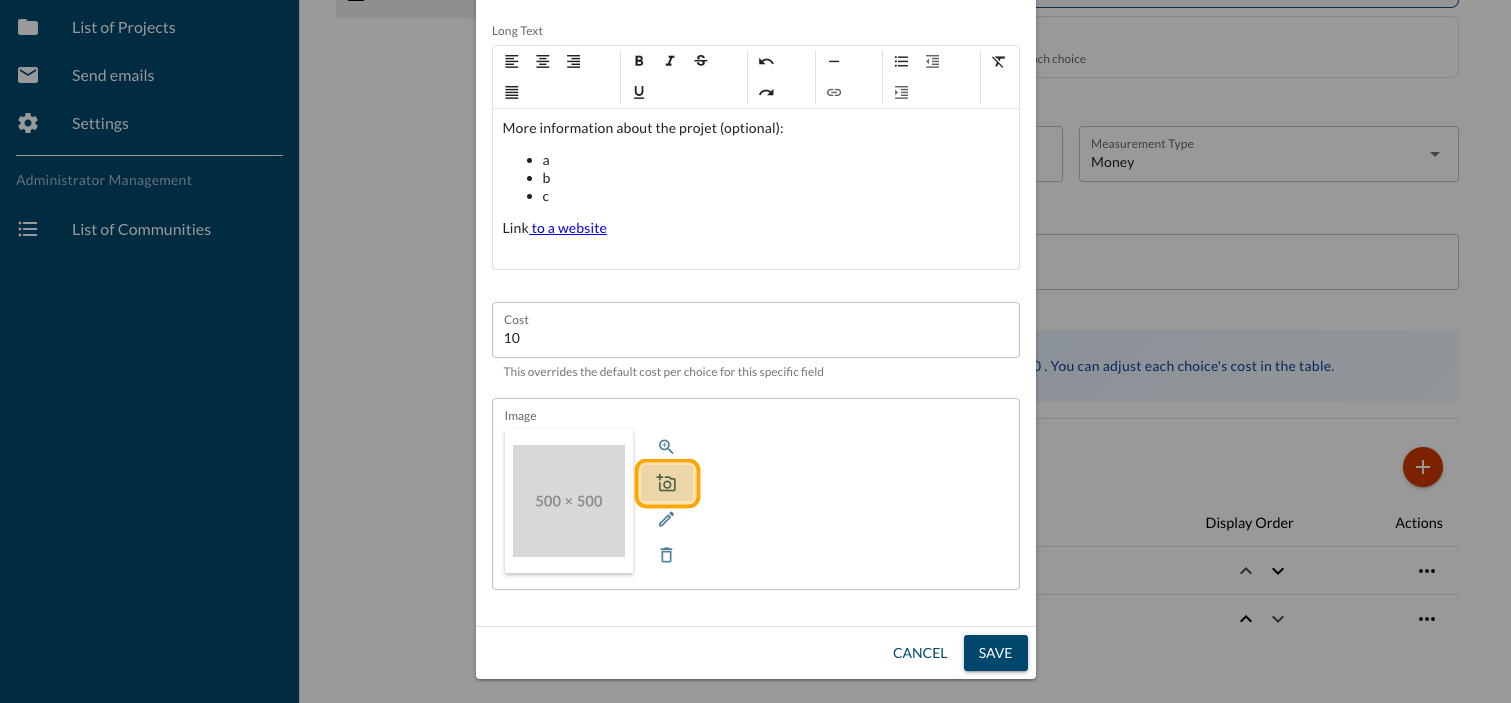
You can also add an image to personalize your projects. Click the camera icon and follow the steps.
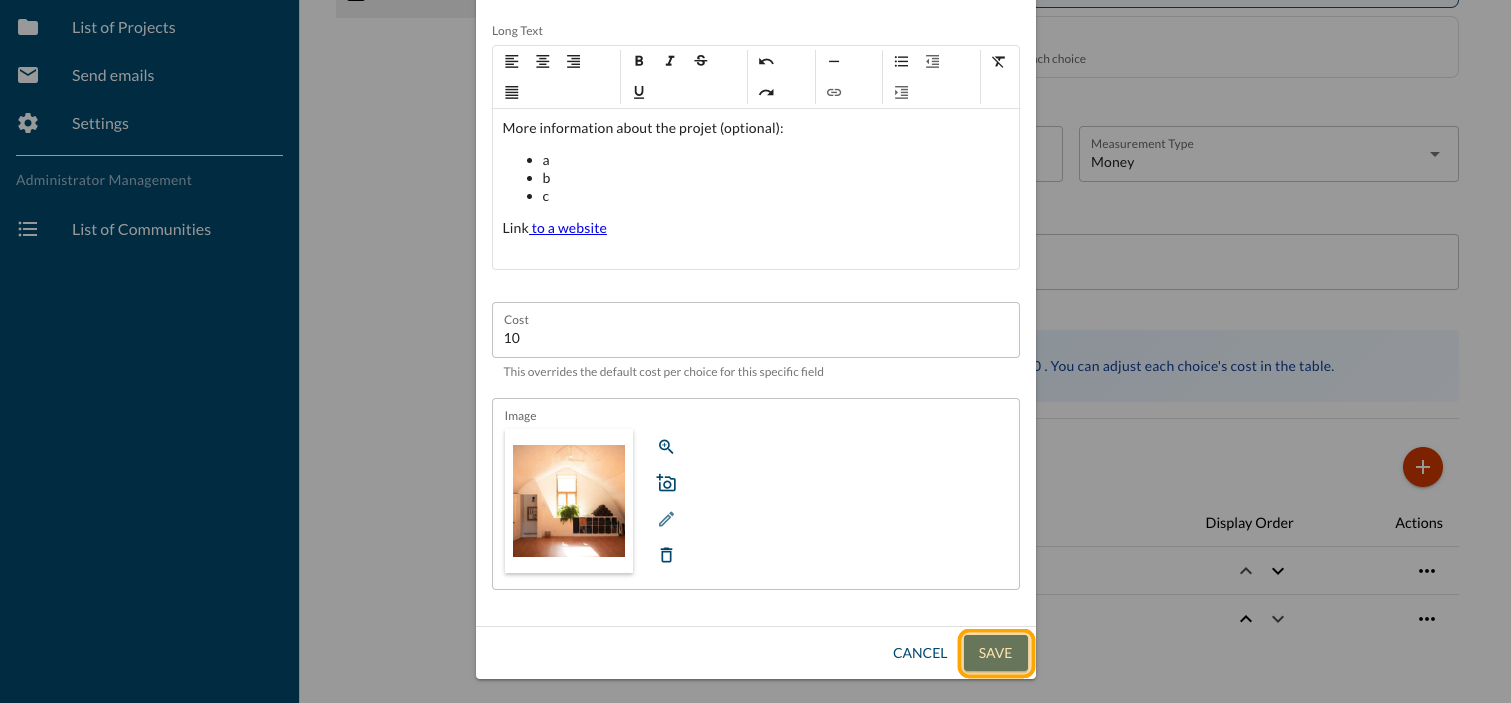
Click on "SAVE"
Click on "Project 2" and other answer choices to personalize them
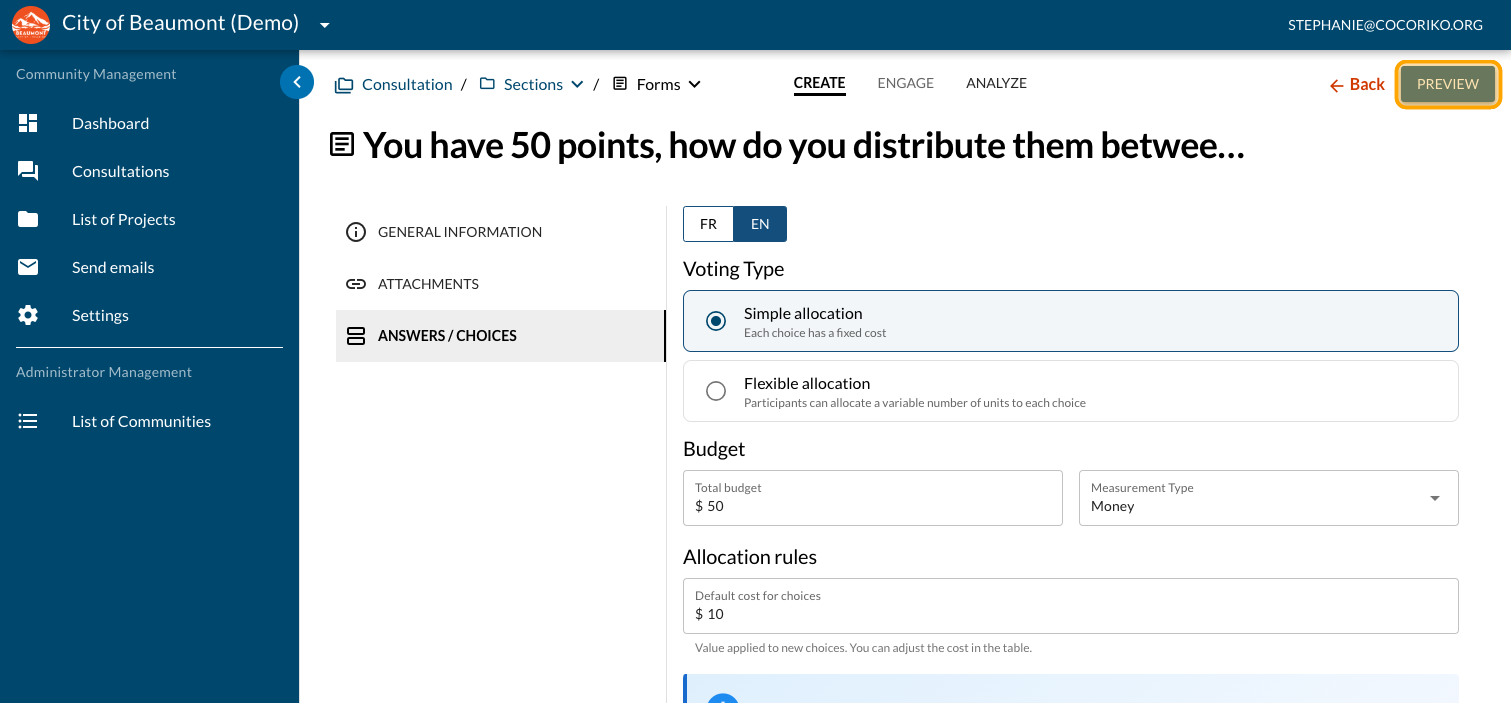
Click on "PREVIEW"
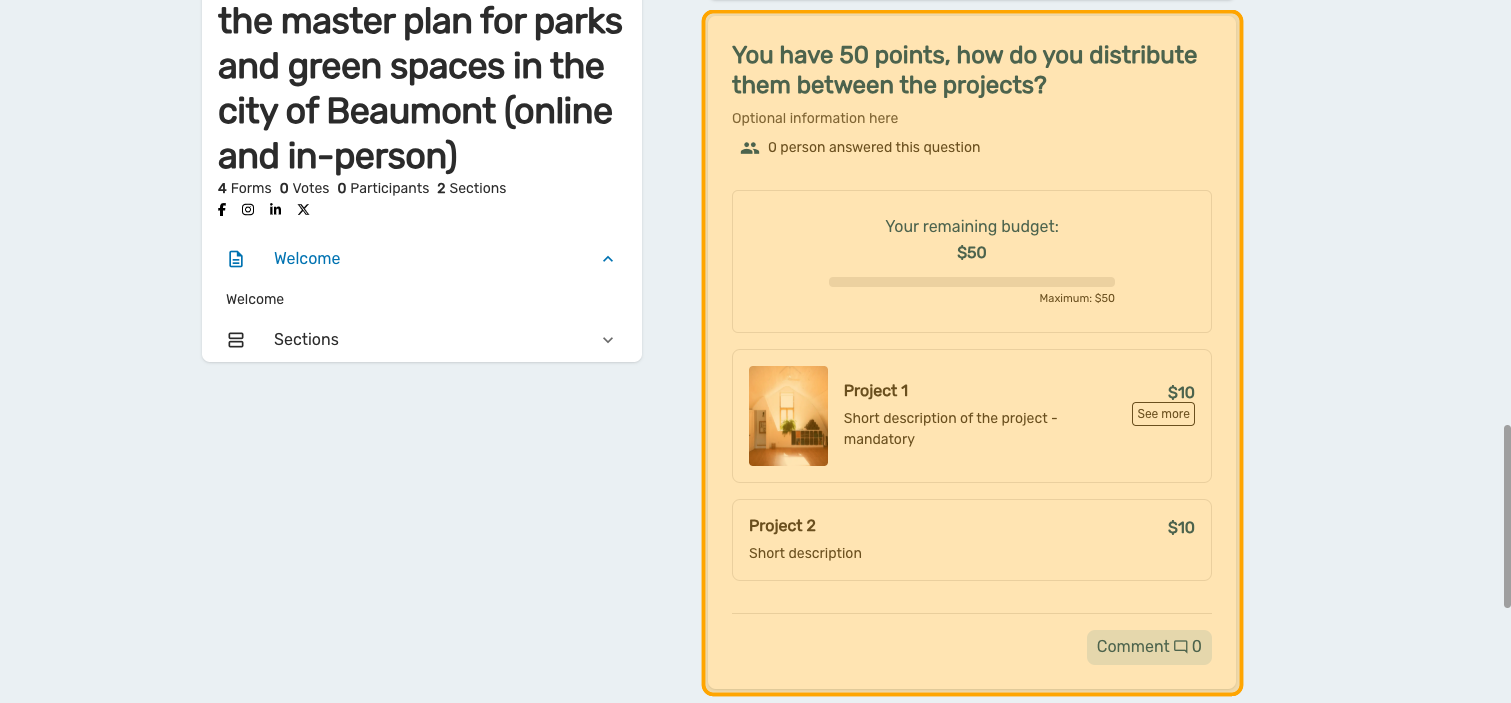
Preview your question using the specific amounts you've chosen instead of the default amounts, along with your images. Make changes and/or add items by returning to the admin interface.

Add a Dot Voting question - Variable
The Dot Voting question can be programmed with fixed or vari …

Sending an Email via Cocoriko
This guide helps you create and send a mailing campaign.
Create and configure a consultation
Follow this guide to get your consultation off to a good sta …