

By Team Cocoriko on Apr 15, 2026 10:12:14 AM
The project allows you to present information just as you would on a page of your website, but with even more options! For example:
-
Someone can subscribe to your project so that you can send updates directly to their email inbox
-
Someone can comment on a project without you having to create a consultation
Navigate to admin.v3.cocoriko.org/projects/251 and log in as an administrator
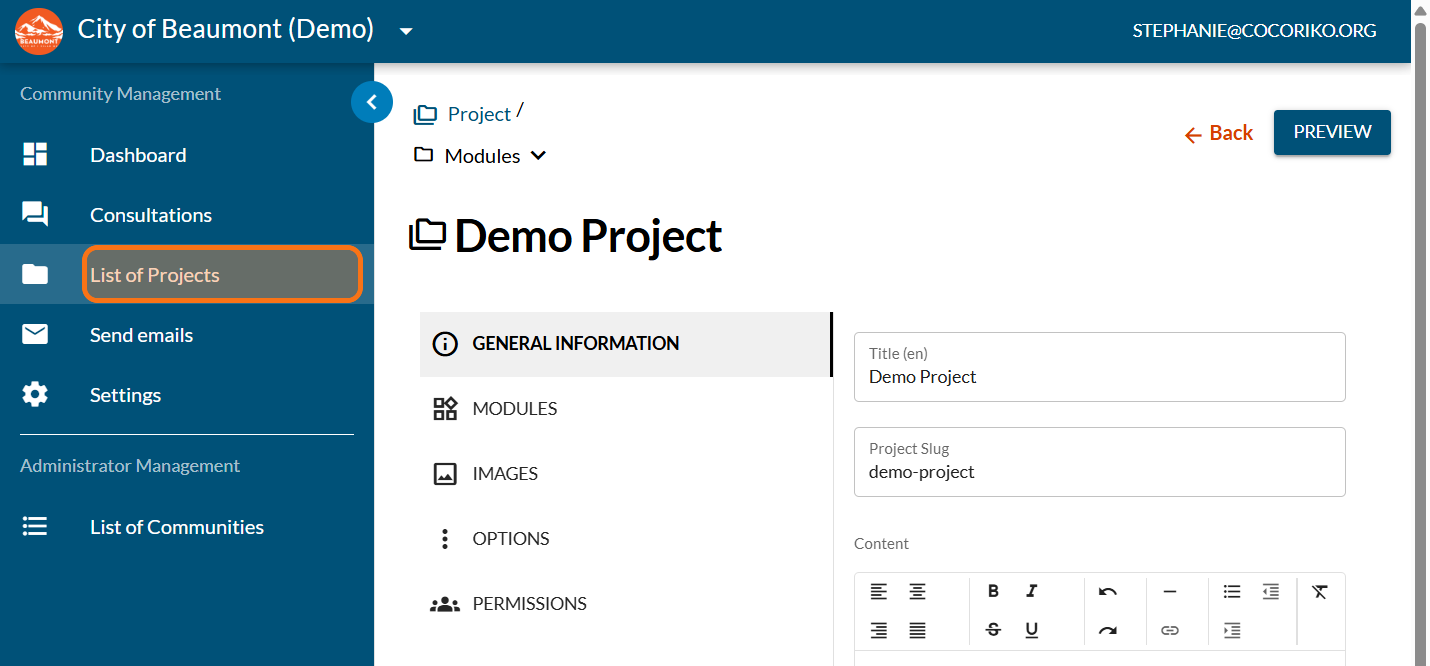
Click on "List of Projects"
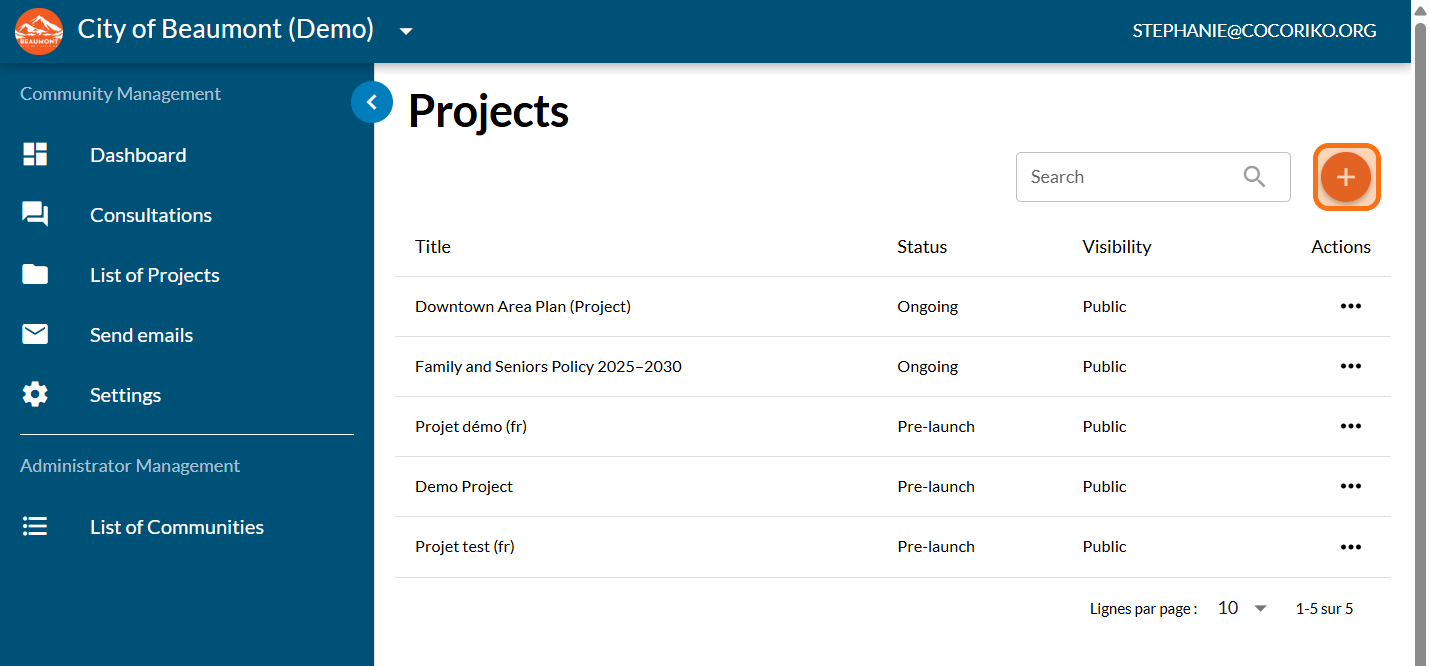
Click on the PLUS sign to add a new project
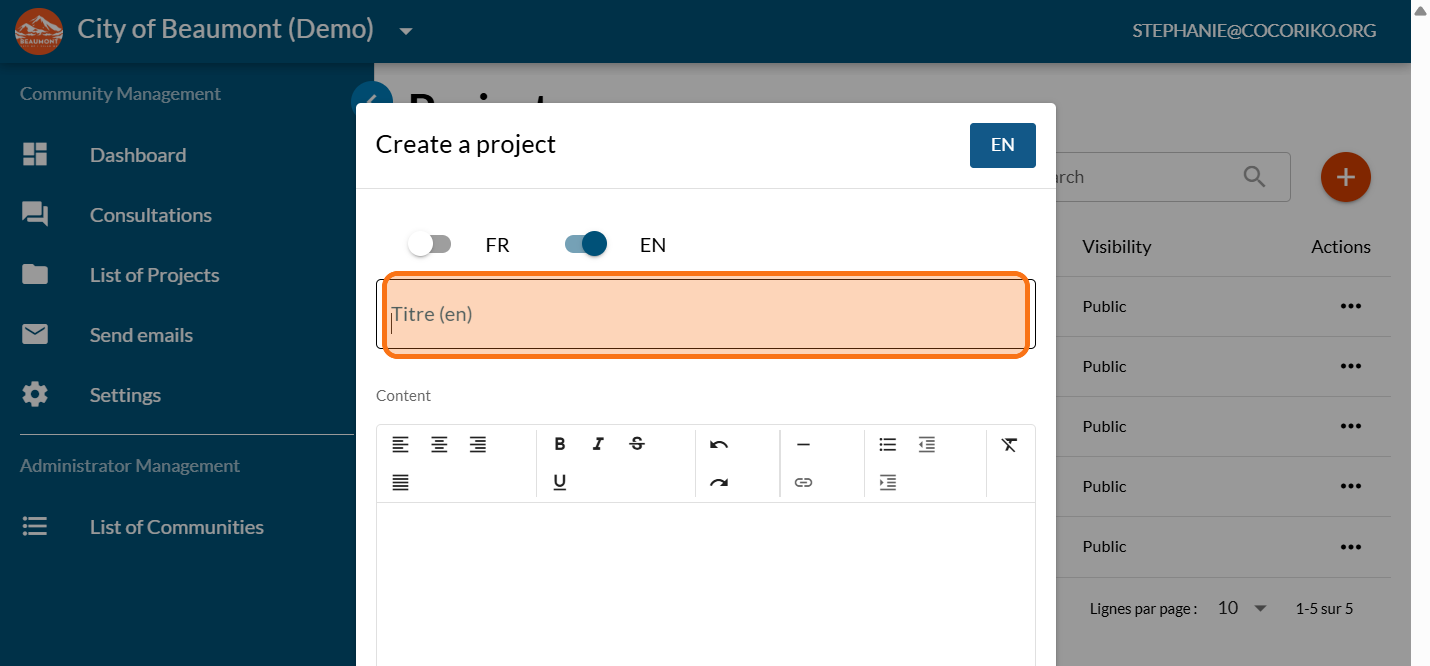
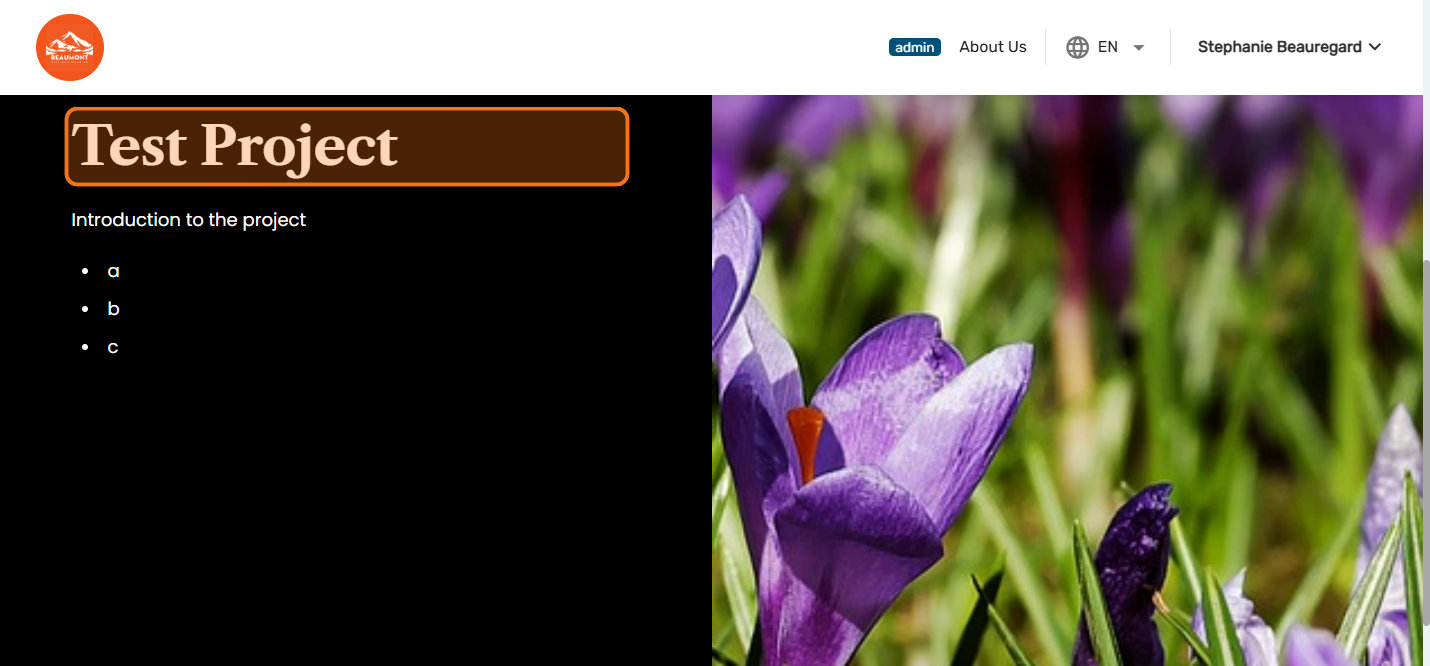
Enter the title of your project
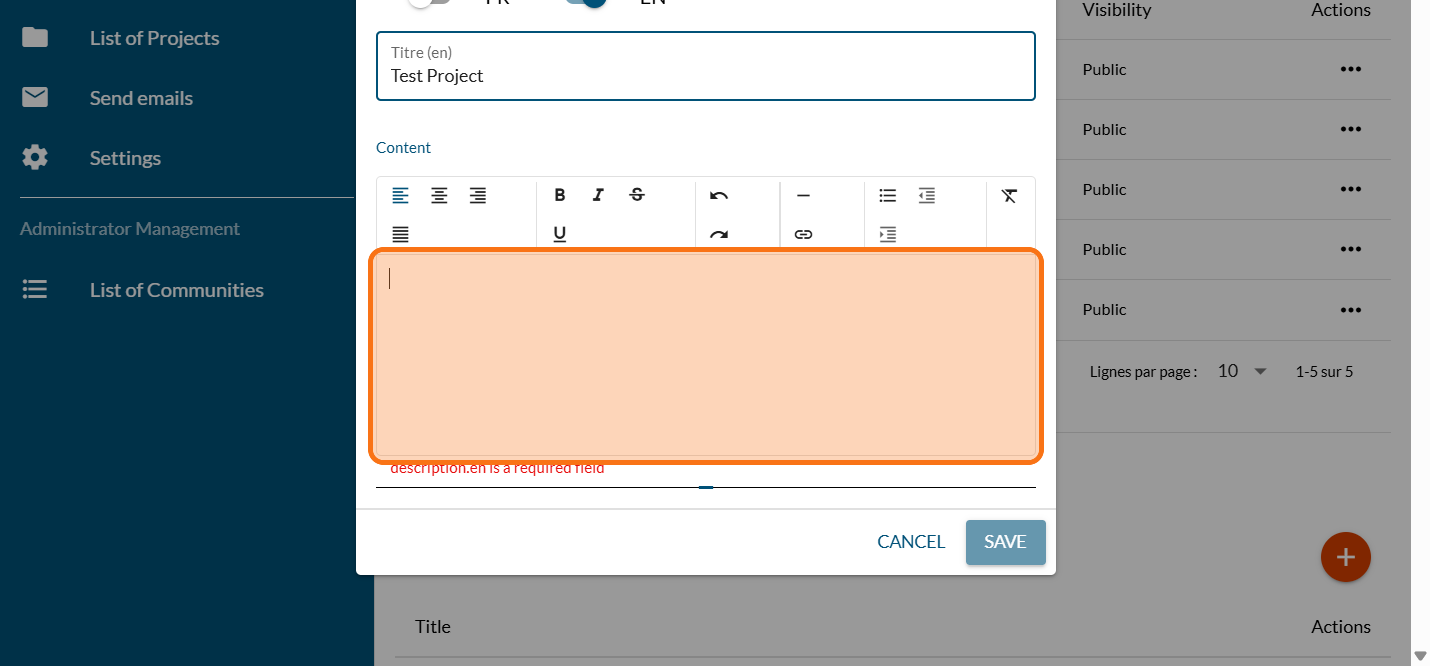
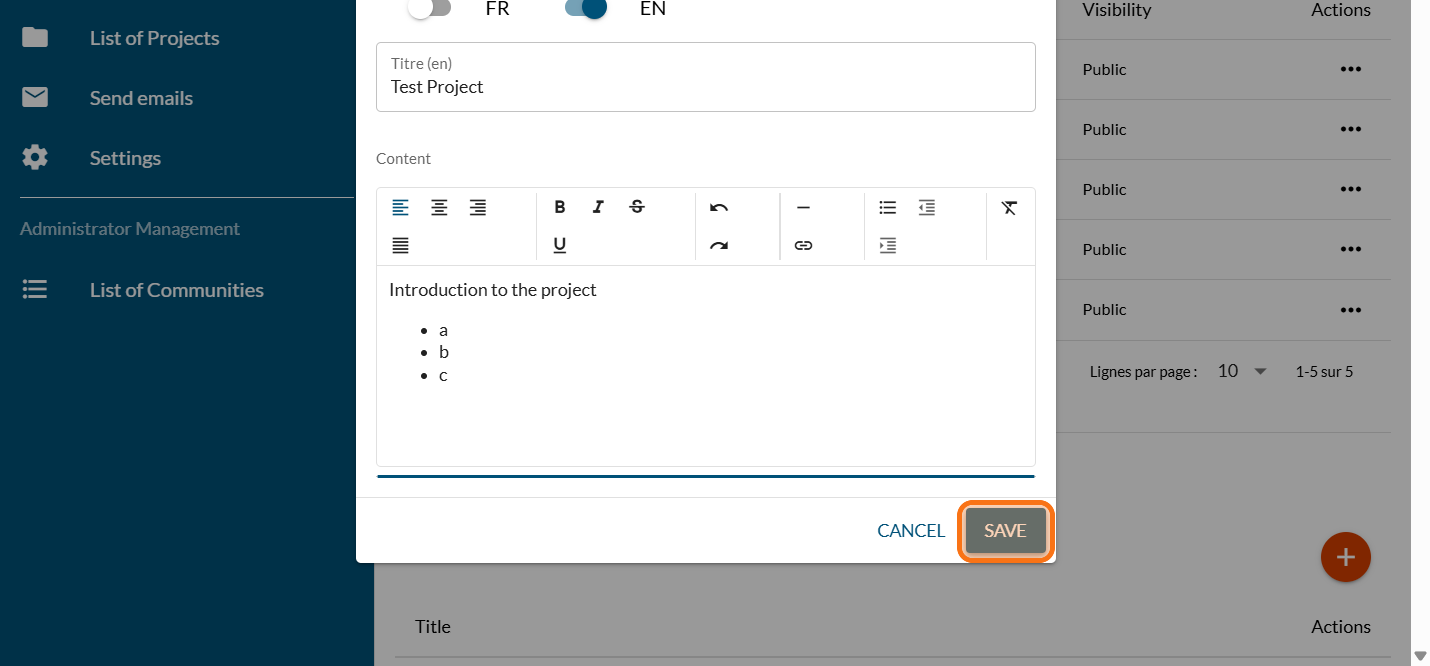
Enter an introduction text for your project
Click on "SAVE"
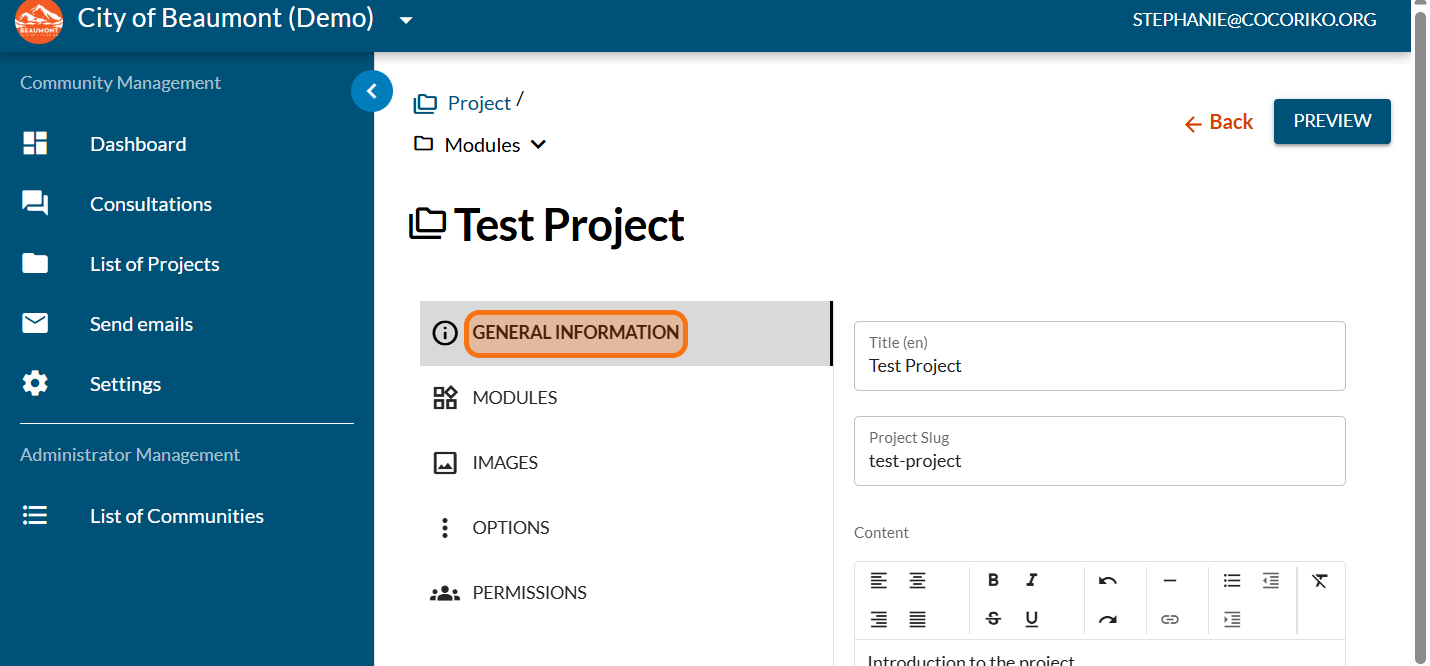
Click on "GENERAL INFORMATION"
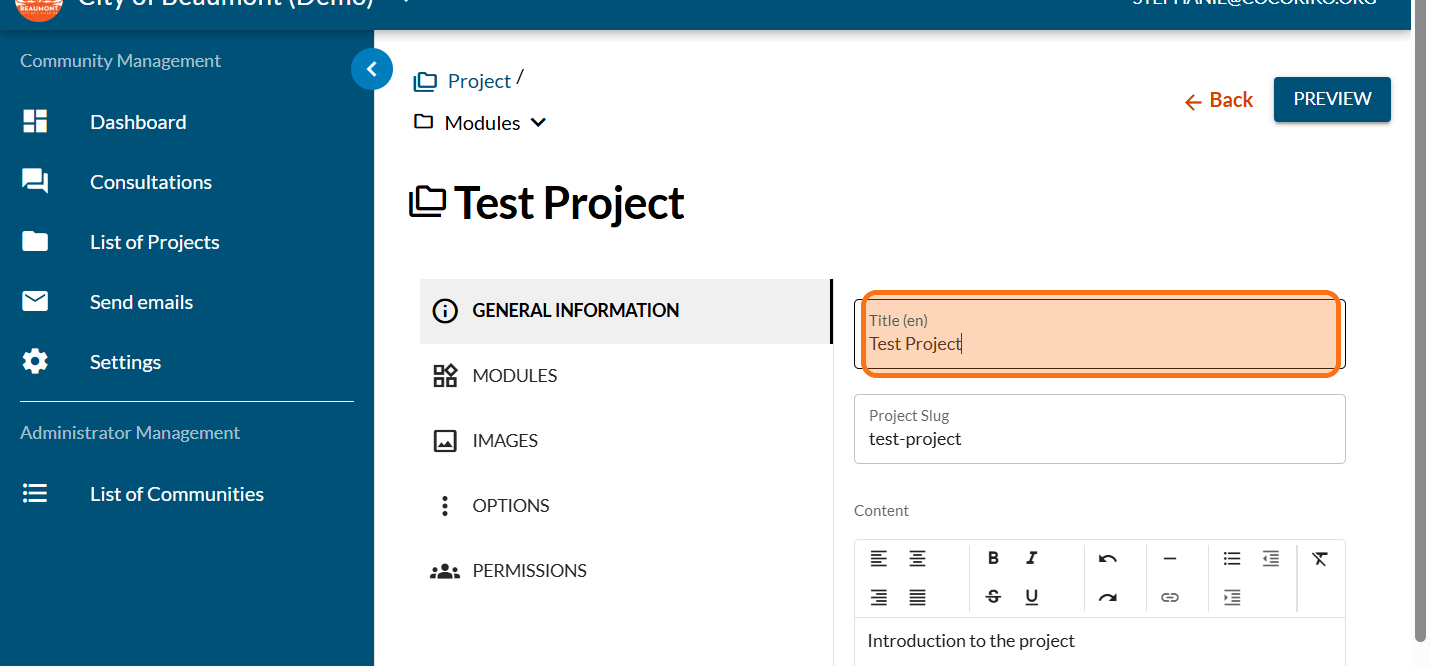
Adjust the title of your project anytime
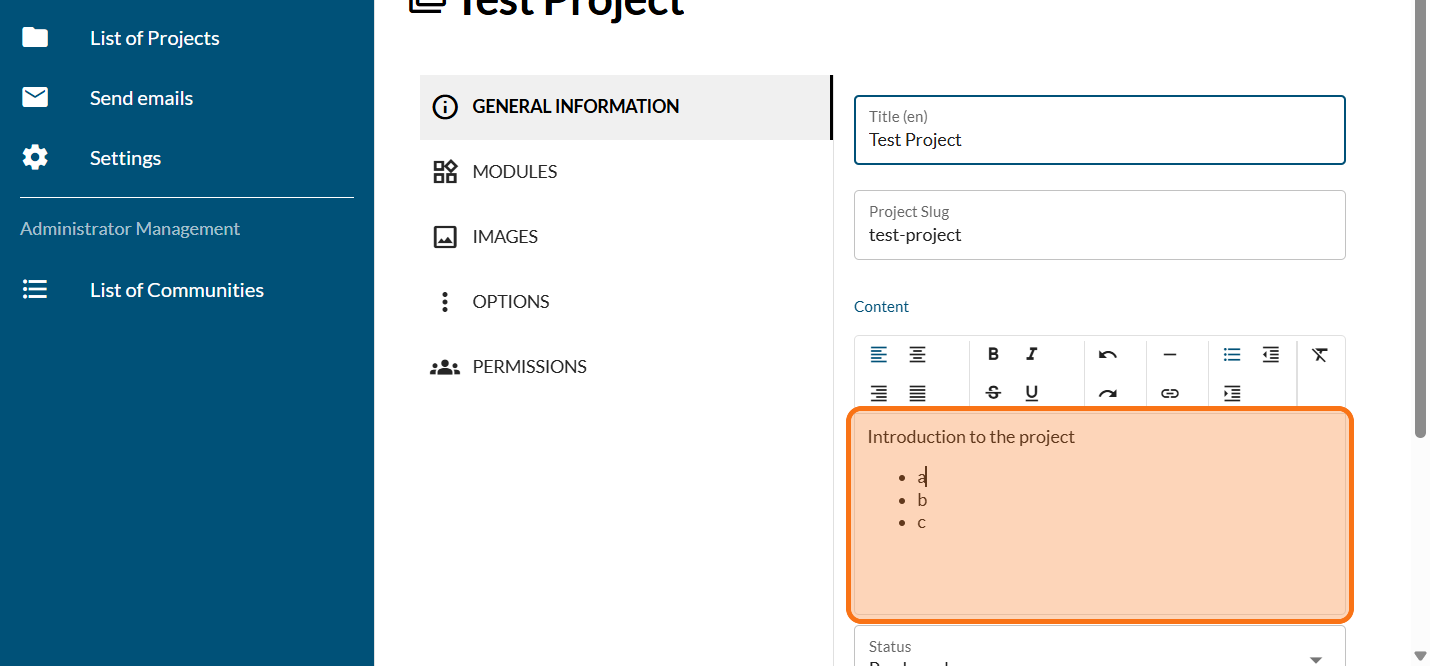
Adjust the introduction if needed
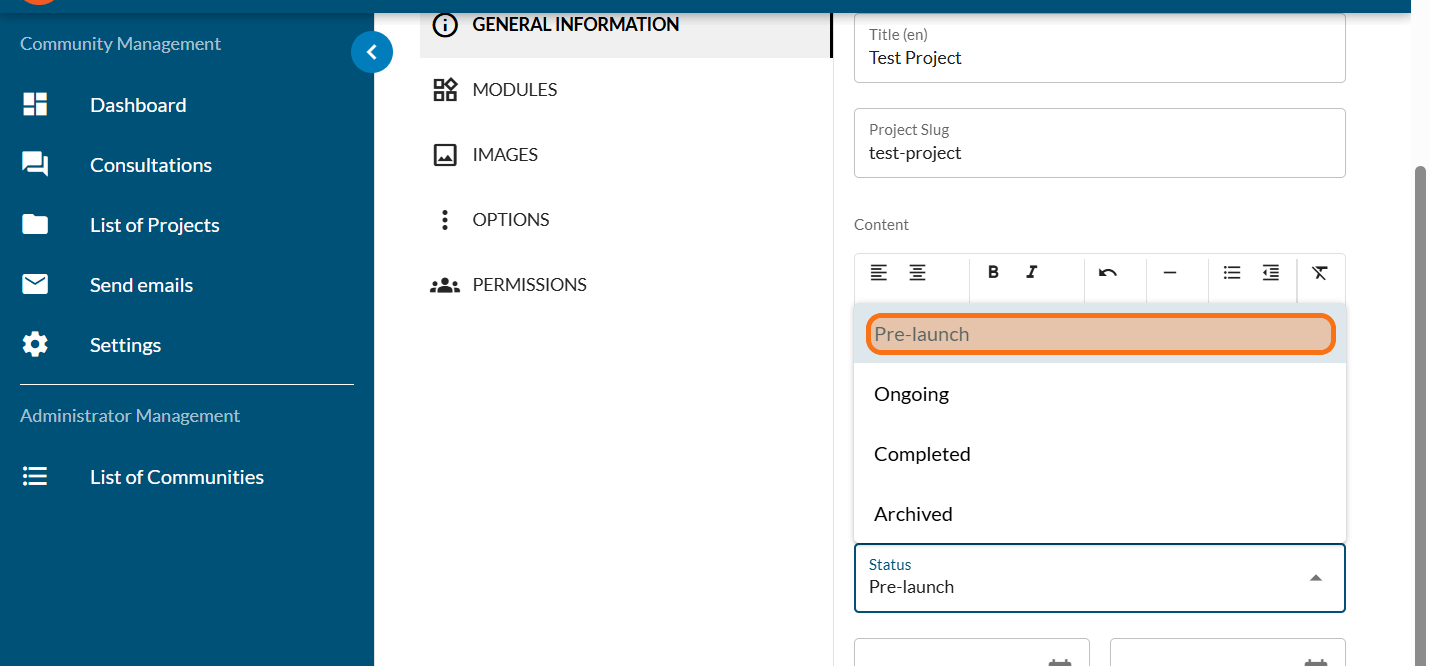
Click on "Status" to select Pre-launch, In progress, Completed or Archived. Click here to find out more.
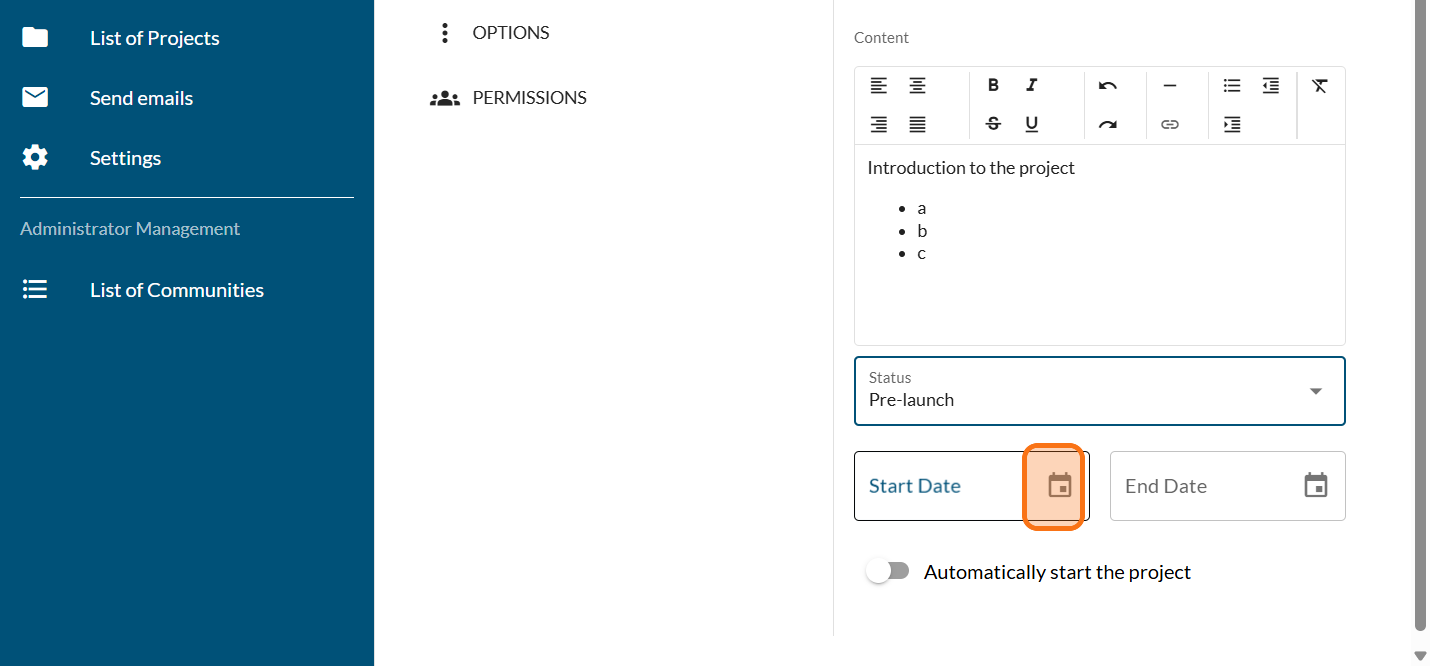
Select the start and end date for your project (optional)
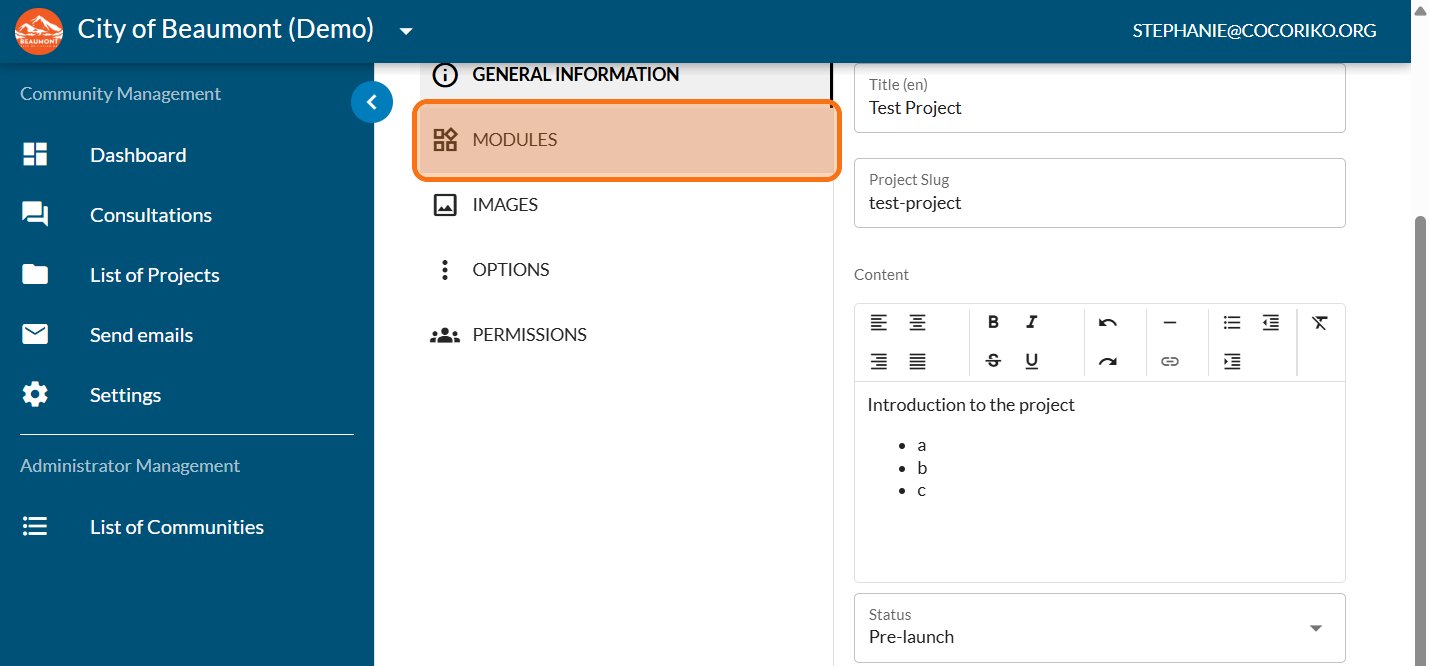
Click on "MODULES"
Click on the PLUS sign to add a new module. Learn more about modules you can add to your project page.
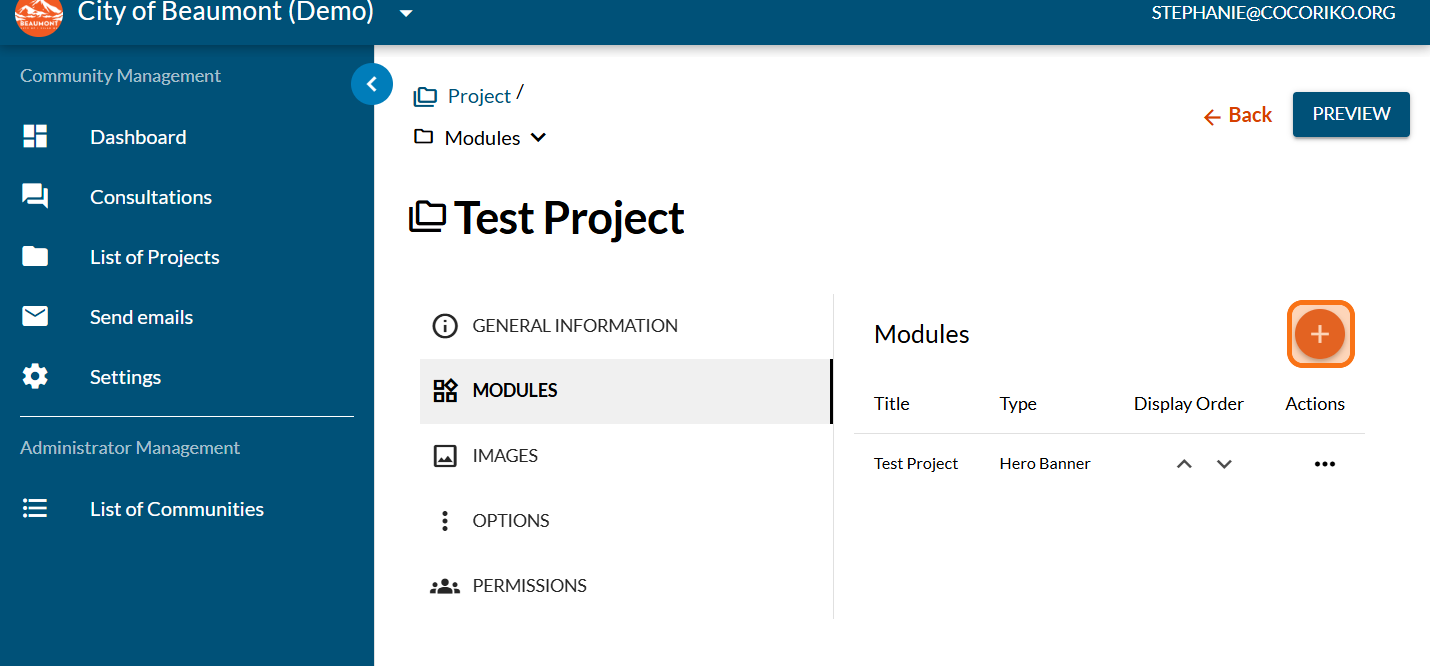
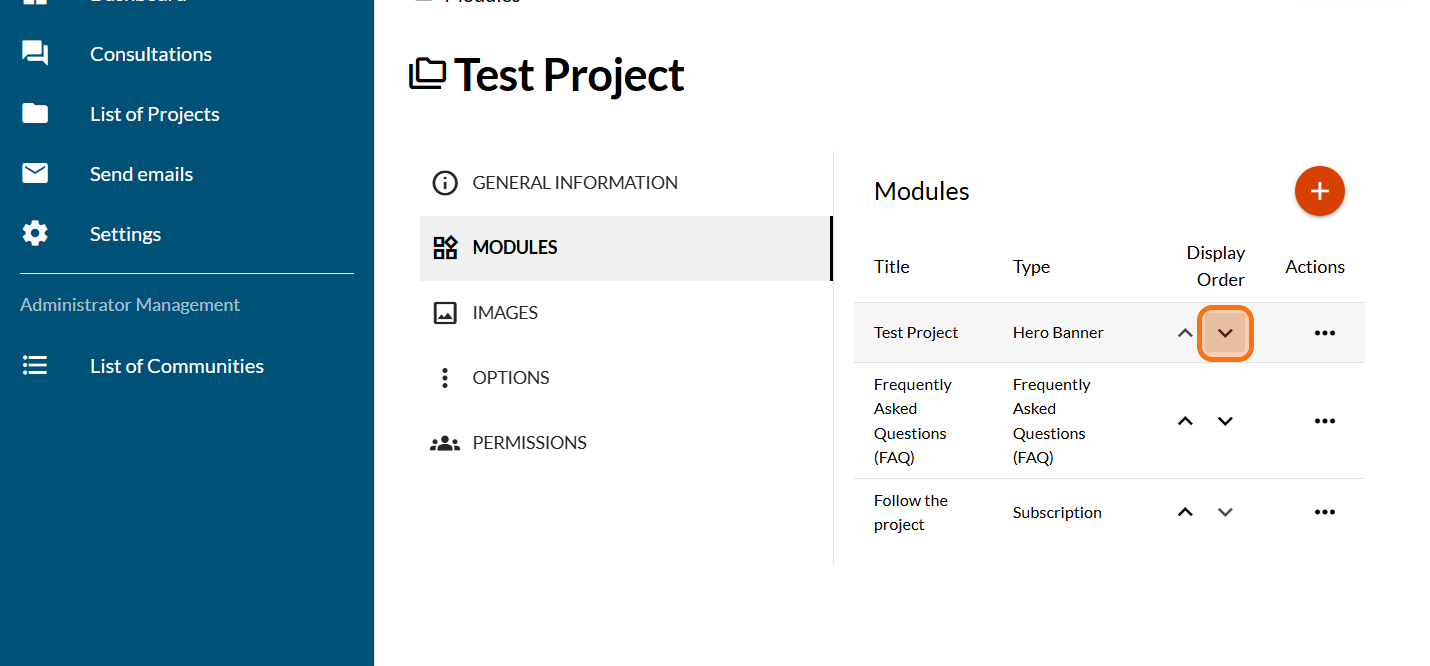
Click on the arrows to reorganize the modules on the page if needed
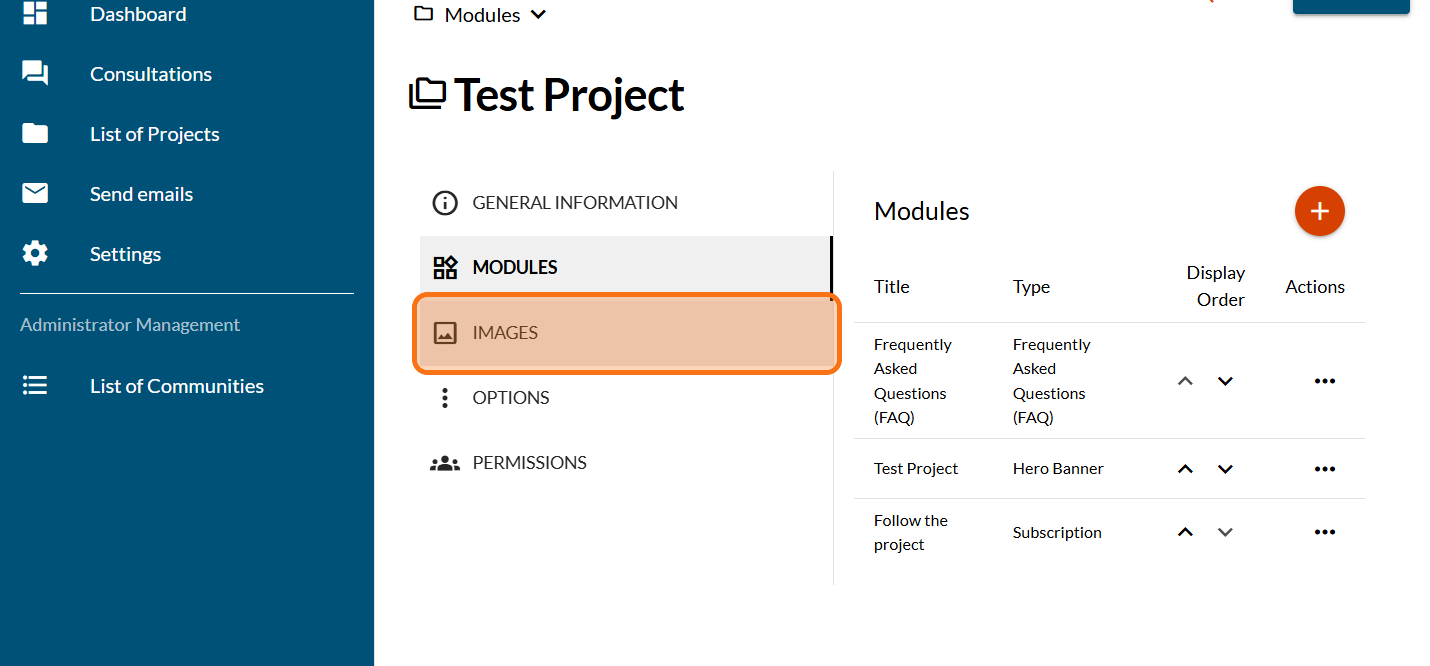
Click on "IMAGES"
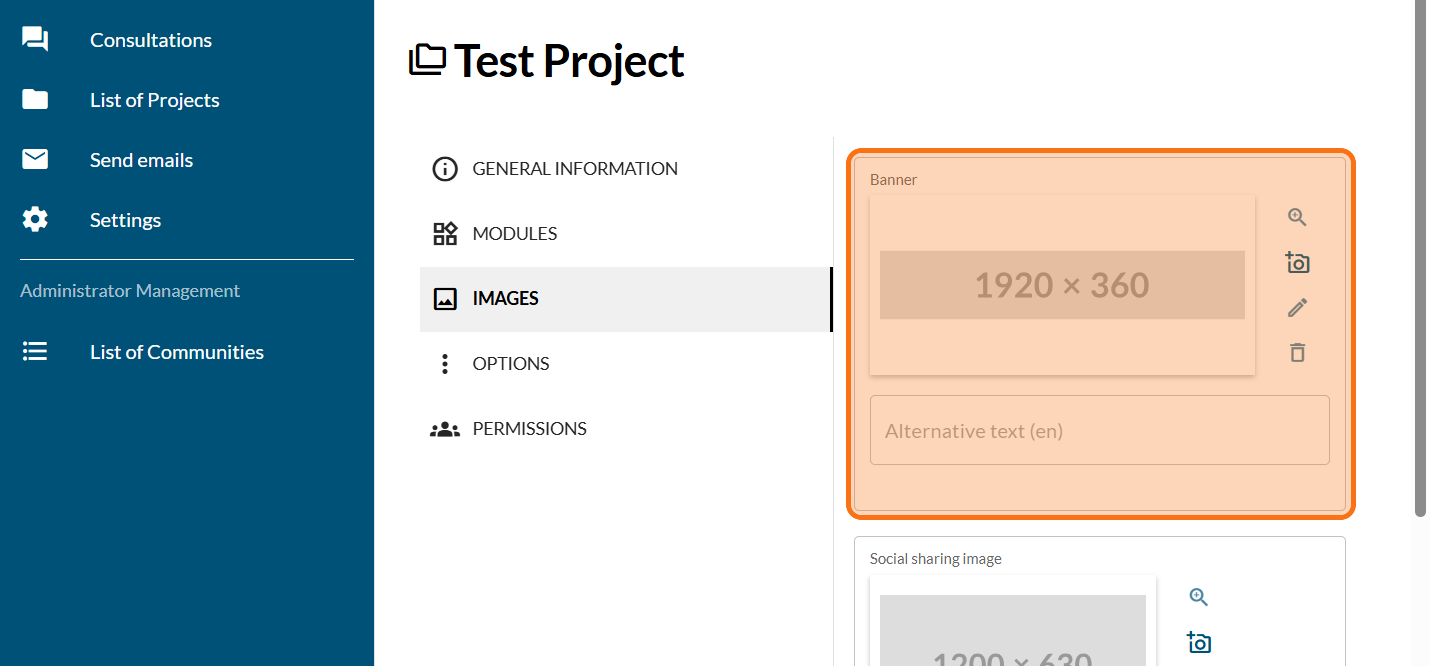
Add the project banner (required). The banner will be displayed on the home page and will be used as your project’s image in the classic theme. In the modern theme, a different image will be used for your banner.
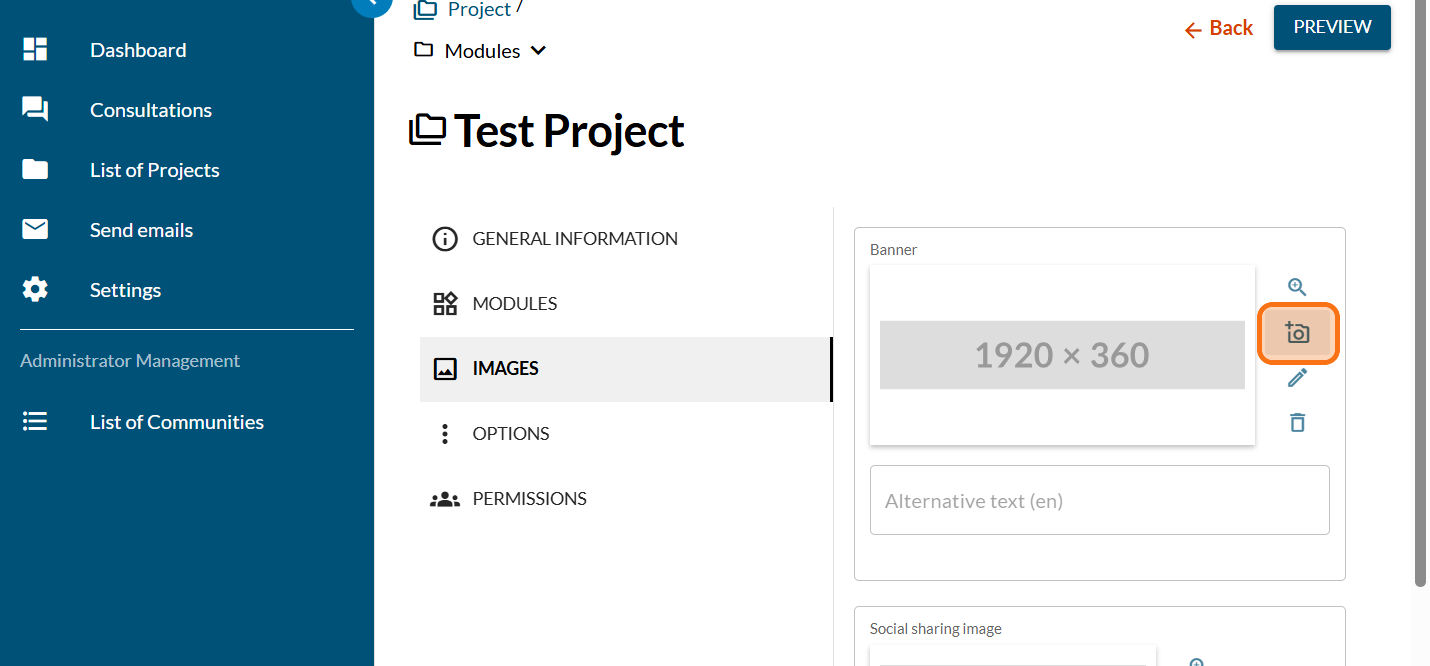
Click on the camera icone
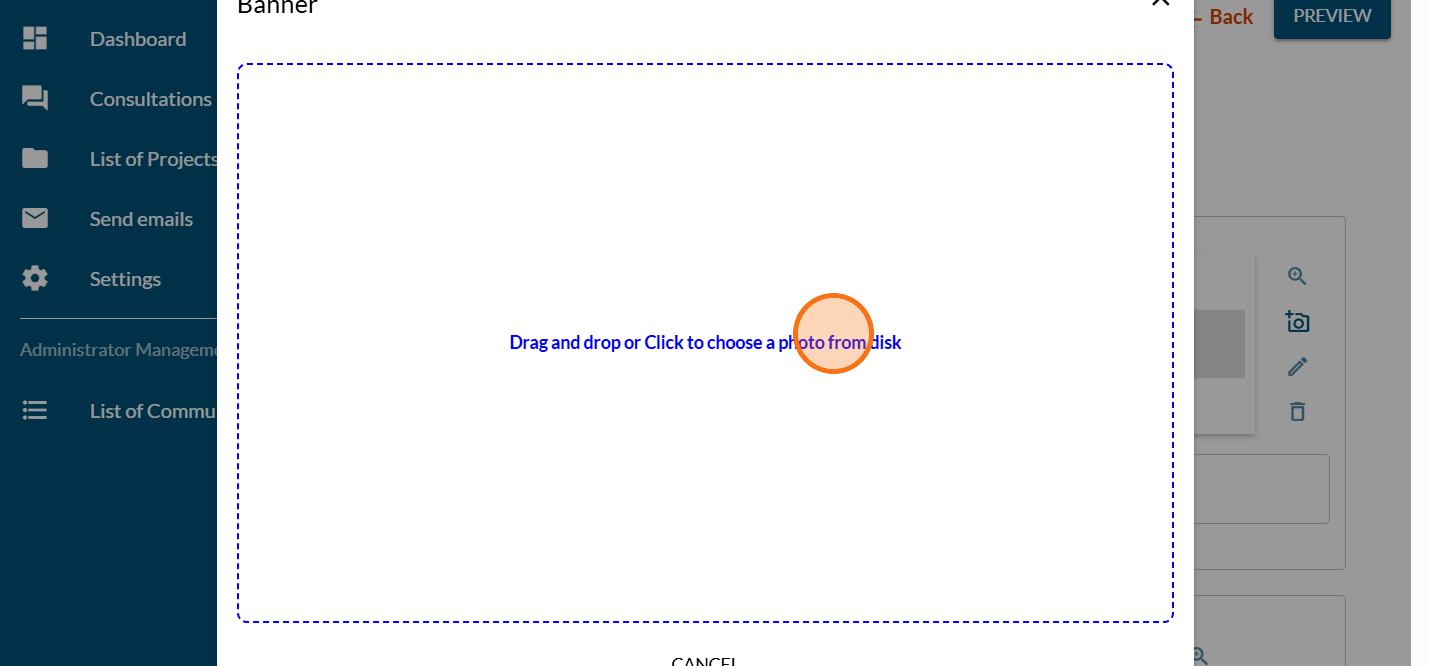
Click on "Drag and drop or Click to choose a photo from the disk"
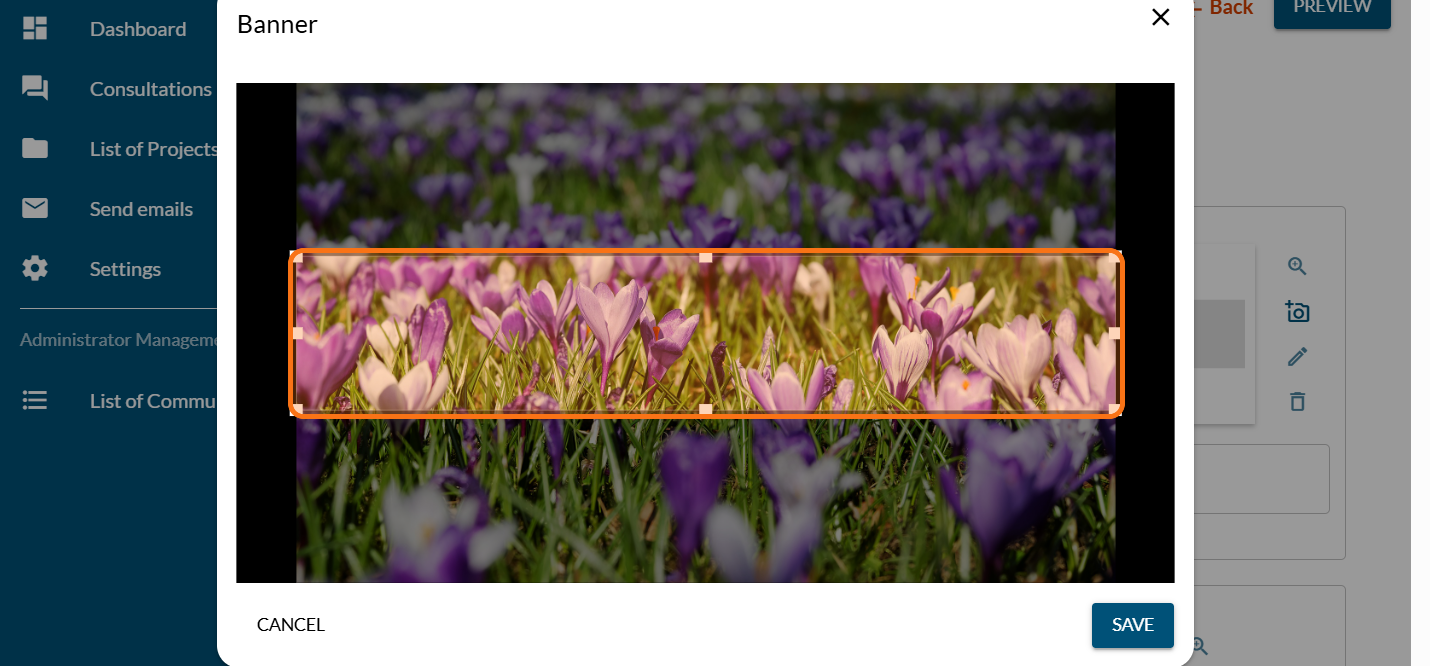
Reframe the picture and choose the area that will make your project banner
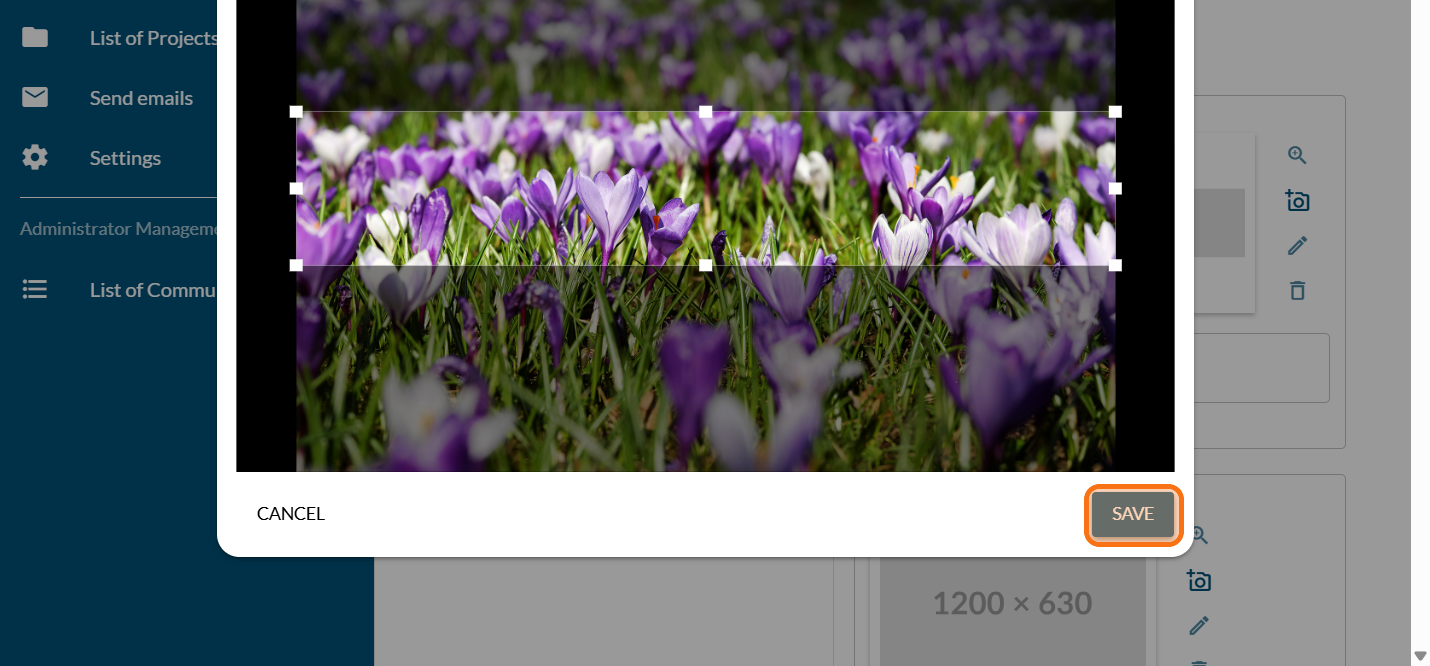
Click on "SAVE"
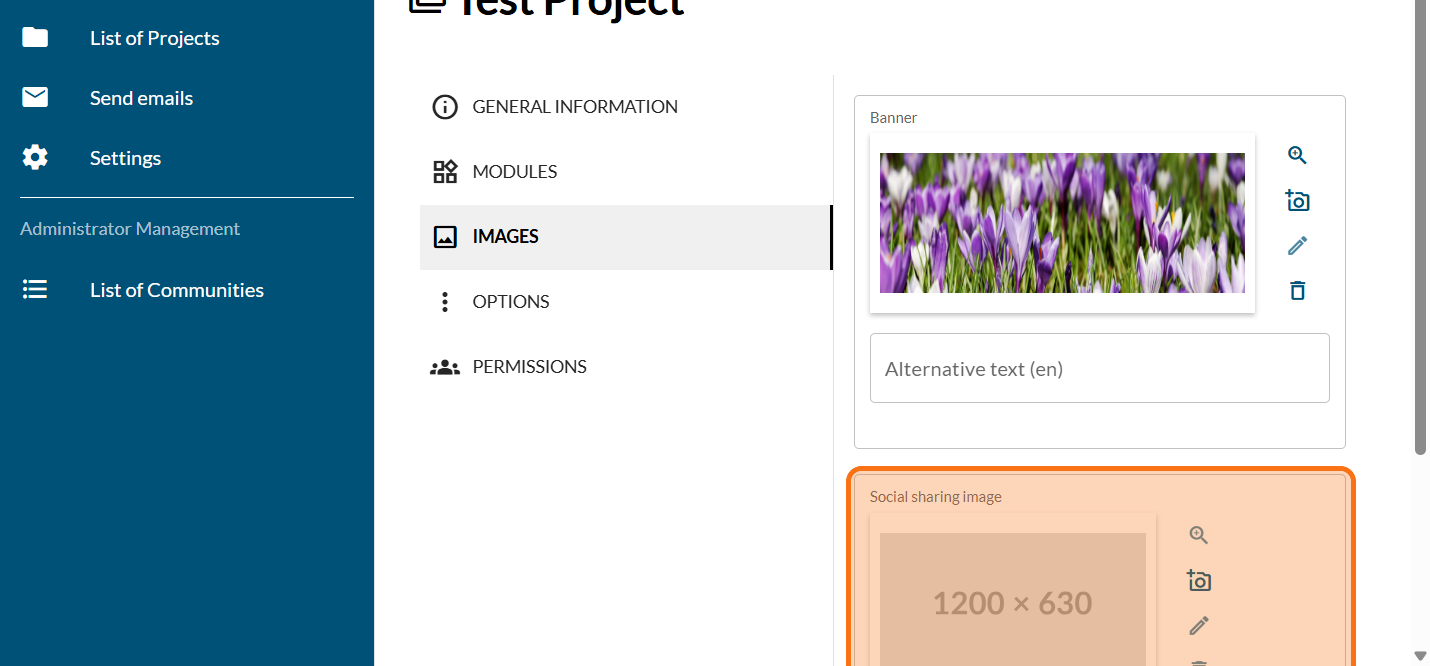
The social sharing image will be the image displayed when someone shares the project on social media (optional)
Click on "OPTIONS"
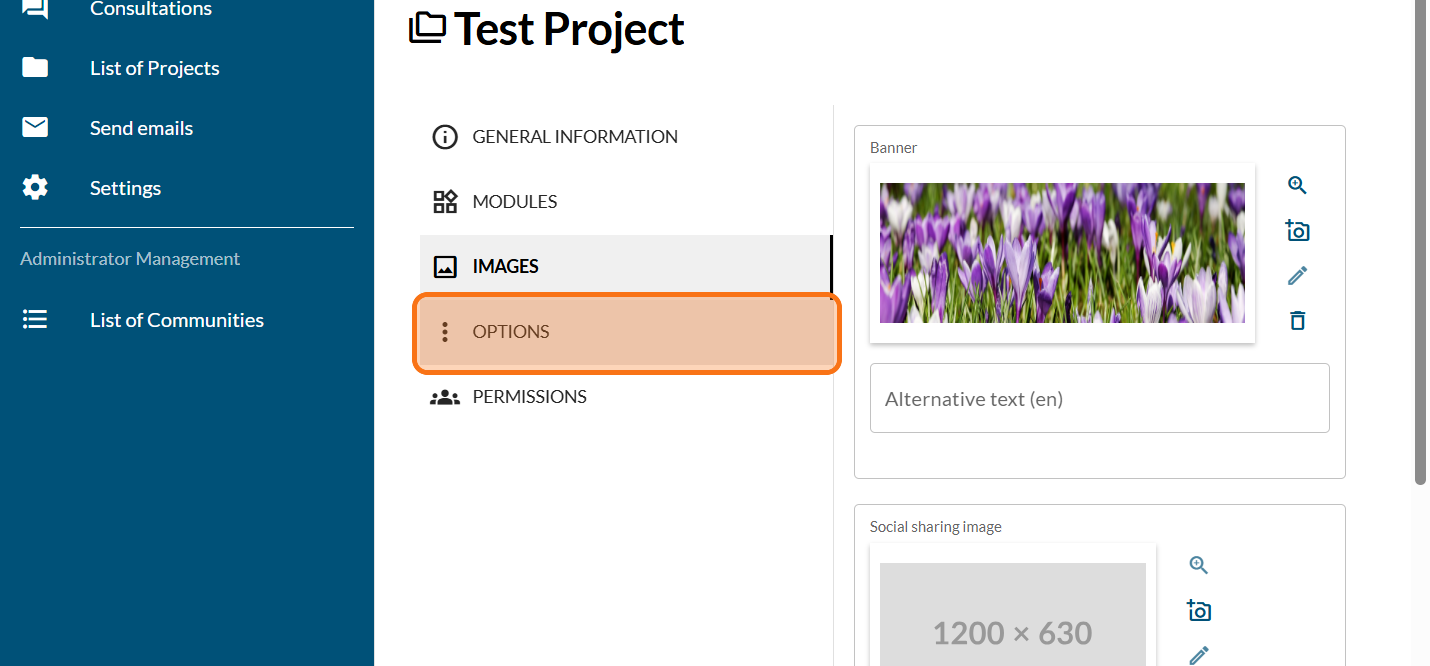
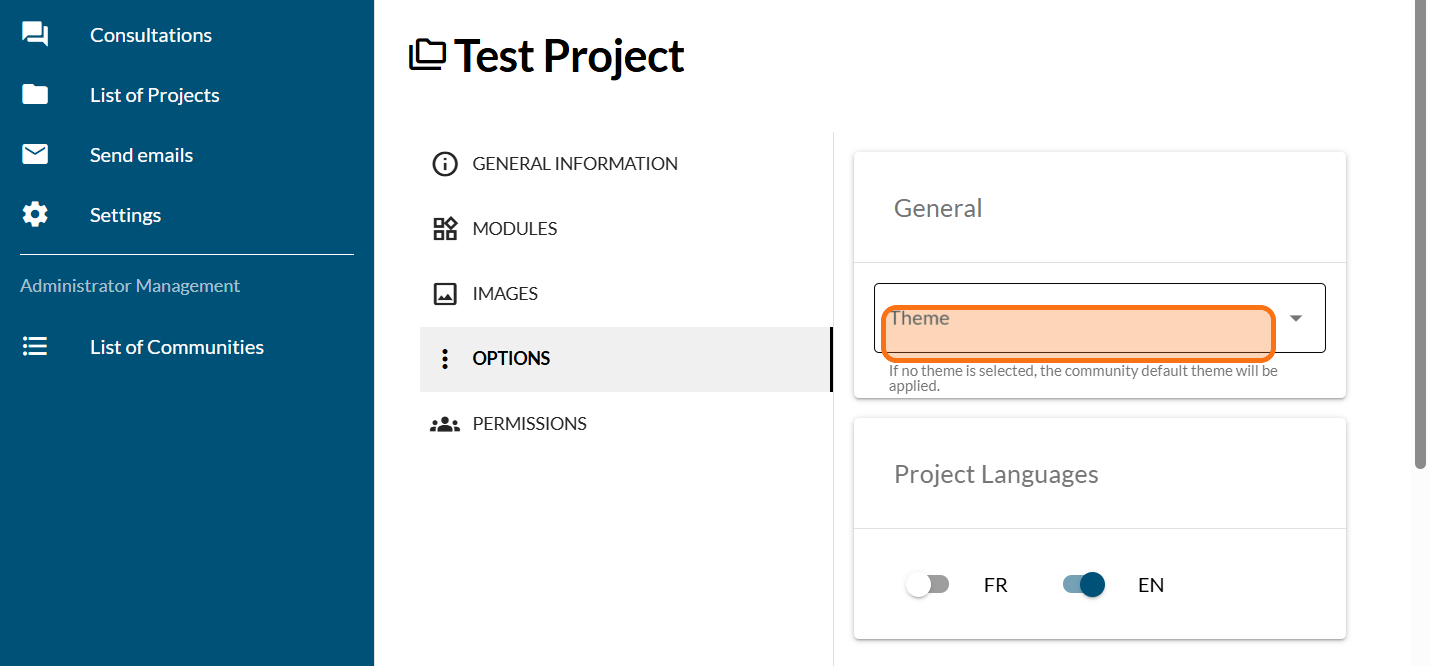
Pick the theme that you prefer for your project. Learn more about the classic and the modern theme.
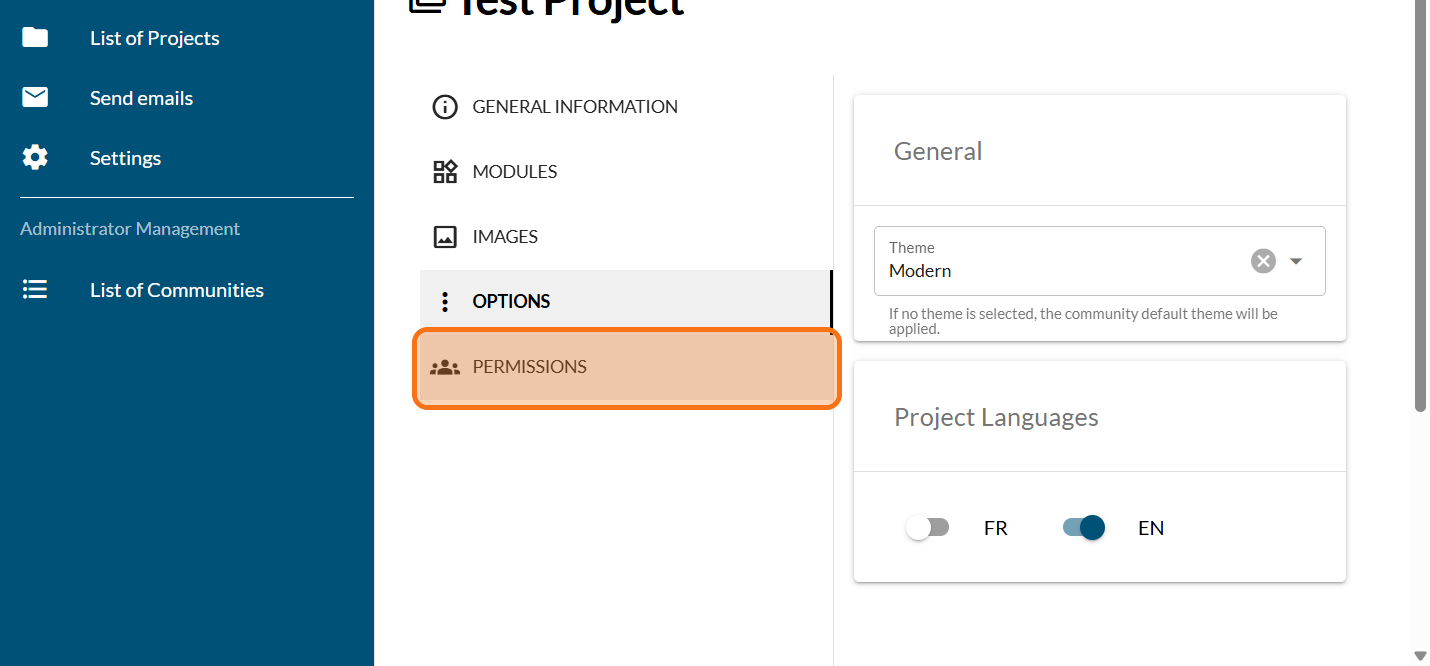
Click on "PERMISSIONS"
Add editors as required. Read more about administrator and editor roles.
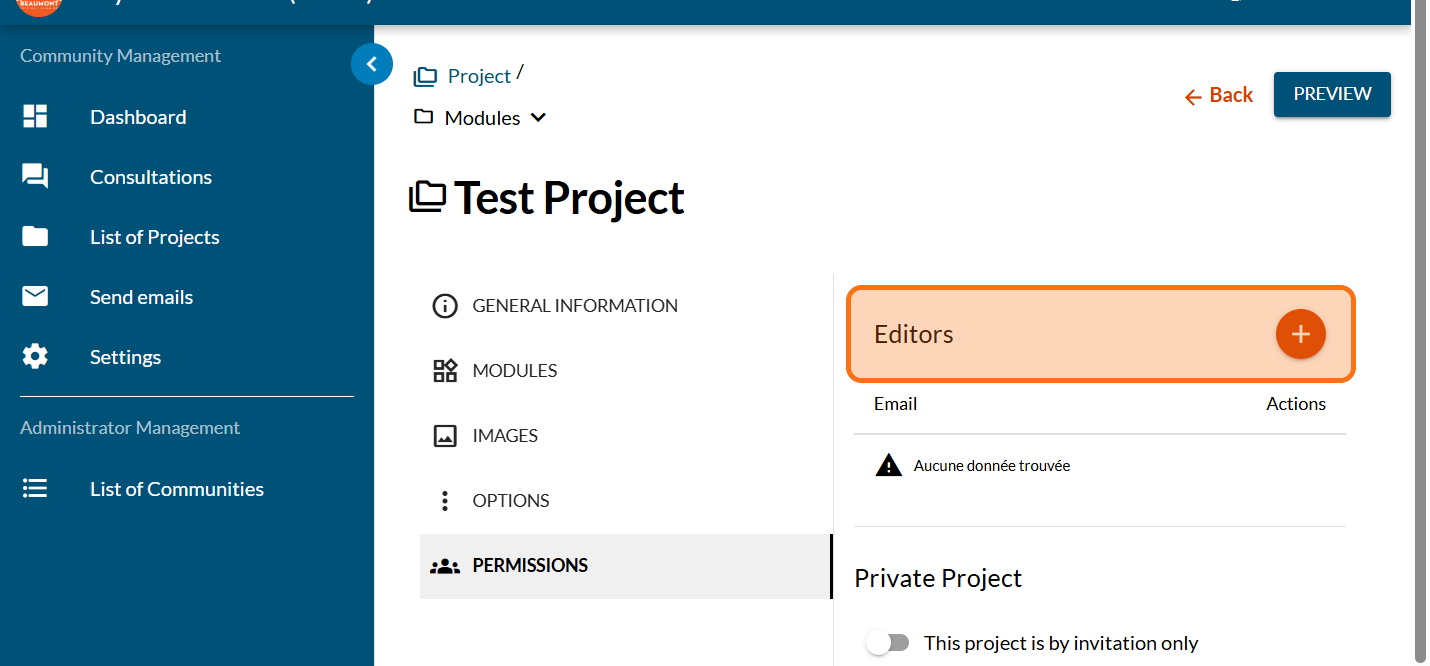
You can choose to set up your project so that only a small group of people can view it, rather than making it accessible to everyone. Read more about this.
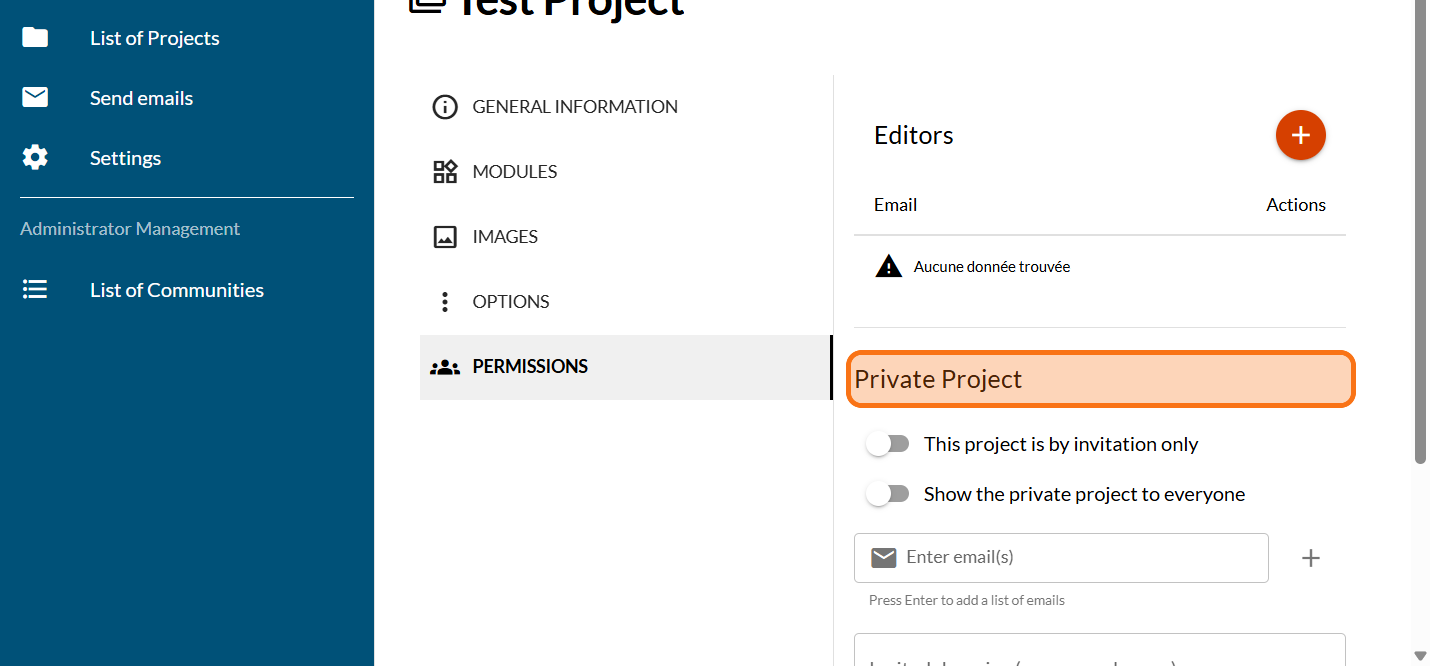
Click on "PREVIEW"
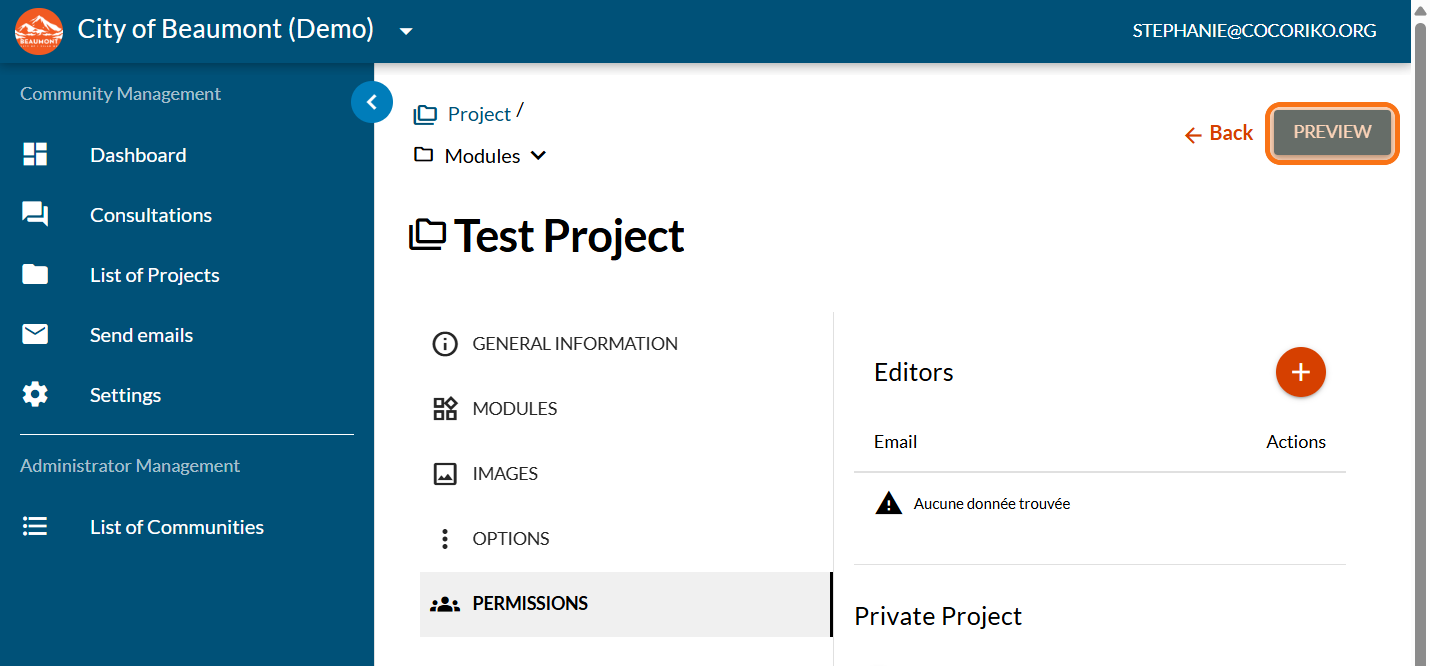
Click on "Pre-launch"
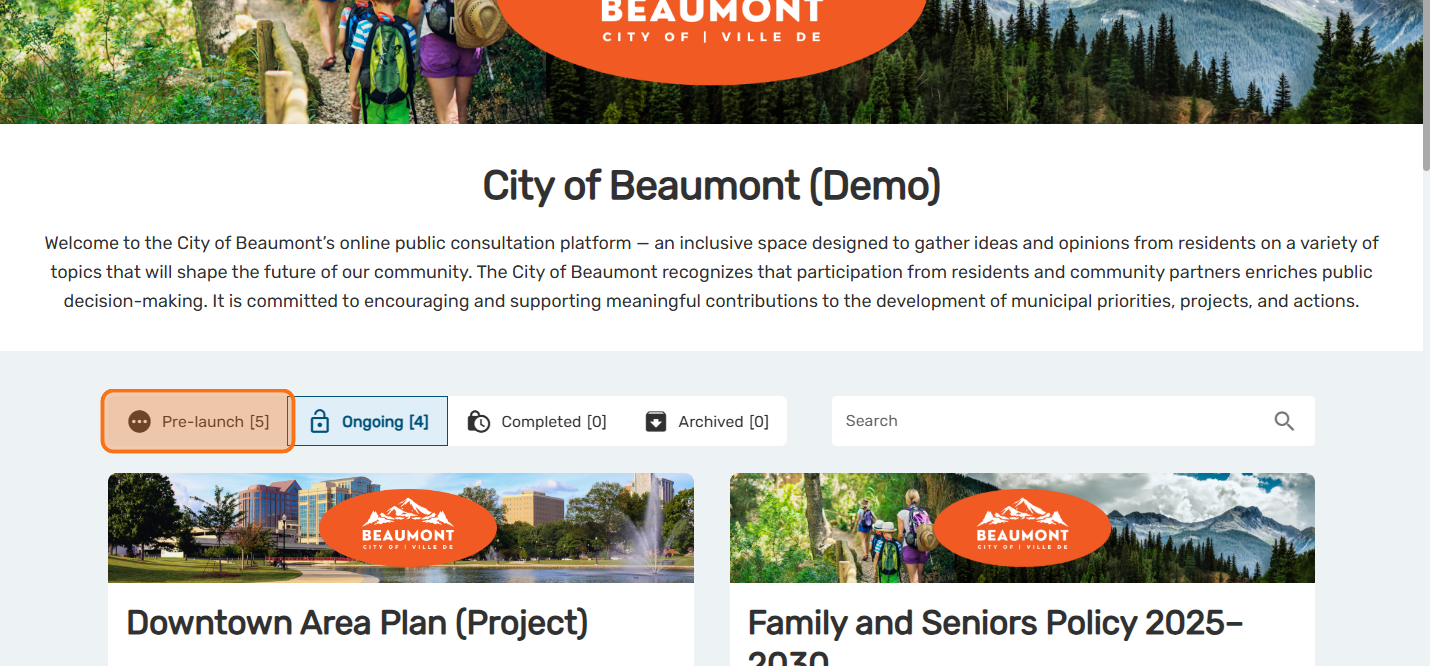
Preview your project with your banner. Click on the project.
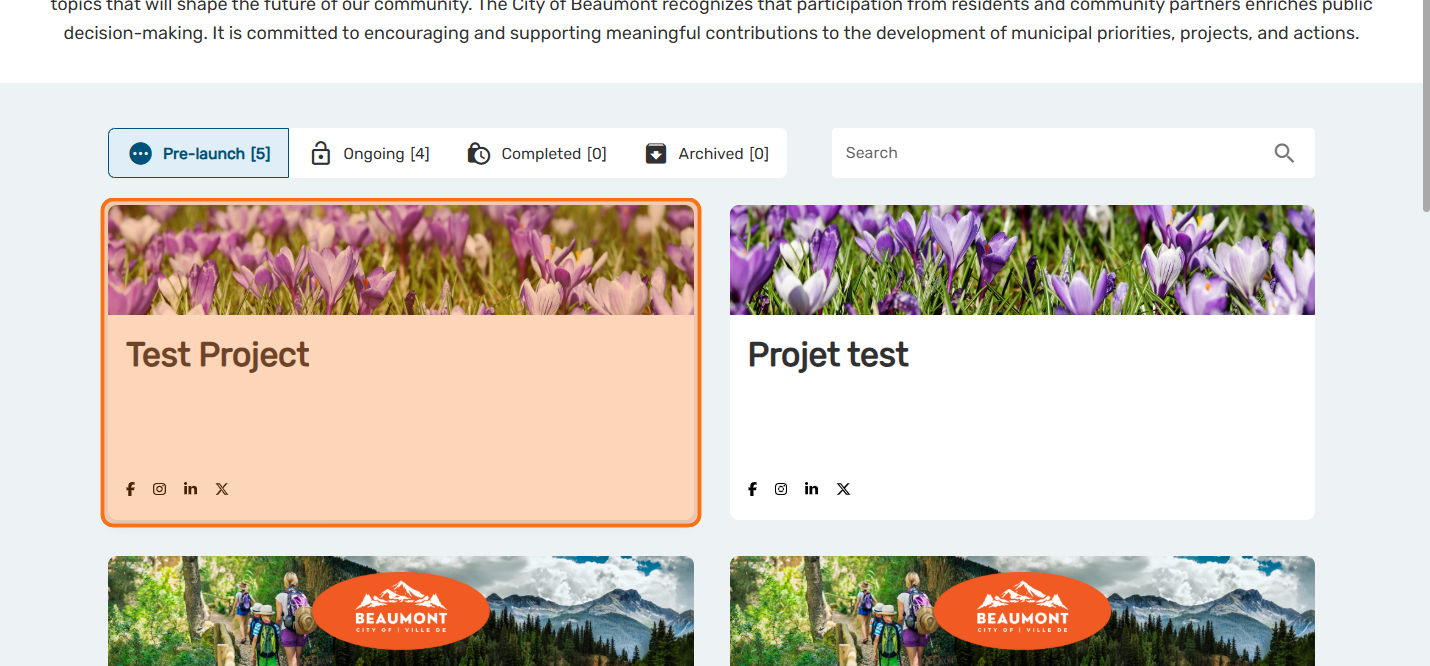
Preview your project and make any adjustments needed.

Add an idea wall as a consultation
Click on "Consultations"

Manage the context of the section
The section includes mandatory context. The context may be c …
Why send an email to my community?
Sending emails can be useful in many situations. Below are s …