

By Team Cocoriko on Feb 13, 2026 11:00:05 AM
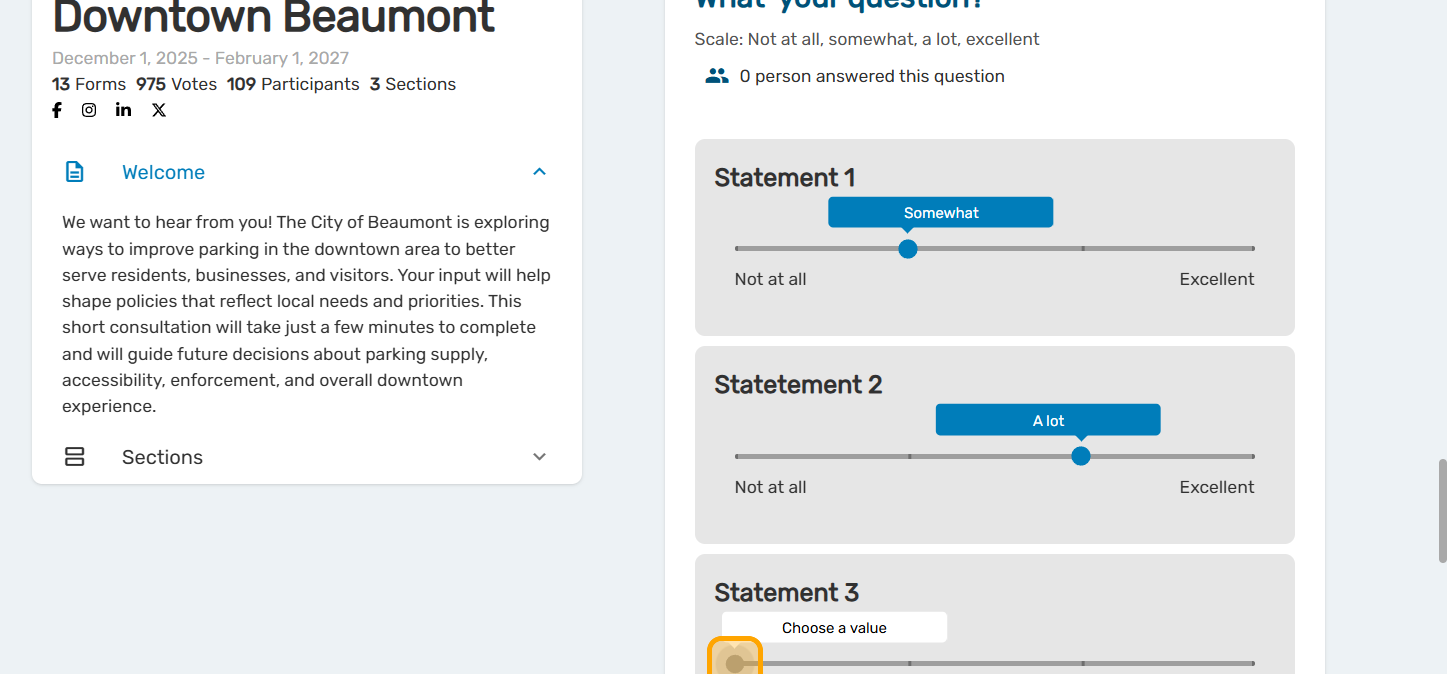
The slider question is a useful format when you have the same answer choices for several items. It replicates the "Likert" question type in a more playful format that is more accessible on mobile devices.
In other words, the slider question is used to present identical answer choices for several different items. By using the slider question (instead of repeating the question), it takes less time for the participant to answer your questionnaire. It is also a way to diversify the presentation of your questions.
Good to know:
-
Response options are most useful when they represent a gradation: from least to most. For example: Not at all important, moderately important, fairly important, very important.
-
You choose your scale: the number of options and the labels. We recommend a four-point scale to eliminate the neutral option that people naturally tend to choose. A scale with more than six options will be less easy to use on mobile devices.
-
You can use the Additional Information field to provide information about the scale in advance to facilitate participation.
-
The "Comment" option is available by default and can be useful for asking participants to justify their choice, for example. You can also remove the comment field.
Add a matrix question
Navigate to admin.v3.cocoriko.org and connect as an administrator
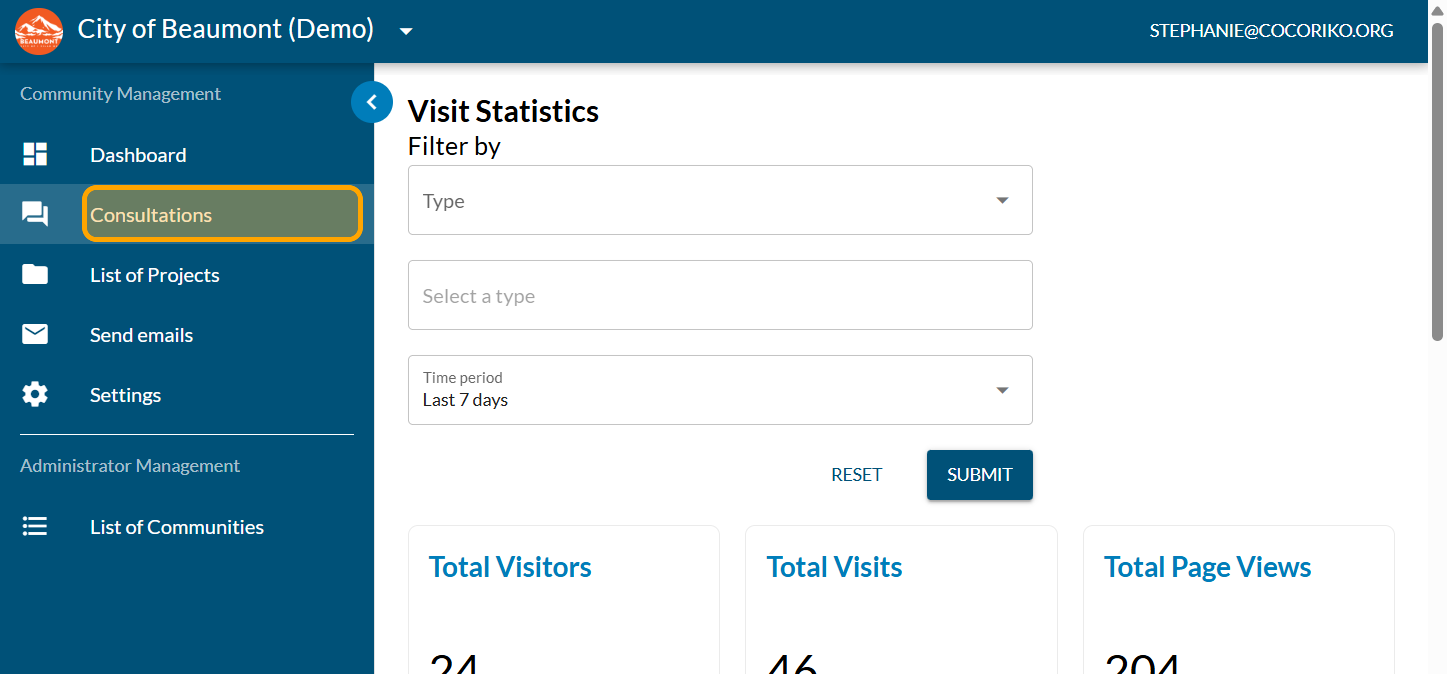
Click on "Consultations"
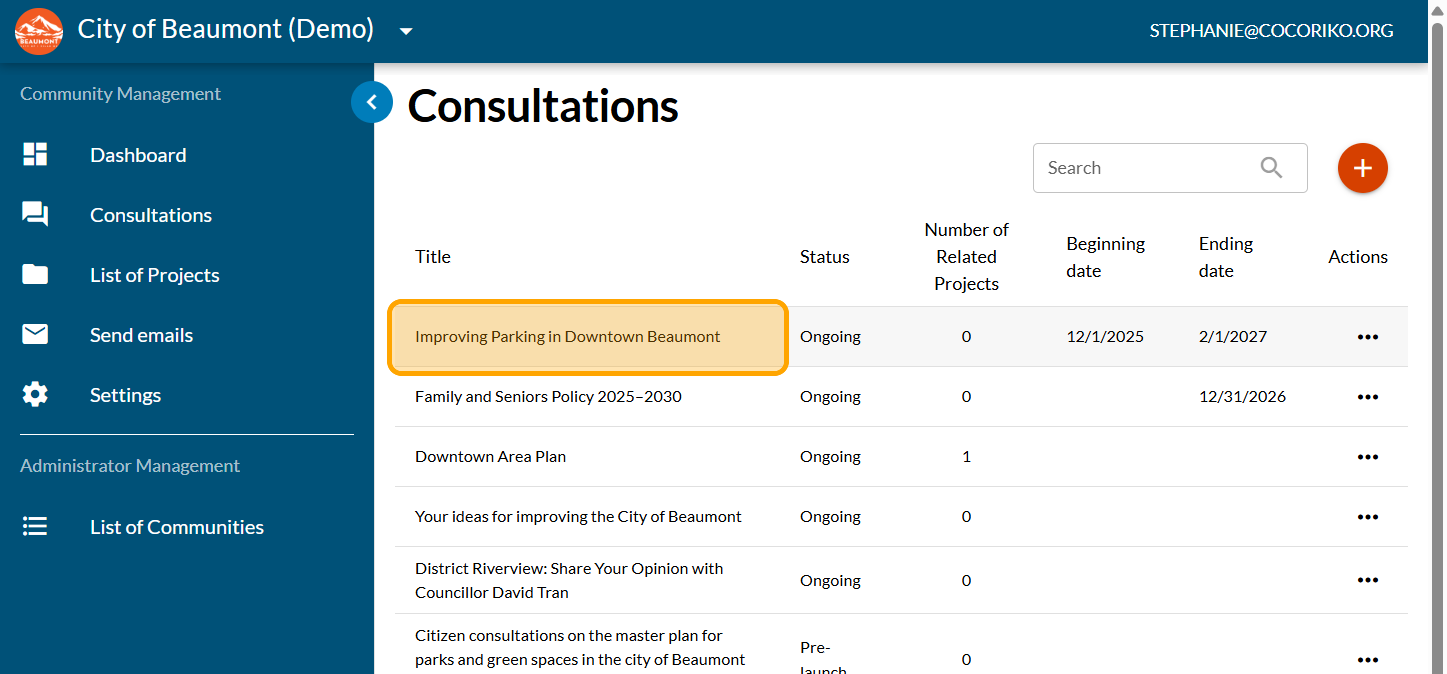
Click on your consultation
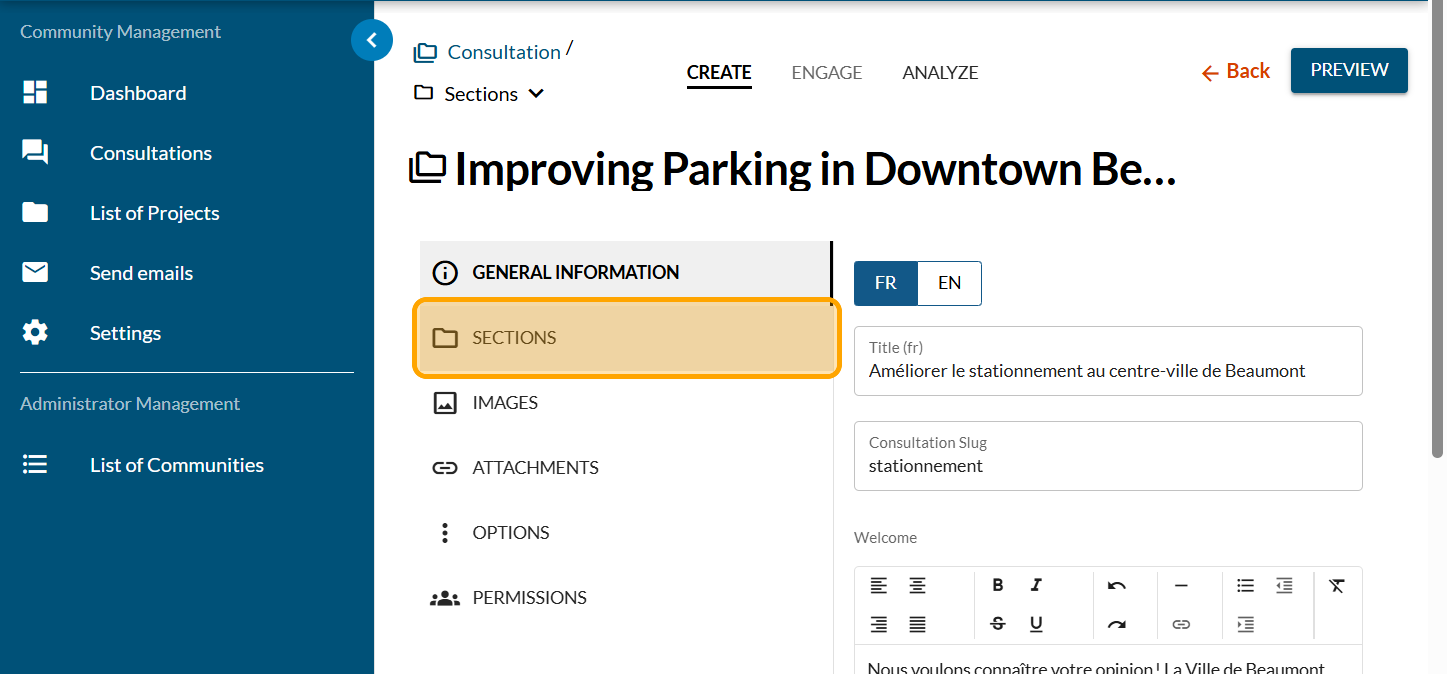
Click on "SECTIONS"
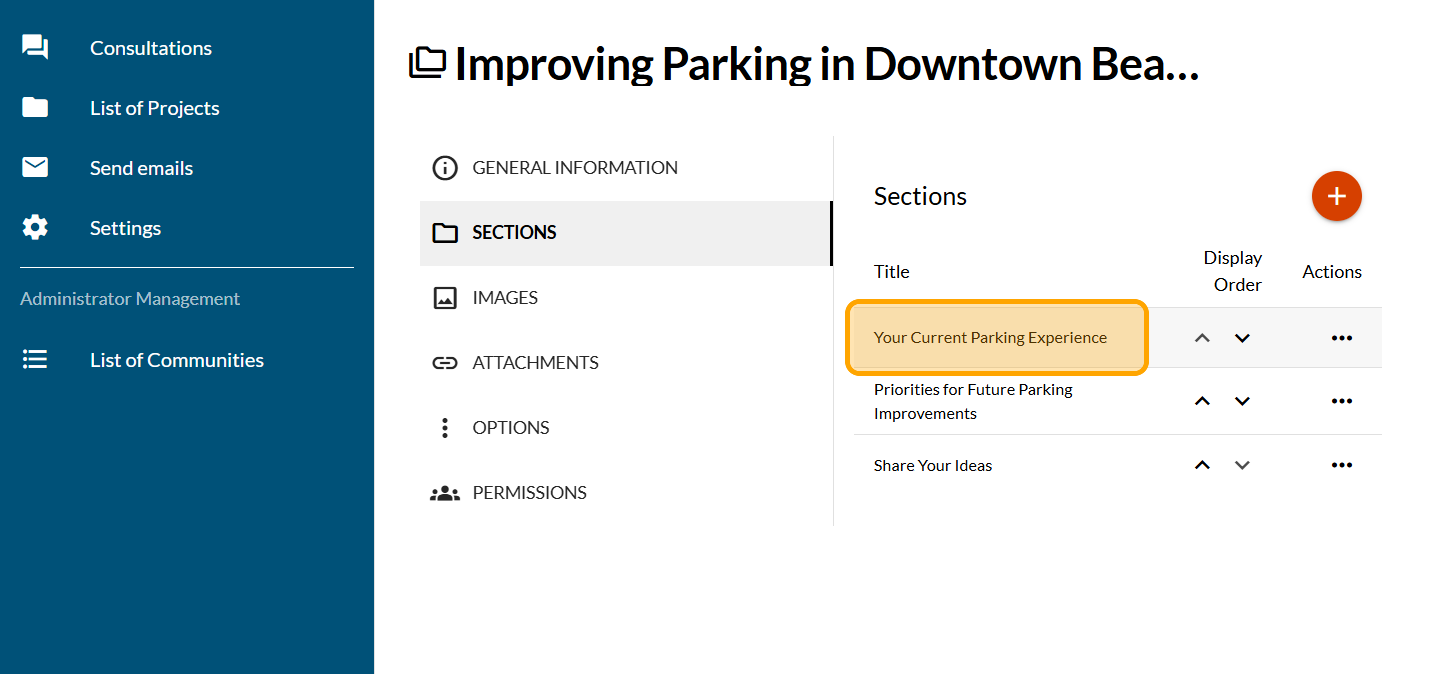
Click on the section where you want to add a question
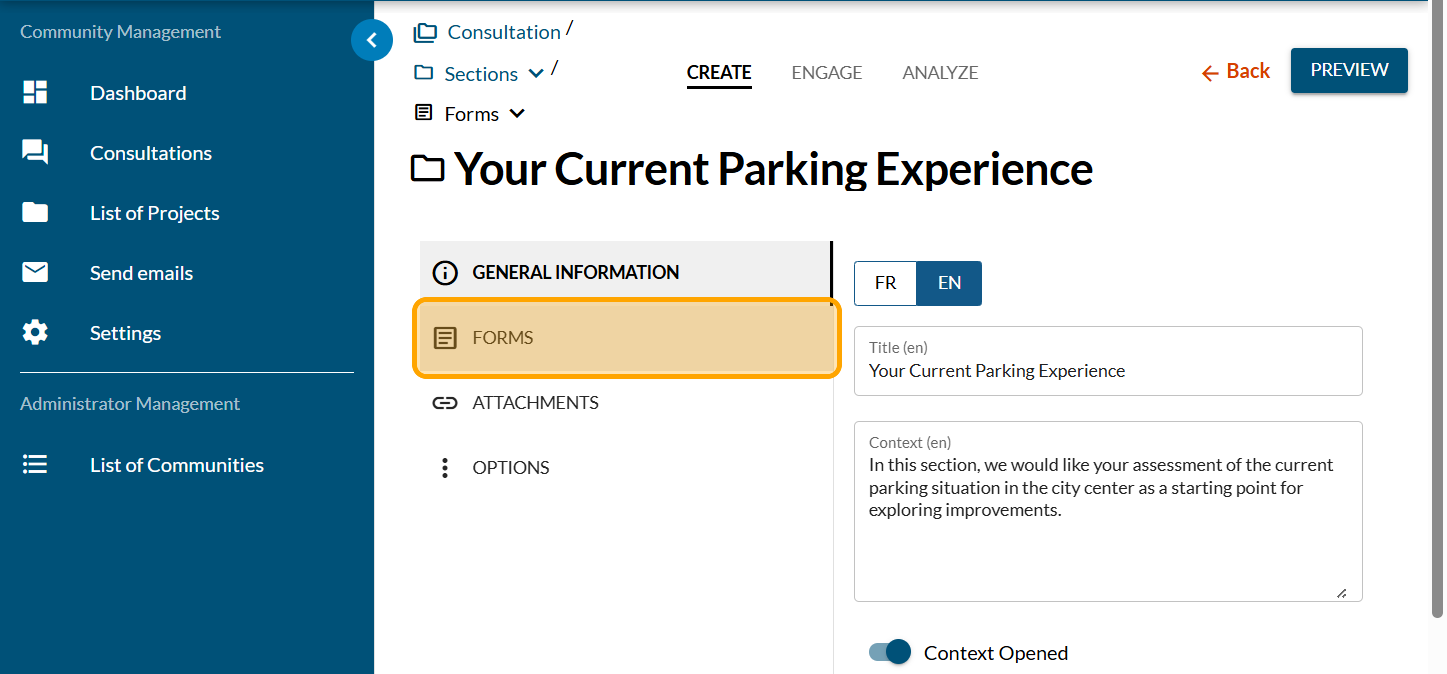
Click on "FORMS"
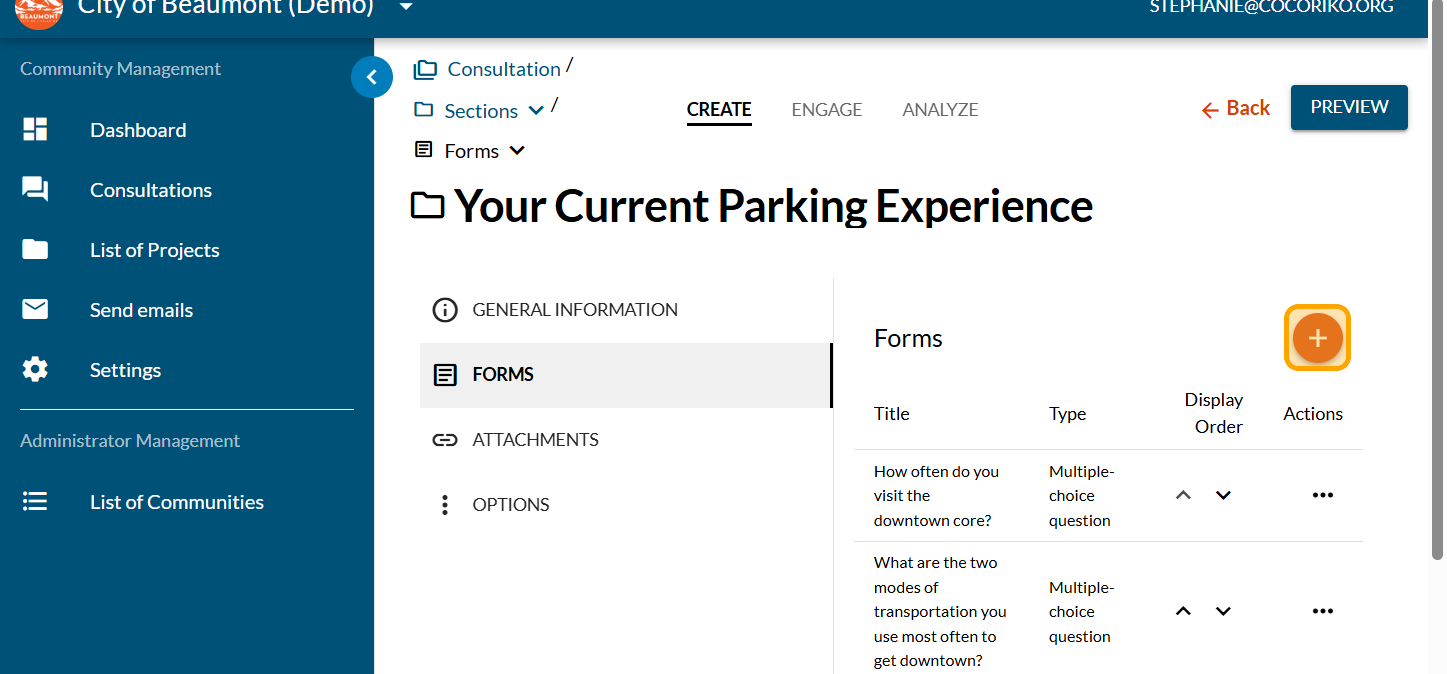
Click on the PLUS sign to add a question
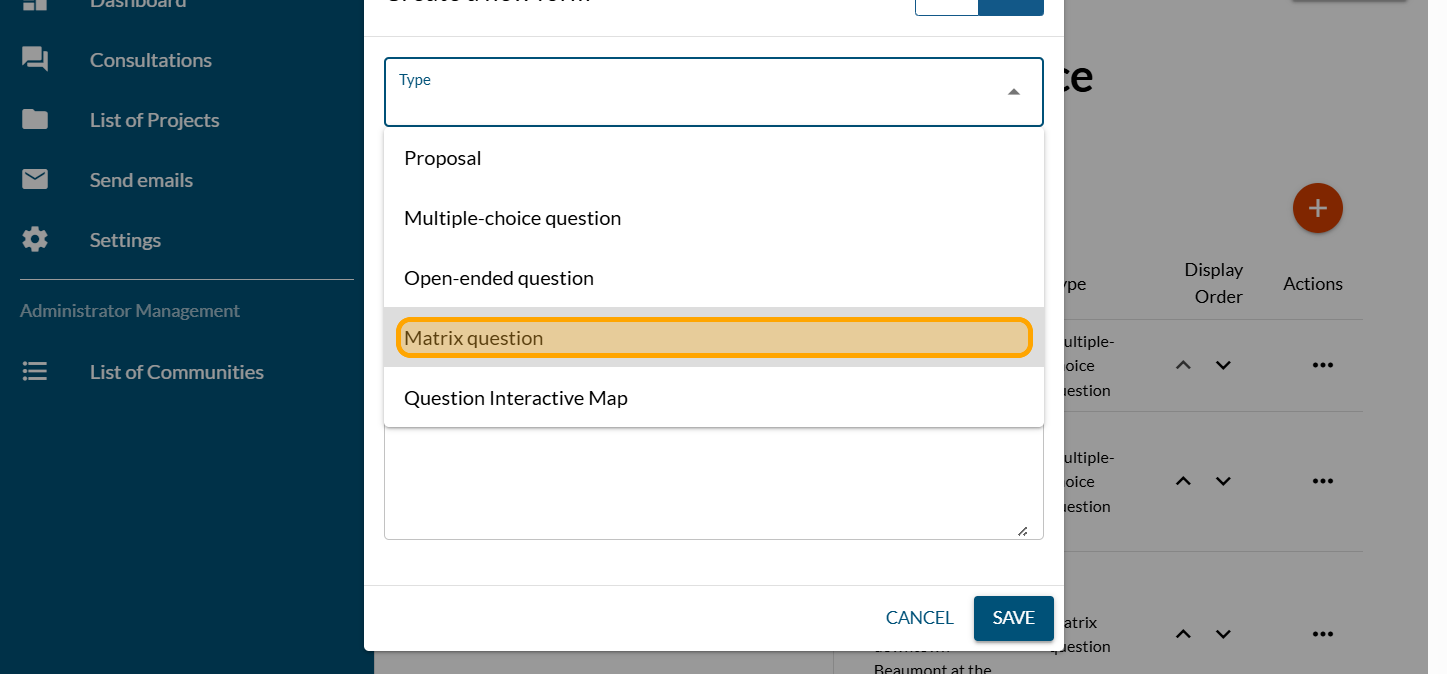
Click on "Matrix question"
Enter your question
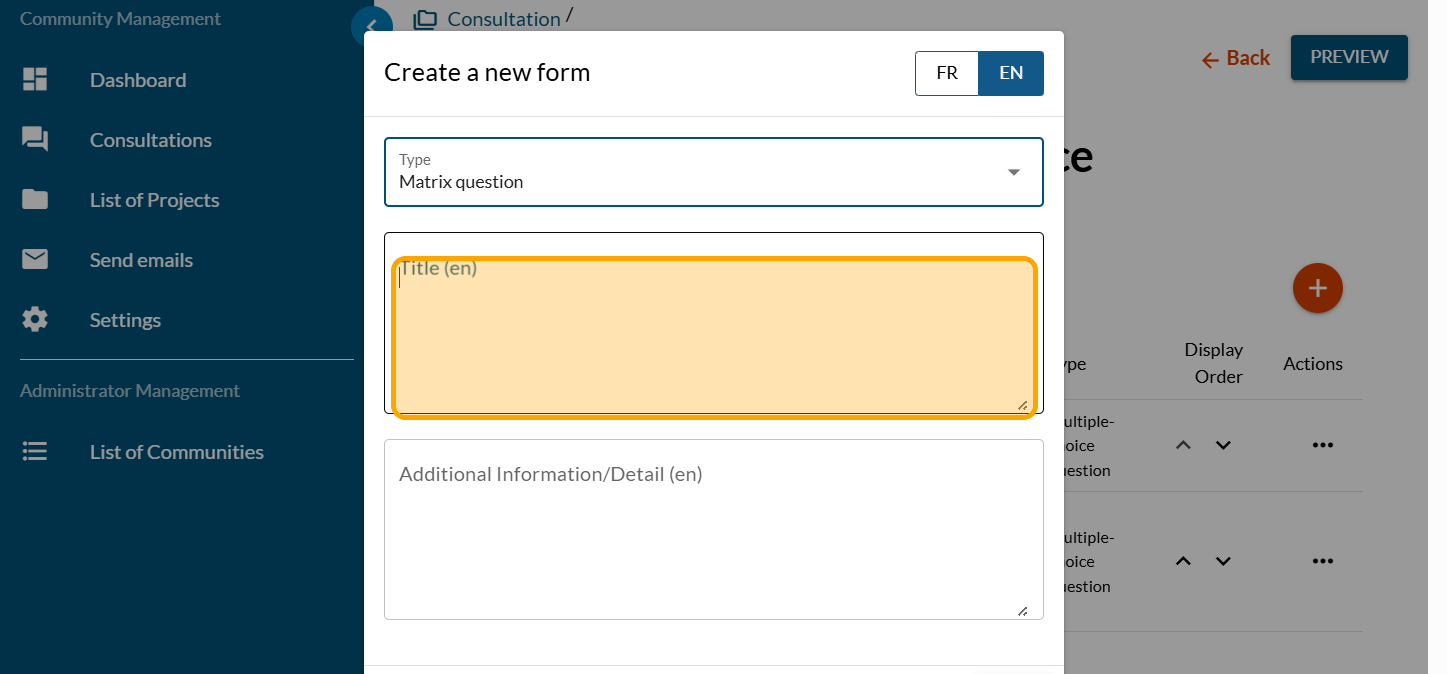
Optionally, in the "Additional Information" field, add the scale for your matrix question
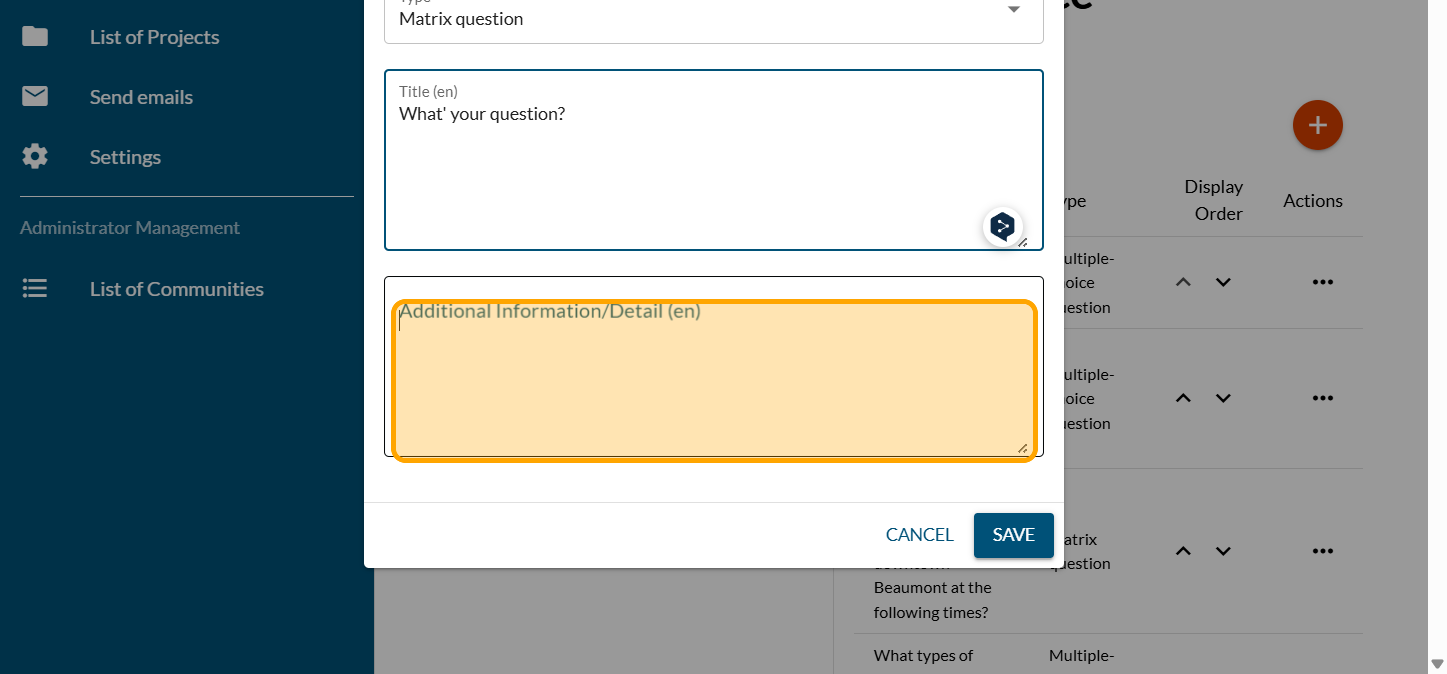
Click on "SAVE"
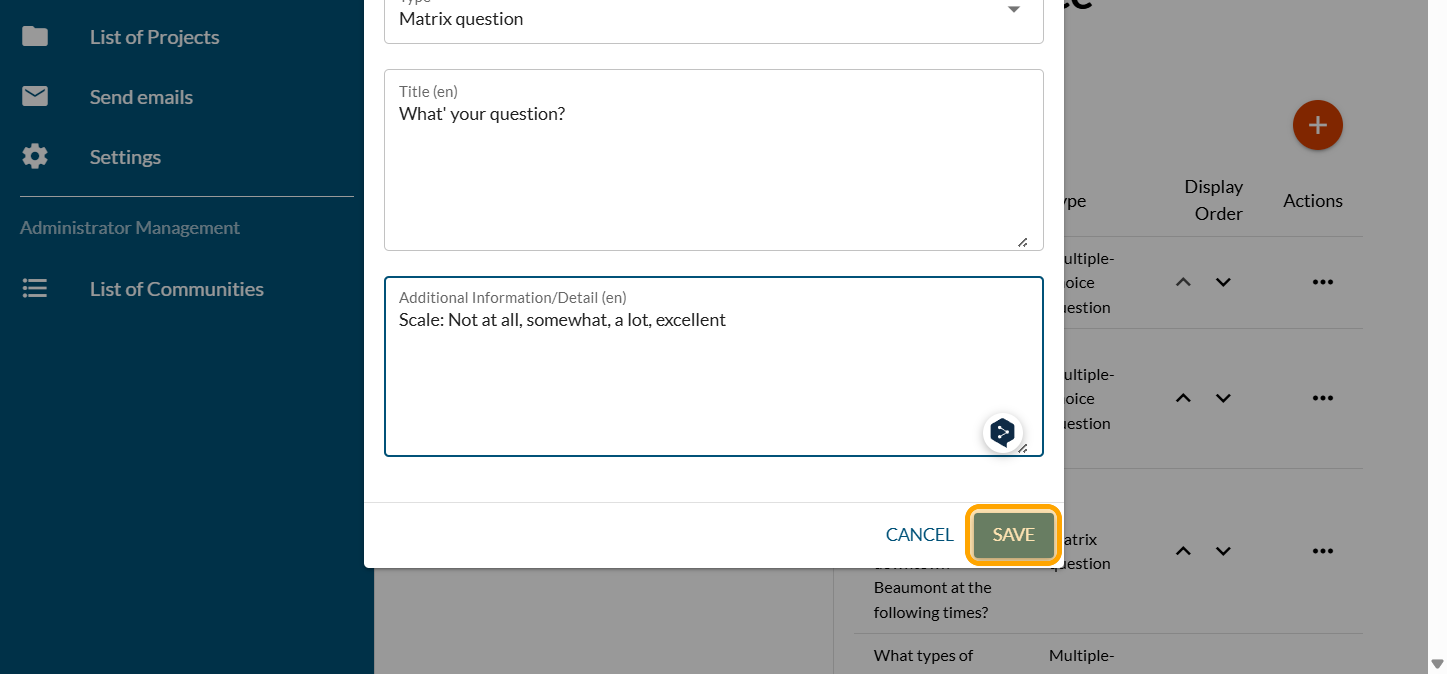
Click on "ANSWERS / CHOICES"
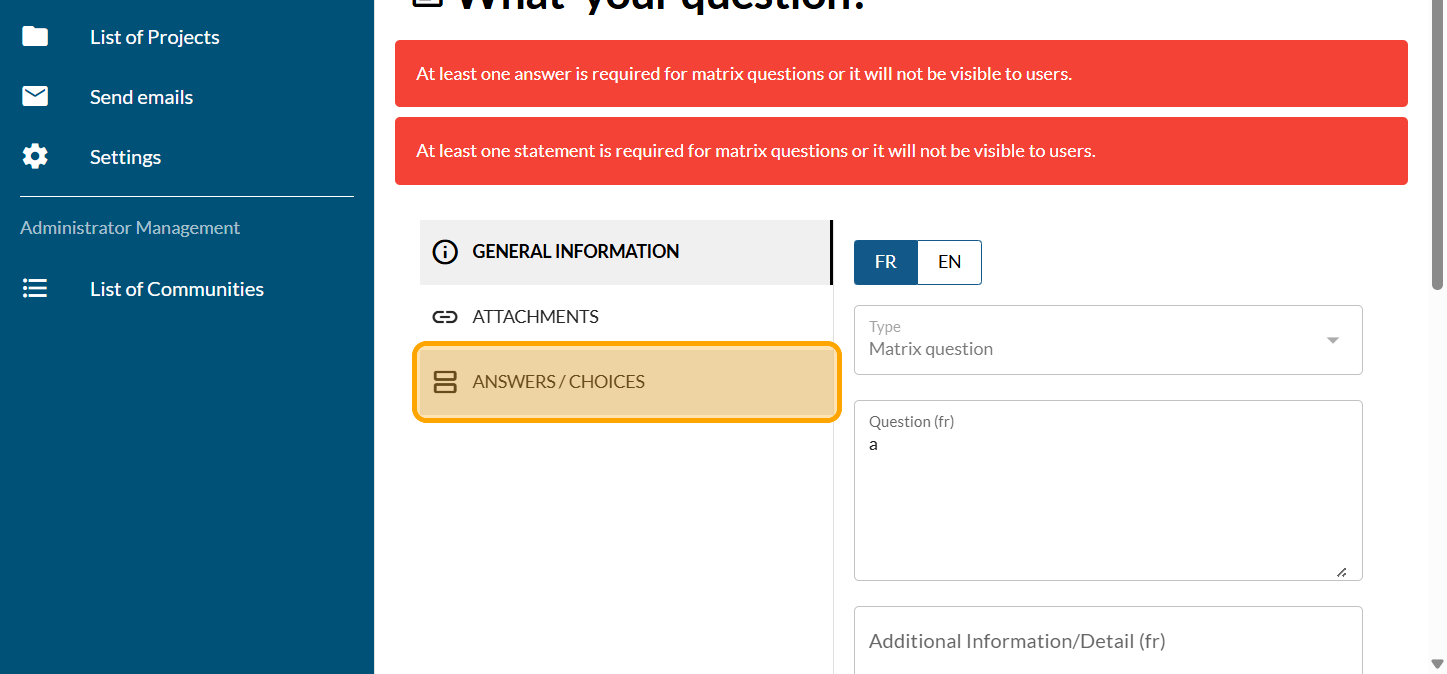
Click on the PLUS sign to add an "Answer": the items to type here are the scale of your slider on the matrix question.
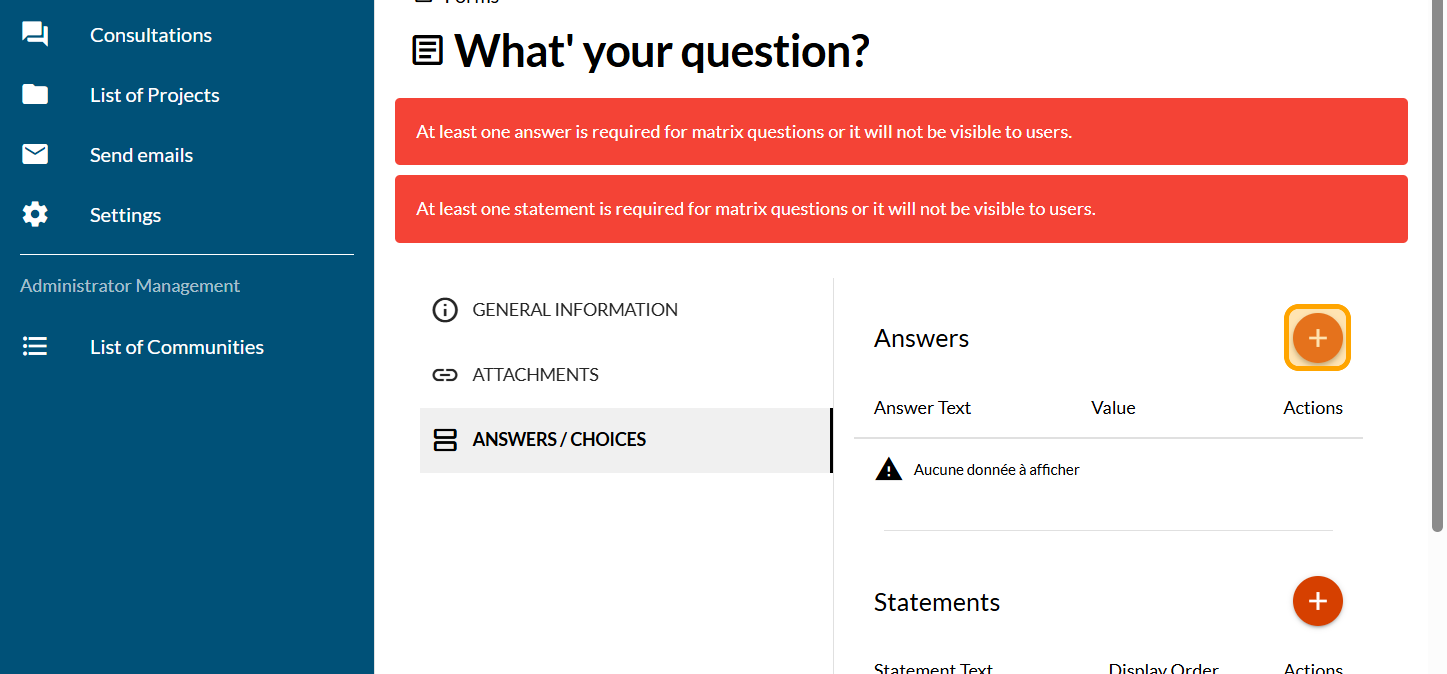
Enter your first answer
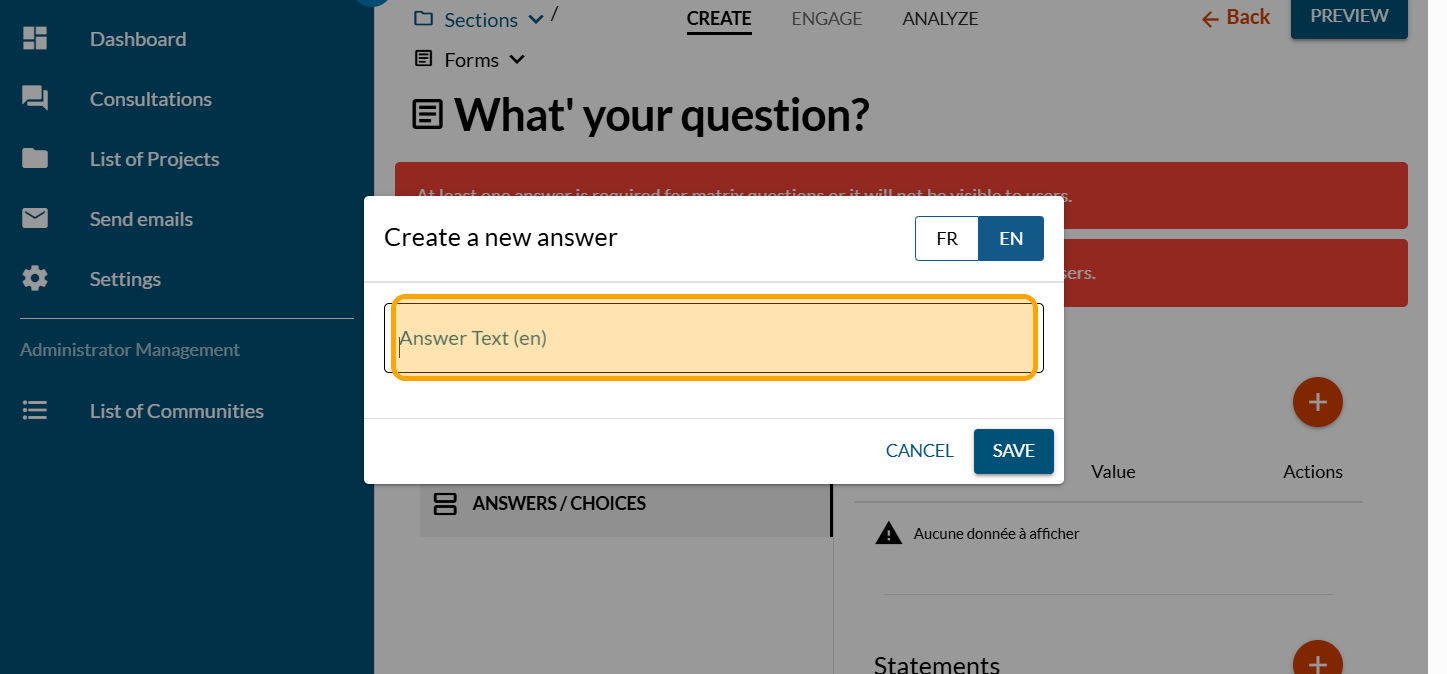
Click on "SAVE"
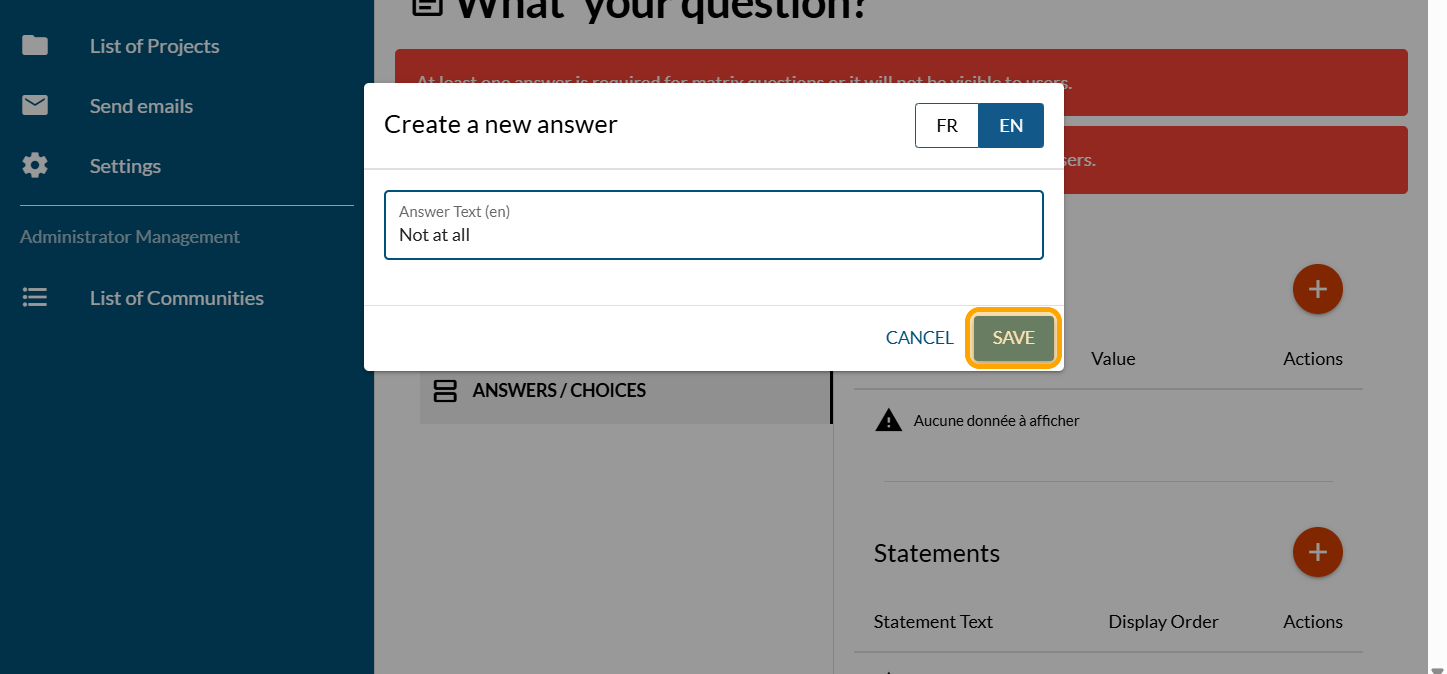
Repeat the same process for the other answers
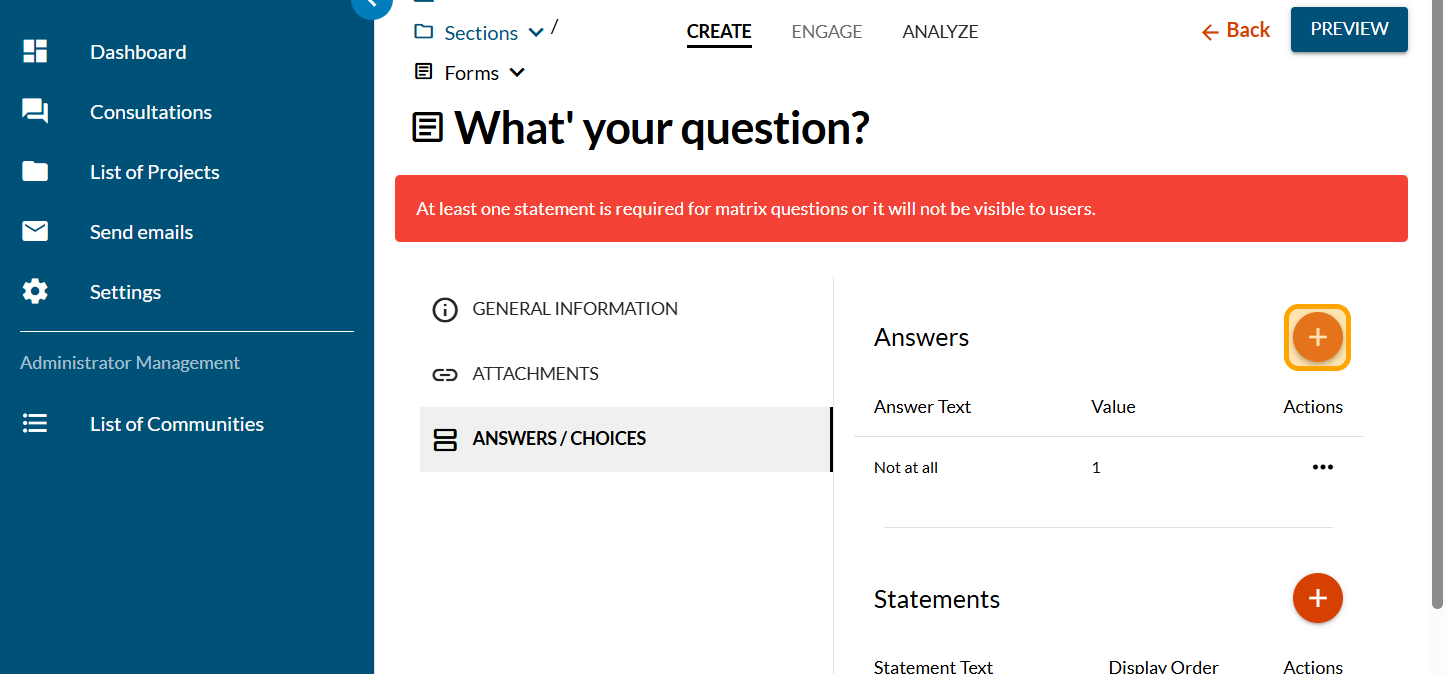
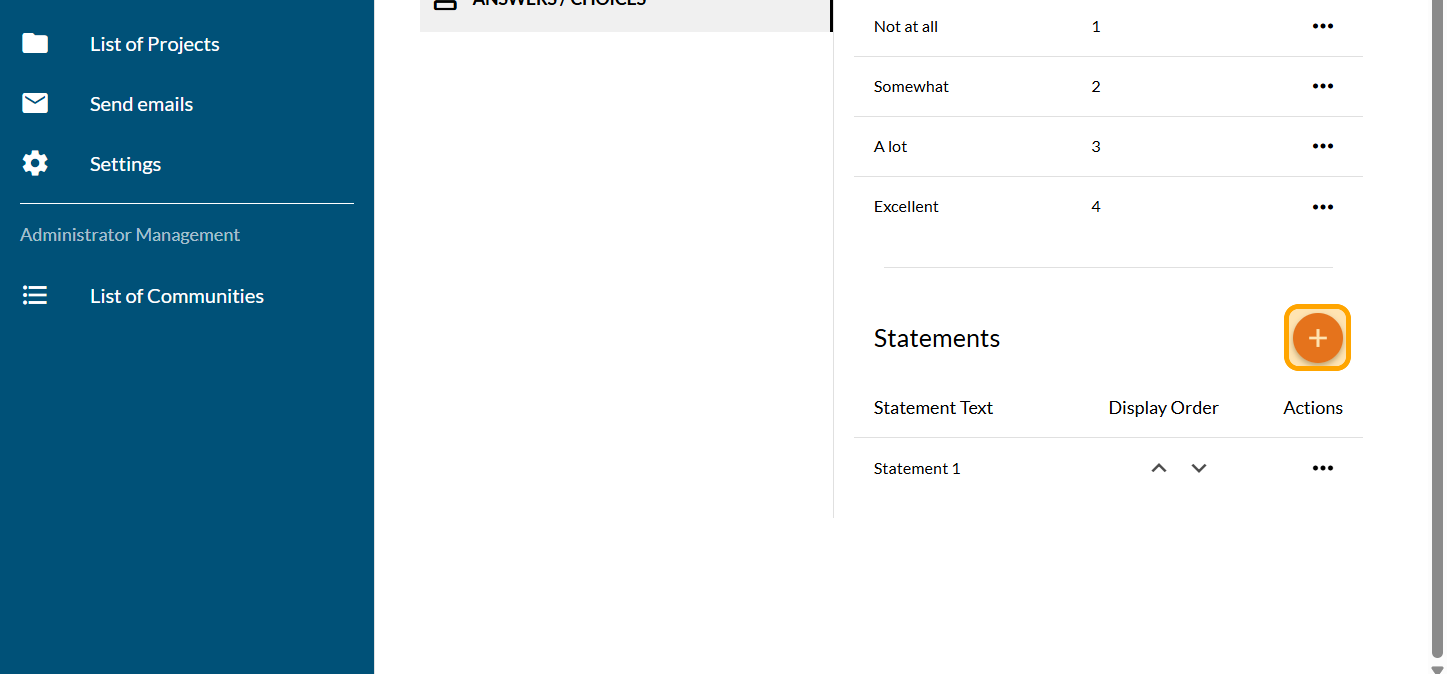
Once all your answer choices have been added, click on the PLUS sign to add your statements
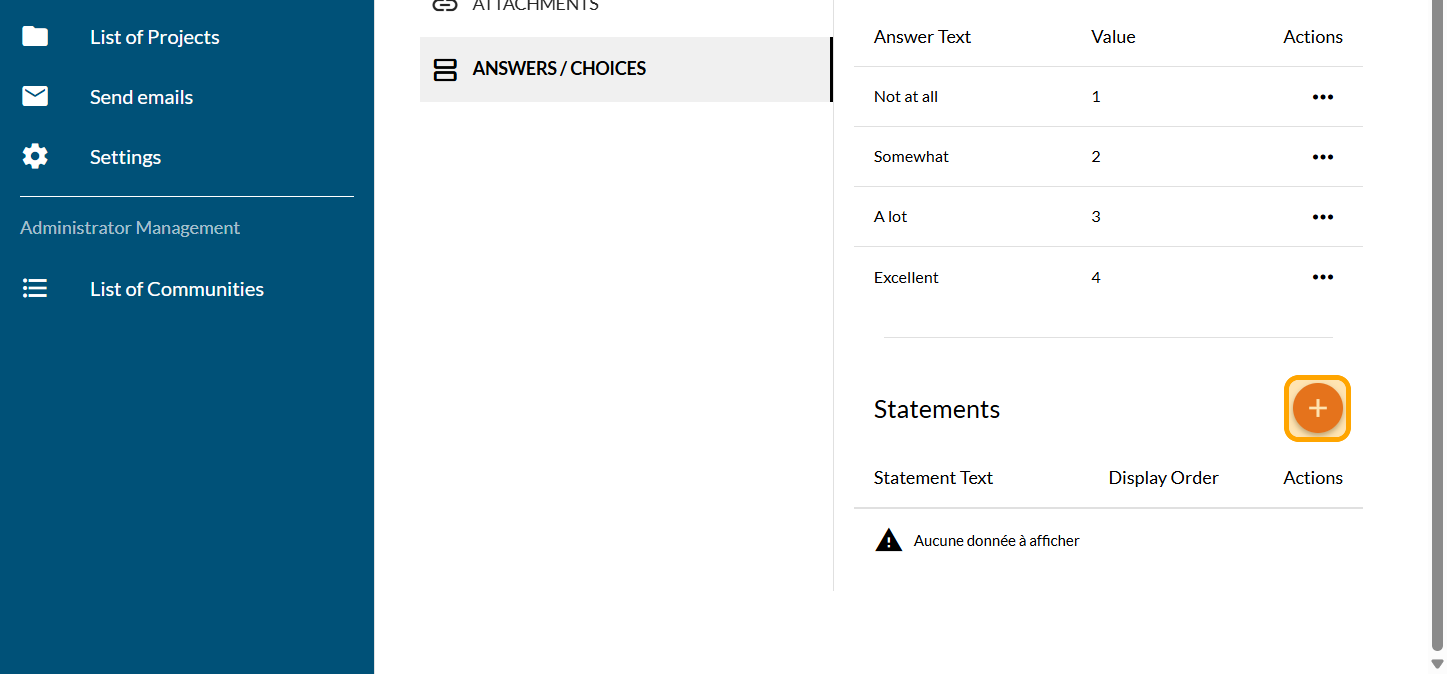
Enter your first statement
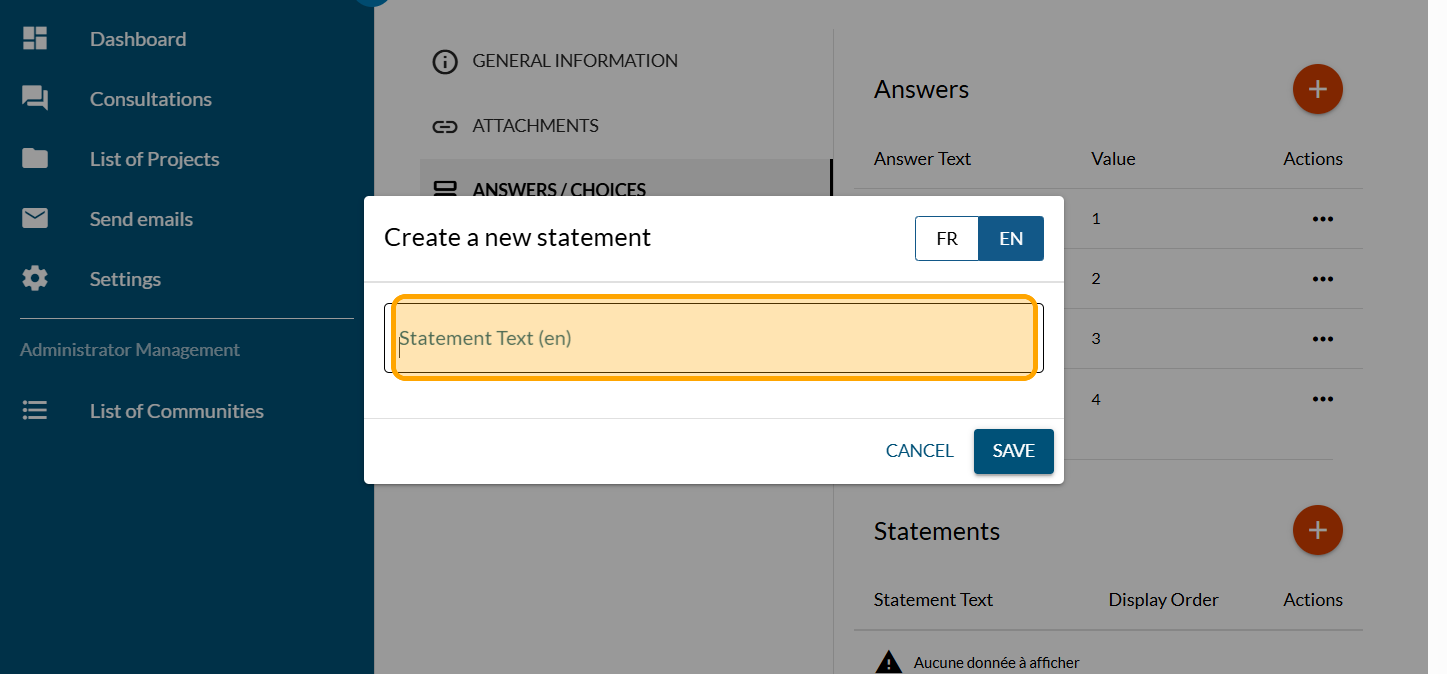
Click on "SAVE"
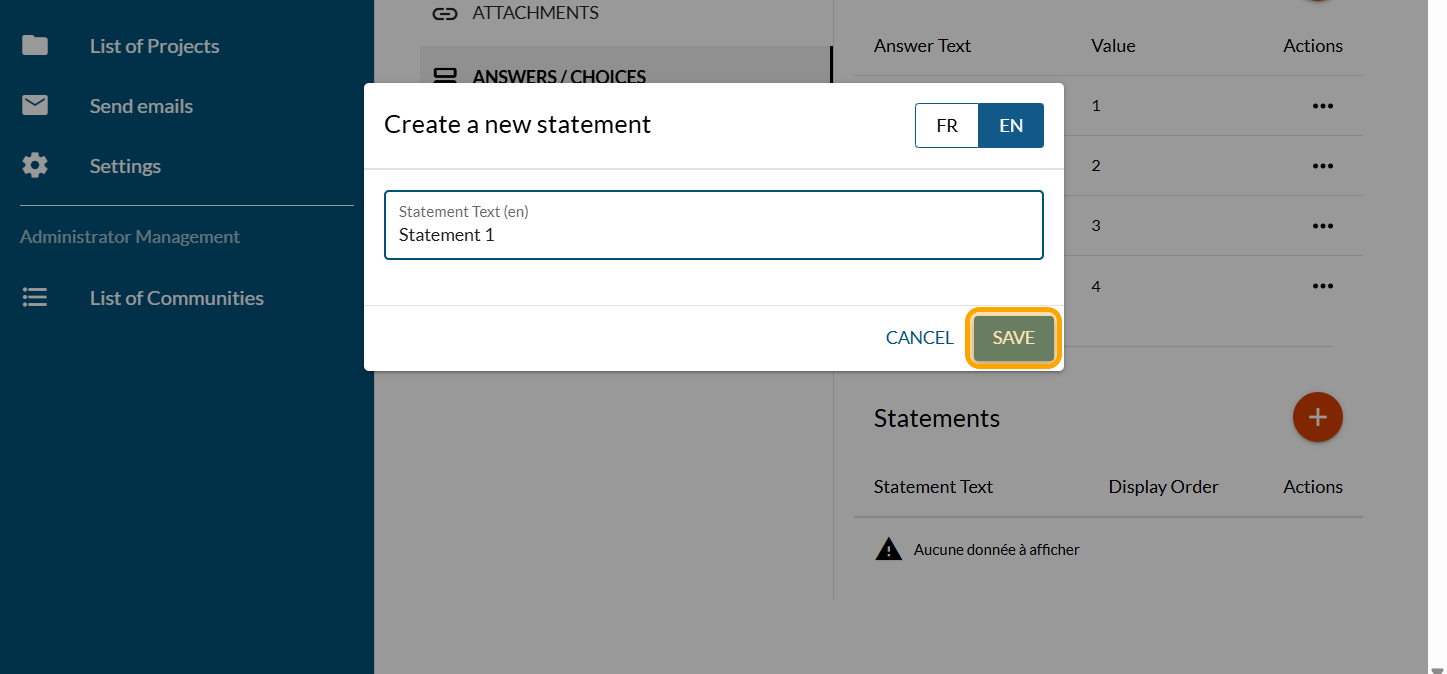
Repeat the process to add all your statements
Click on "PREVIEW"
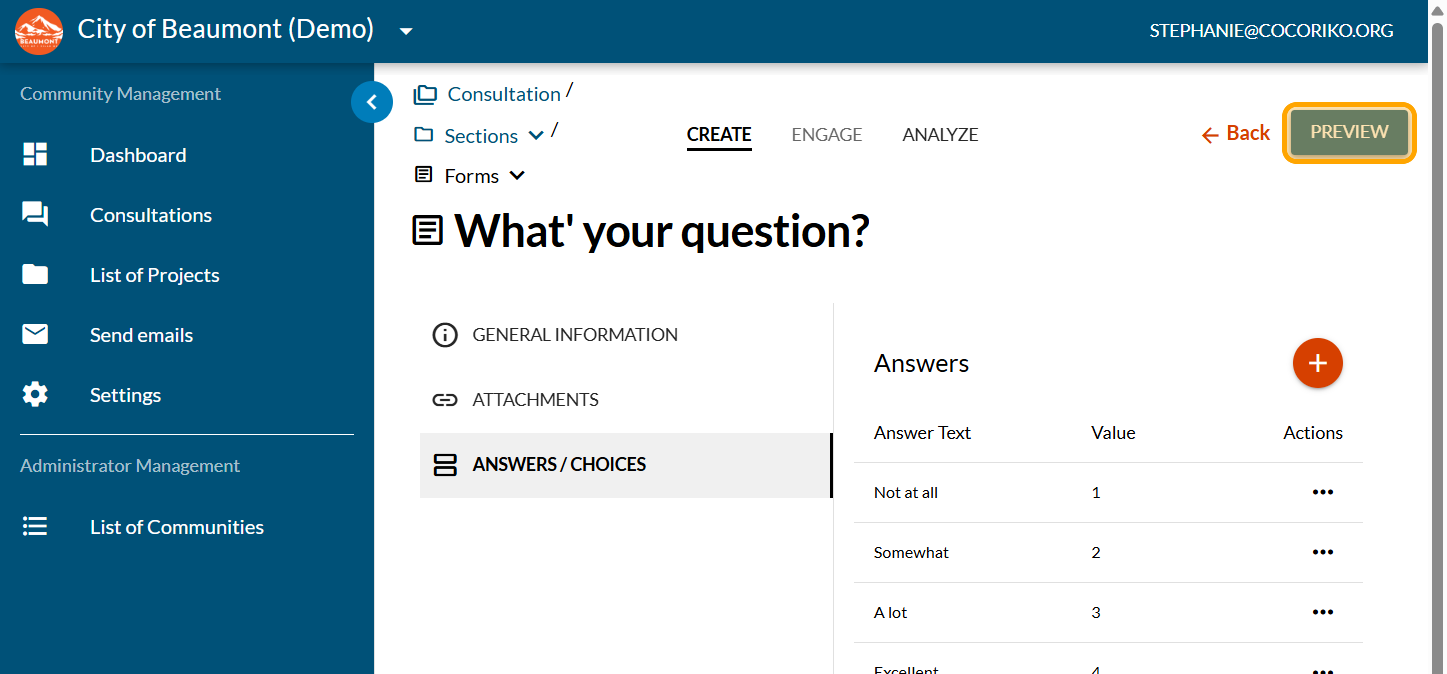
Review your question
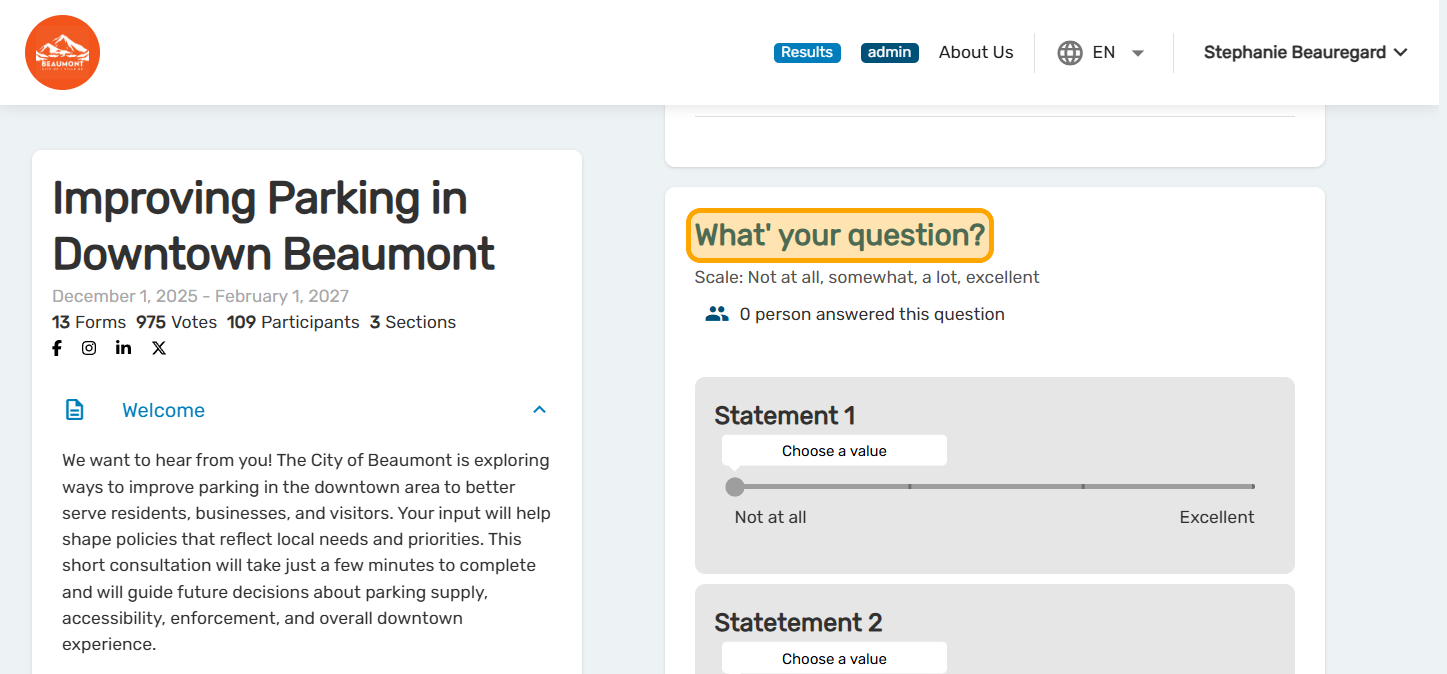
Test your answers and go back to the administration interface if you need the make changes.

Can I test a questionnaire?
You can test a questionnaire on our demo platforms:

Presentation of the Dot Voting question
The Dot Voting question allows you to ask your participants …

Add an Interactive Map question
The interactive map question meets the need to identify elem …