

By Team Cocoriko on Apr 15, 2026, 11:13:39 AM
It is always preferable for people to participate themselves via their phone, tablet, or computer. This allows them to familiarize themselves with your Cocoriko platform and return to participate in other surveys. We therefore suggest that you provide QR codes and help people participate before offering them a paper survey. However, we are aware that, for several reasons, some people will not participate online:
- They don't have email.
- They are wary of sharing data online.
- They are uncomfortable with technology.
That's why we provide you with a way to enter questionnaires online and complete the questionnaire for someone else, for example on a shared computer or over the phone. Here's how to do it:
Enter paper questionnaires
2. IMPORTANT: Add the mandatory demographic questions to your paper questionnaire to create complete participant profiles and compile this data in the same way as for online participants. Demographic data includes: year of birth, gender (male/female/other), and zip code.
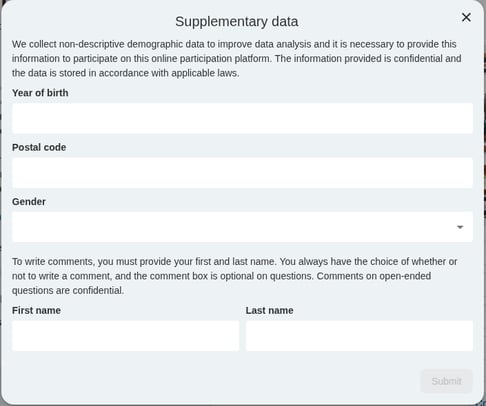
3. Print copies of your questionnaire and distribute them at your events, etc.
-
It may be useful to have a QR code at your event to limit the number of paper forms collected.
-
The QR code can also be printed on the paper form in case someone is interested in responding online.
4. Compile the paper questionnaires in your Cocoriko platform: to do this, you will need to complete the questionnaire as many times as you have paper forms.
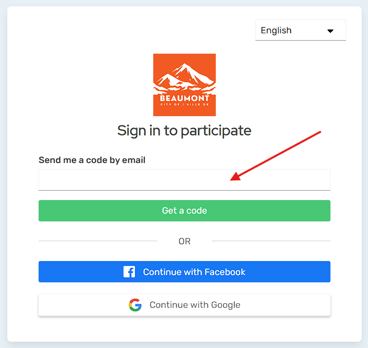
- Provide a temporary email address for each paper questionnaire by modifying an existing address, for example: stephanie@1@cocoriko.org or stephanie@abc@cocoriko.org
- It may be useful to note the temporary email address on each paper form and keep a record of these emails
- Enter a temporary email address to open a connection. You will receive the 5-digit code at your regular email address, for example: stephanie@cocoriko.org.
Participation on behalf of another person
Sometimes you may need to enter participation data for someone else, for example on a shared computer during an in-person consultation or over the phone.
1. Create a series of temporary email addresses for each participant for whom you will be entering participation data by modifying an existing address, for example: stephanie+1@cocoriko.org or stephanie+abc@cocoriko.org
2. It may be useful to keep a record of these email addresses.
3. Once you are at a shared computer or when you receive a call, enter a temporary email address to open a connection. You will receive the 5-digit code at your regular email address, for example: stephanie@cocoriko.org.
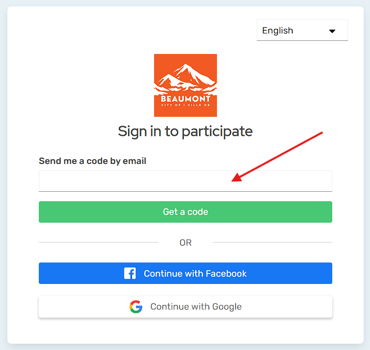
4. Once logged in, you must accept the terms of use, and you can begin the participation of the person who comes to the shared computer by entering the required demographic data and then answering the questionnaire with the person in front of you or on the phone.
You must repeat the process for each person who comes to the shared computer.
Tip: Have QR codes on hand to encourage people to respond on their phones first. You can help them log in. This significantly reduces your workload later on.
We are working to improve our product, and an easier option for administrators is in development.

Your platform home page
Your platform's home page is the gateway to presenting all y …

Why authenticate participants with their email address?
The choice between requiring authentication and allowing ano …

Login steps and pop-up windows for participants
Four pop-up windows will appear during a participant's journ …