

By Team Cocoriko on Feb 4, 2026 3:40:42 PM
Banner images allow you to customize your platform, consultations, and project pages. They give your consultations a visual identity and encourage your community to participate.
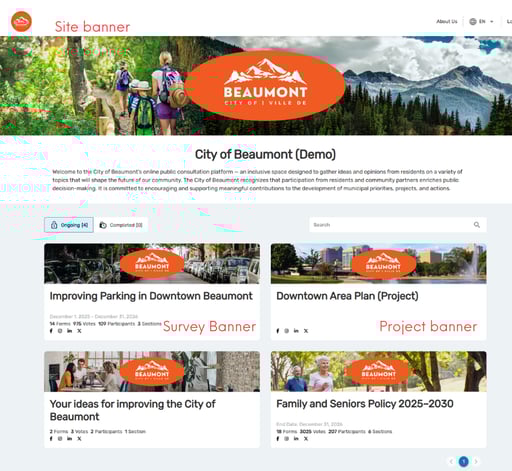
La bannière de sondage se retrouve sur la page du sondage, lorsque le participant choisi de répondre. Les bannières de section peuvent être personnalisées au besoin.
%20(2).png?width=618&height=348&name=Banni%C3%A8re%20de%20site%20(Presentation)%20(2).png)
%20(3).png?width=618&height=348&name=Banni%C3%A8re%20de%20site%20(Presentation)%20(3).png)
Here's how to add banners:
To add a site banner
Click on "Settings"
Click on "IMAGES"
Click on the camera icon
Click on "Drag and drop or Click to choose a photo from disk"
Select your image and reframe it
Click on "SAVE"
To add banner for your consultation
Click on "Consultations"
Click on your consultation
Click on "IMAGES"
Click on the camera icon and repeat the steps above
To add a banner on a section
Click on "SECTIONS"
Click on the section where you want to add a banner
Click on the camera icon and repeat the steps above
To add a banner on your project page
Click on "List of Projects"
Click on your project
Click on "IMAGES"
Click on the camera icon and repeat the steps above
To use a photo as a banner
You can also add an image that has not been resized beforehand at any location. For example, for a consultation, click on "Consultations"
Click on your consultation
Click on "IMAGES"
Click on the camera icon
Click on "Drag and drop or Click to choose a photo from disk"
Select your photo, which will appear in full in the area.
Move the banner frame to select the portion of the image that will become your banner. Click on "SAVE"

Paper questionnaires and participation at a booth or by telephone
It is always preferable for people to participate themselves …

Why send an email to my community?
Sending emails can be useful in many situations. Below are s …

Why authenticate participants with their email address?
The choice between requiring authentication and allowing ano …