By Team Cocoriko on Apr 13, 2026 11:54:14 AM
The "Attachments" module, which allows you to add all types of documents, is often used more than once on a project page. For example, one module might be used to display the location, and another to display reports.
Click on "List of Projects"

Click on your project

Click on "MODULES"

Click on the PLUS sign to add a new module

Click on "Attachments"

Enter a title for your module

Click on "SAVE"

Click on "Highlight" if you would like this module to be coloured

Click on "SAVE"

Click on "ATTACHMENTS"

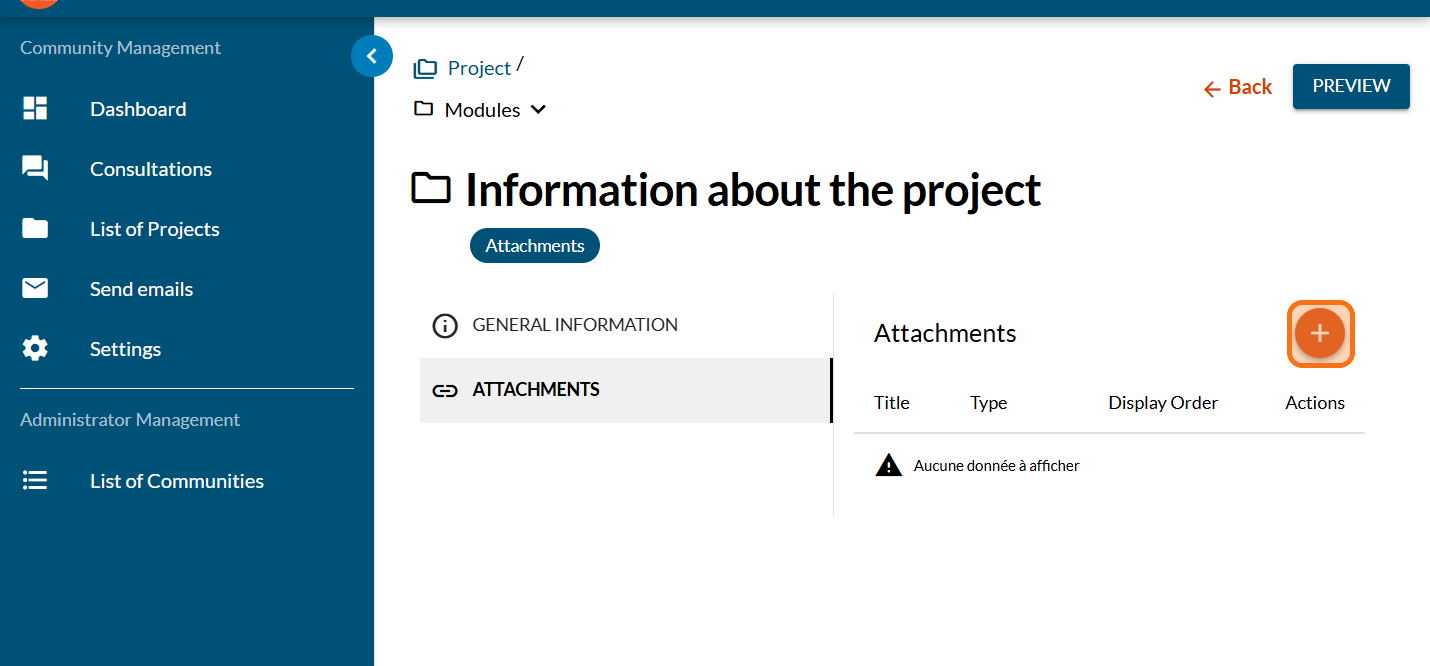
Click on the PLUS sign to add an attachment
Click on "Text"

Enter a title for your text block

Enter your text or copy-paste a text

Click on "SAVE"

Click on "Image"

Click on "add" to select your images

If you select more than one image, you will create an image carousel
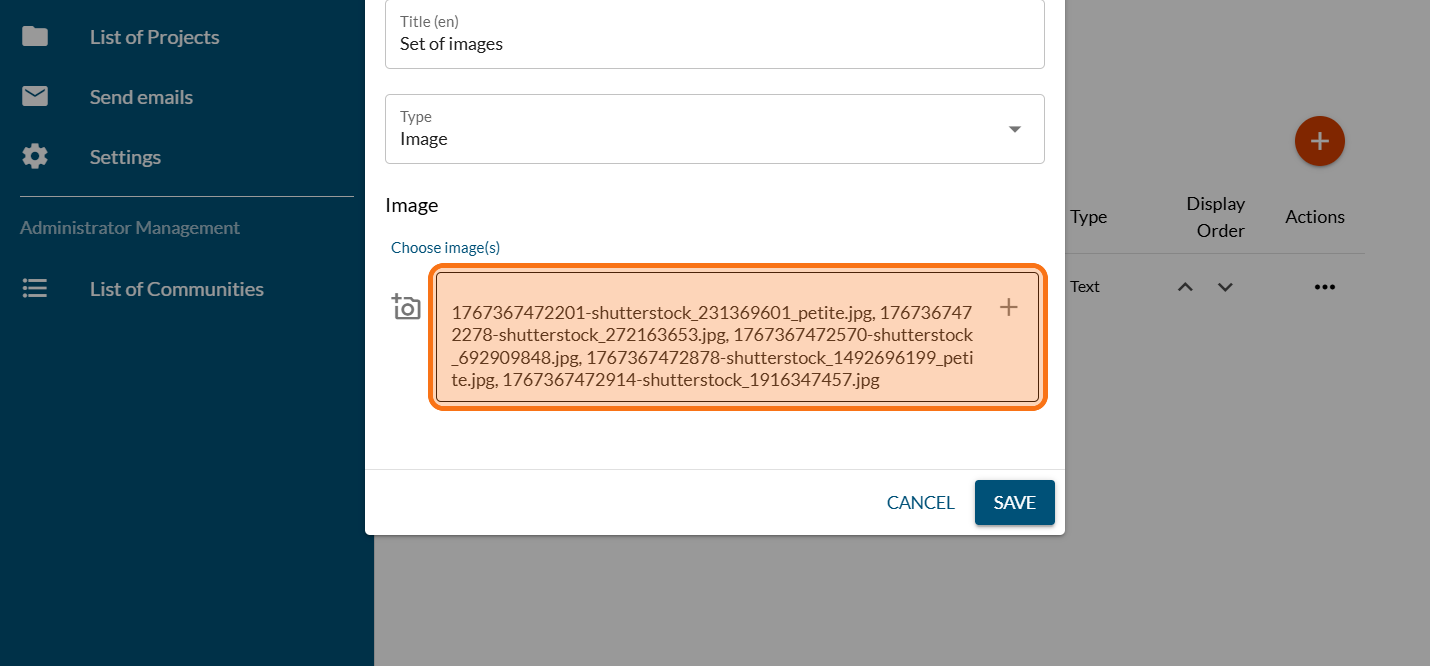
Click on "SAVE"

Click on "Video"

Past the URL of your video

Click on "File"

Click on "add" to select the files you want to add. The file name will also be the name of the attachment once it has been uploaded.

Click on "Link"

Paste the link of your web page

Click on "Project"

Click on "PREVIEW"

Preview your page with the attachement module. This is the modern theme.

Click on "Set of images" to see your image carousel



Add the text/image module to the project page
Click on "List of Projects"

Set up the project by invitation or private
An invitation-only project is accessible only to a group of …